Protecting your data on Google: How ExpressVPN can help


Google collects a significant amount of information about its users, and there’s no reliable way to prevent it from collecting certain data, such as your account details. However, you can take steps to limit the information you share, manage what Google saves to your account, and reduce your exposure to third-party tracking.
ExpressVPN can reduce some of the network-level information Google might associate with your activity by masking your public IP address and encrypting the connection between your device and the VPN server. It can also block connections to known tracking domains. However, no VPN can stop Google from collecting information directly through its services.
What data does Google collect?
Google collects data you provide directly, such as your account details and content you upload, as well as information generated by your use of its services. This can include your searches and other activity, your behavioral data, device and browser information, IP address, and location data. Google may also receive information about your activity on third-party sites and apps that use its services.
Some of this data, such as your IP address, comes from your network connection, while other information comes directly from your Google account, device, or activity.
How ExpressVPN helps protect your privacy when using Google
ExpressVPN helps limit some of the information Google can obtain from your internet connection.
It hides your IP address
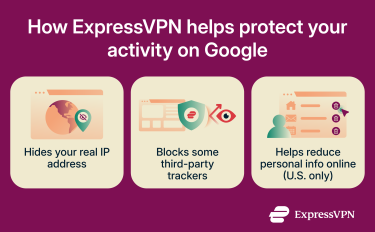
Your IP address can reveal information about your connection, including your approximate location. When you connect to ExpressVPN, Google sees the IP address of the ExpressVPN server carrying your traffic instead of your usual public IP address.
ExpressVPN lets you choose from VPN server locations in 113 countries. By default, ExpressVPN server IP addresses are shared, so the same VPN IP can be used by many ExpressVPN customers rather than being associated only with your connection.
Masking your IP makes it harder for Google to infer your location from your IP address alone, though it may still determine where you are through your device’s GPS and location services, nearby Wi-Fi or cellular networks, and location information associated with your Google account.
It helps limit third-party tracking
ExpressVPN’s Advanced Protection has a Domain Name System (DNS)-based blocker that stops apps and websites from connecting to known tracking domains on ExpressVPN’s open-source blocklists. The blocklists are updated regularly, and requests for blocked domains never leave your device. This can reduce connections to Google-operated tracking domains when they appear on those lists.
That said, ExpressVPN doesn’t stop Google from learning about your activity through other tracking methods. For example, a VPN can’t prevent tracking through cookies, advertising identifiers, a Google account you’re signed into, or browser fingerprinting.
It can help reduce personal information available online
Google Search can display personal information published on data broker and people-search sites, including details like your address and phone number.
ExpressVPN’s Data Removal service, included with Identity Defender on the Advanced and Express Pro plans in the U.S. only, can help reduce this exposure by finding your information on supported sites and submitting removal requests on your behalf. This doesn’t remove information directly from Google or guarantee that it will disappear from search results, but it can help reduce the information about you that’s available for Google to find and index.
You can also ask Google to remove eligible personal contact details from Search results. However, this removes links from Google Search rather than deleting your information from the source websites directly.
How to use ExpressVPN to help protect your privacy on Google
Here’s how to set up the relevant ExpressVPN features and use them to limit unnecessary data exposure. The steps below show the process on the Windows app, but it’s similar across operating systems.
Hide your IP and encrypt your data
-
Sign up for an ExpressVPN subscription, download and install the app on your device, then sign in. For detailed instructions for each operating system, see our full setup guides.
-
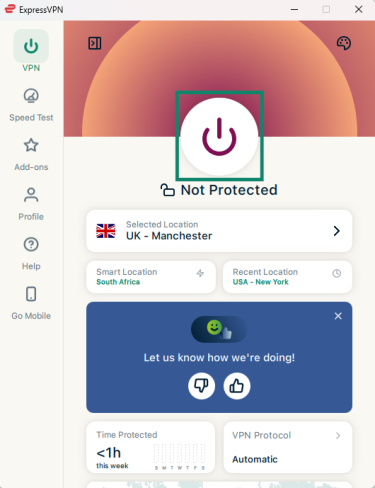
Open ExpressVPN and click the power button to connect to a server. By default, the app automatically chooses the optimal server location for you based on factors such as speed, latency, and distance.
![The ExpressVPN Windows app with the connect button highlighted]()
-
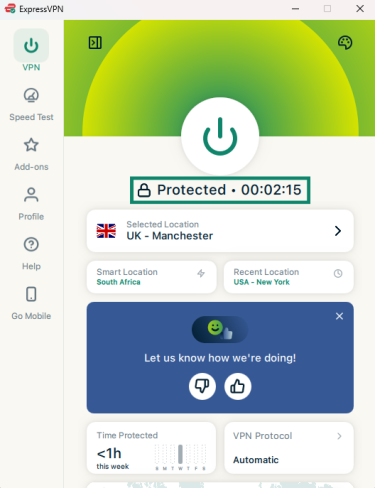
Once the VPN connects to the server, the status should change to Protected.
![The ExpressVPN Windows app showing the status as protected]()
-
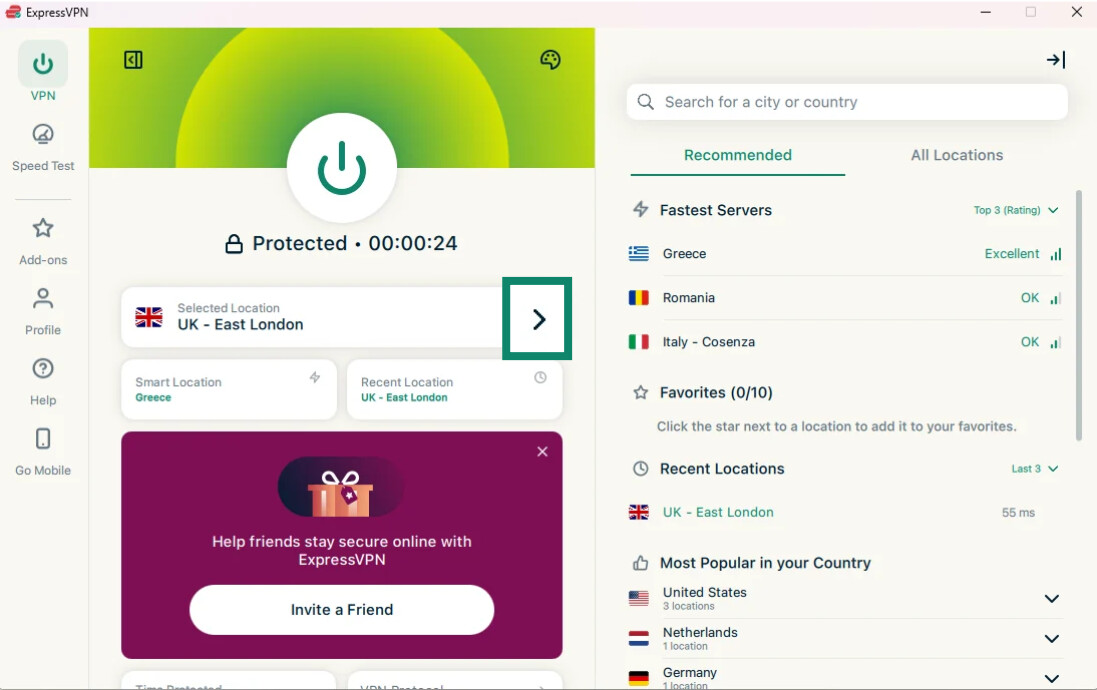
If you want to select a different server from the one the app automatically chooses, click the arrow next to Selected Location. This will bring up the full list of servers, and you can click any of them to connect. It’s best to choose one that’s close to your real location for fast speeds.
![ExpressVPN desktop app with Selected Location widget highlighted and server list displayed on the right.]()
-
To confirm that your IP has changed, you can open ExpressVPN’s What’s My IP Address tool. The IP address and approximate location shown should correspond to your VPN connection rather than your usual public IP.
![ExpressVPN IP address checker showing Protected status.]()
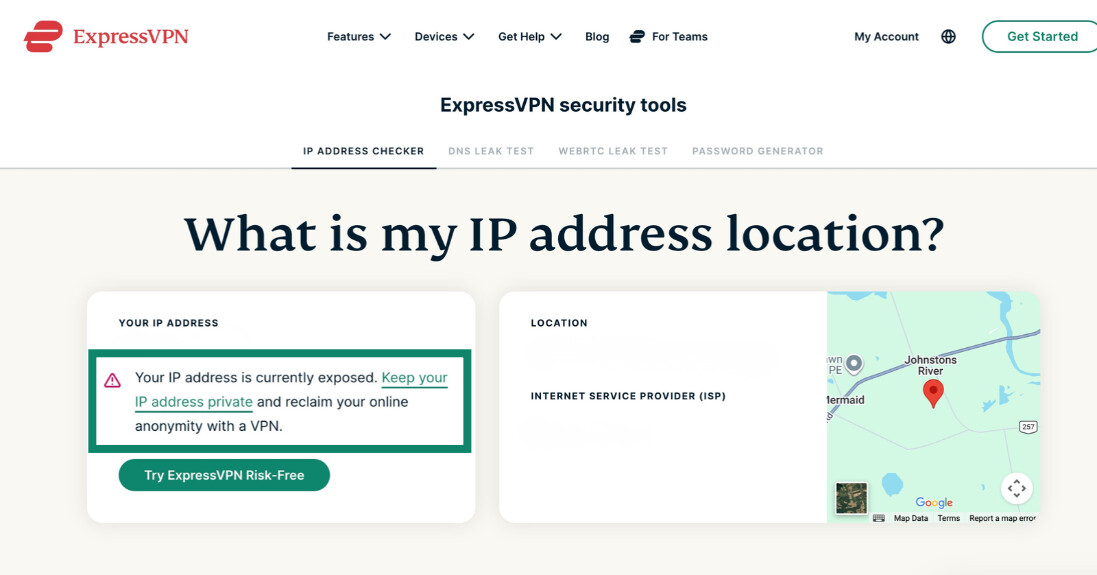
Websites you visit through the connection, including Google services, will now see the VPN server’s IP address instead of your usual public IP.
Block trackers with Advanced Protection or Web Protection
If you want to minimize unnecessary third-party tracking while using Google and other sites, enable tracker blocking in ExpressVPN’s Advanced Protection suite.
-
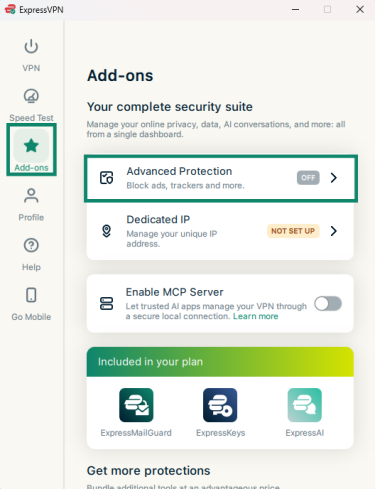
Open the ExpressVPN app and select Add-ons > Advanced Protection.
![The Add-ons page on the ExpressVPN Windows app]()
-
Toggle on Block trackers.
![The Advanced Protection screen on the ExpressVPN Windows app with "Block trackers" highlighted]()
-
Reconnect to ExpressVPN for the settings to take effect.
![The ExpressVPN Windows app with the connect button highlighted]()
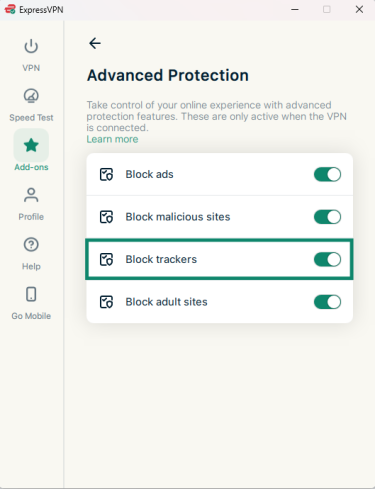
Once enabled, ExpressVPN blocks connections to known tracking domains on its blocklists, which may include Google-operated tracking domains.
Another way to block trackers is to install and log into the ExpressVPN browser extension (available for Chromium-based browsers and Firefox). Then, go to Menu (hamburger icon) > Web Protection and toggle on Threat Manager.
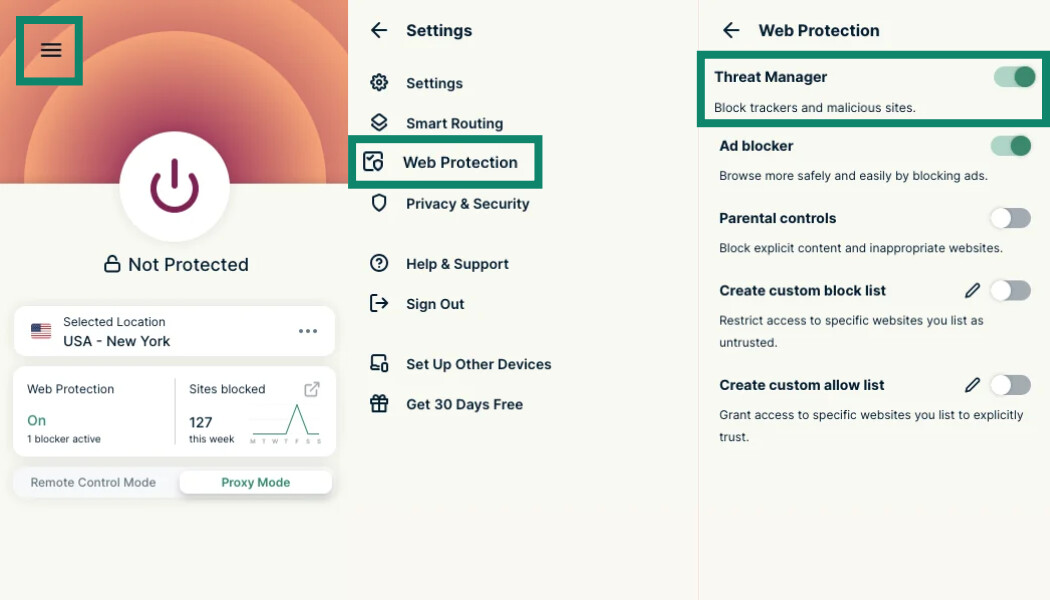
The browser extension is not a replacement for the app because, unlike the app, it only protects your browser traffic, but it may be more convenient for some people because Web Protection stays active even when the VPN itself is switched off.
Reduce personal info with Data Removal
If your details are listed on data brokers or people-search sites, they might also appear in Google Search results. ExpressVPN’s Data Removal, part of its Identity Defender suite for U.S. users, can help reduce that exposure. Note that you’ll need to download the Identity Defender app for Android or iOS; see our download and installation guide for full instructions.
To use Data Removal:
-
Open the Identity Defender app and select the Privacy tab. Alternatively, access Data Removal through the Identity Defender > Activity Hub section of your ExpressVPN+ dashboard.
![The Identity Defender app for Android with the Privacy tab highlighted]()
-
Enter the requested personal information and start the scan.
![An Identity Defender screen showing the personal information you need to provide to start using the service.]()
-
Review your results under Complete, In Progress, and Action Required. Data Removal automatically submits requests where possible and provides instructions when a site requires you to complete the removal yourself.
![An Identity Defender screens showing items that require action, those in progress, and items that have been removed.]()
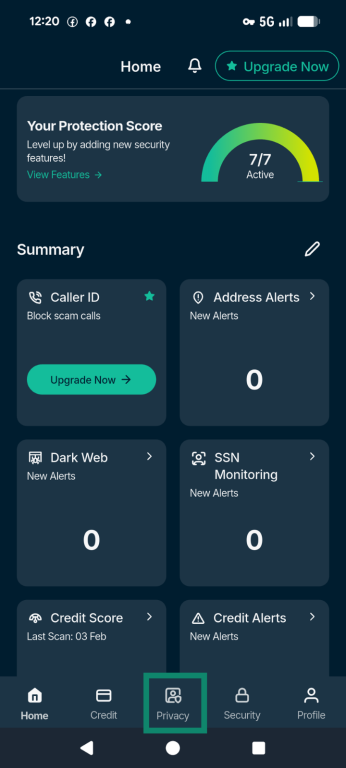
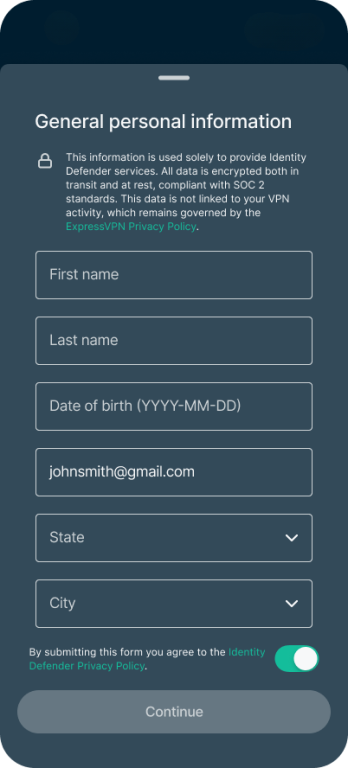
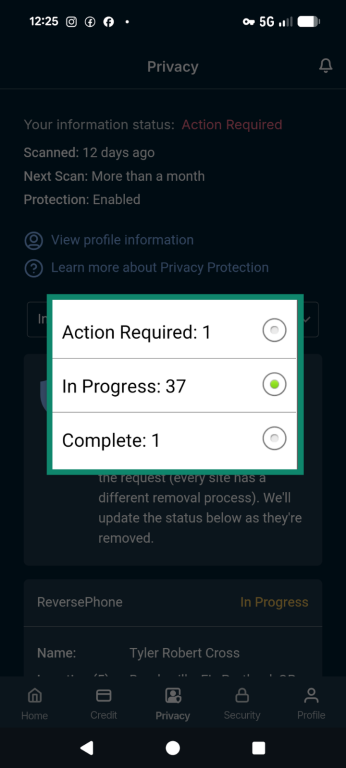
For more detailed instructions, see our guide: How to use Data Removal.
Want to share less of your data with Google?
ExpressVPN masks your public IP address and helps block connections to known tracking domains, reducing some of the information Google can collect about your online activity.
Limit tracking with ExpressVPN
Try ExpressVPN with a 30-day money-back guarantee for new users.
FAQ
Does ExpressVPN stop Google from tracking you?
ExpressVPN can reduce the information Google gets from your network connection, but it can’t prevent all tracking. If you use Google while signed in, for example, your activity can still be linked to your account. Cookies, device information, and other signals can also be used to recognize or track you.
Does ExpressVPN hide my searches from Google?
When you search on Google, your query has to reach Google for it to return results, so ExpressVPN can’t conceal the search itself from Google. What ExpressVPN does is hide your public IP address. If you’re signed in, your searches may also be associated with your Google Account.
Does ExpressVPN protect my Google account?
ExpressVPN protects your network connection, not your Google account itself. To secure your account, use Google’s account security controls and enable a strong sign-in method, such as a unique password with two-factor authentication (2FA) or a passkey. You can use ExpressKeys to generate and store a unique password for your Google Account and generate 2FA codes. ExpressKeys also supports creating and managing passkeys for compatible websites and apps, including Google.