What is a password manager, and why should you use one?


A password manager is an app that stores your usernames and passwords in an encrypted vault and fills them in when you sign in. You unlock the vault with one password, so you only need to remember one.
Reusing passwords is risky because if one service is breached, attackers can try the same login on your other accounts. A password manager creates a strong, unique password for each one, so a breach at one service doesn’t expose the rest.
ExpressVPN has its own password manager, ExpressKeys. It’s included with ExpressVPN’s Advanced and Express Pro plans or available as a separate add-on through the ExpressKeys mobile apps.
Password manager basics
What is a vault password?
Password managers are usually locked with one password, often called a master password. It unlocks the vault and decrypts the information stored in it, so it needs to be hard to guess and easy for you to remember.
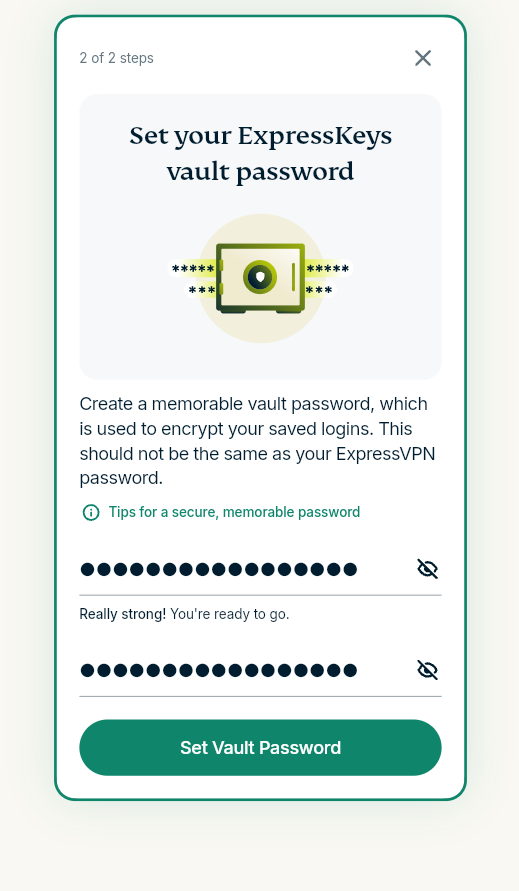
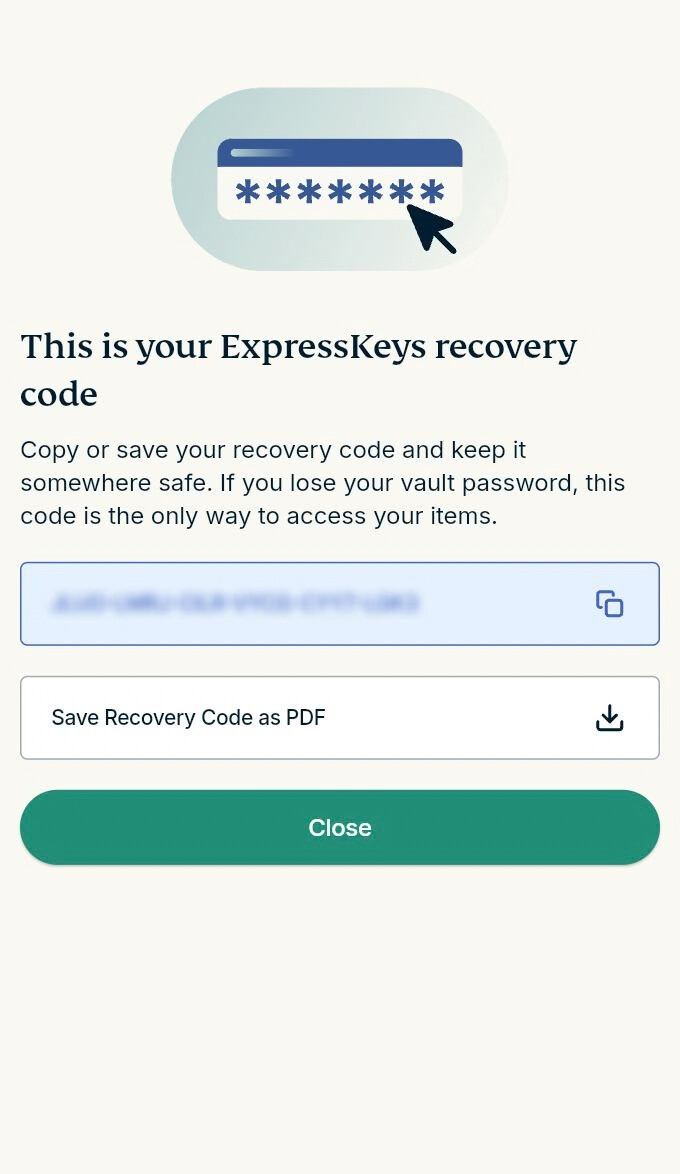
In ExpressKeys, this is called the vault password. You create it when you set up ExpressKeys, and the app then shows you a recovery code. Keep the code somewhere safe outside your vault, because you’ll need it to reset your vault password if you forget it.
When creating your vault password, focus on length. The National Institute of Standards and Technology (NIST) treats length as a primary factor in password strength and notes that a passphrase made of several words is often an effective way to create a longer password. Choose a vault password you don’t use for any other account, including your ExpressVPN app. Avoid common dictionary words, place names, family members’ names, birthdays and anniversaries, keyboard sequences such as "qwerty," and predictable swaps such as "P455w0rd."
How is a password manager different from a browser's saved passwords?
Browsers such as Chrome and Firefox have built-in password managers that save, generate, and autofill passwords, sync them across devices, and warn you about passwords exposed in data breaches.
A dedicated password manager isn’t tied to one browser. ExpressKeys has apps for iOS, Android, and macOS, plus browser extensions for Chrome, Edge, Brave, and Firefox, and the same vault syncs across all of them. That helps if you use different browsers on different devices or switch between browsers on the same computer.
How a password manager works
A password manager combines several tools to help you manage your logins.
Secure storing
An ExpressKeys vault can hold an unlimited number of logins, passkeys, payment cards, and secure notes, which are encrypted text entries for things like PINs and recovery codes. On iOS, you can also add a card by scanning it with your phone’s camera.
Plus, it’s possible to attach files of any type to a vault item, such as a scanned document, a photo, or a video. Files are encrypted on your device before they’re uploaded, and you can preview text, PDF, image, and video files directly in ExpressKeys. You get 5GB of total file storage with an Advanced plan or a standalone ExpressKeys subscription and 10GB with Express Pro, with no size limit for individual files.
If you delete an item by mistake, it stays in Recently Deleted for 30 days, so you can restore it.
Saving and filling in logins
Once a login is saved in your vault, ExpressKeys can fill it in for you when you sign in. In the browser extension, autofill is on by default: on a login page, click the ExpressKeys logo in the username or password field and choose the login you want.
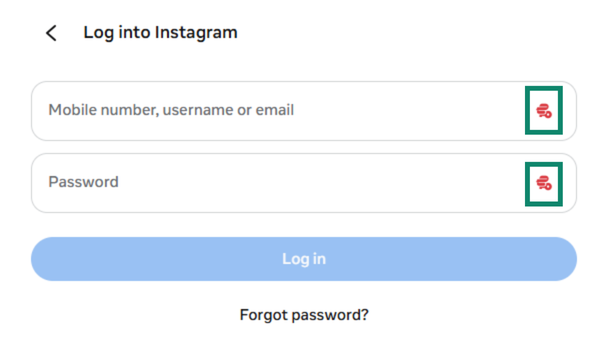
On Android and iOS, you first need to turn on autofill from the ExpressKeys app’s settings. After that, tap the username or password field and select your saved login. The macOS app doesn’t fill in logins yet, so on a Mac, autofill works through the browser extension. ExpressKeys can also fill in payment card details in the Android app and the browser extension.
Our password manager fills in a login only when the website’s domain matches the one saved in your vault. This can help you avoid accidentally entering your password on a fake site built to look like a real one. For example, a fake banking site might use an uppercase "I" in place of a lowercase "l," or a Cyrillic letter that looks identical to a Latin one. The address may look right at a glance, but it’s a different domain, so ExpressKeys won’t offer the login saved for the real site.
Domain matching doesn’t detect or block phishing sites, though. If ExpressKeys doesn’t offer a login on a site where you’d expect it to, check the address before typing anything in.
Creating strong passwords
ExpressKeys has a built-in password generator that creates random passwords. You can use it when signing up for a new account, through the browser extension or the mobile apps with autofill on, or when you add or edit a login in your vault. You can also set the password’s length and choose whether it includes capitals, numbers, and symbols.
Keep in mind that changing a password in ExpressKeys doesn’t change it on the website. To replace an old password, update it in the account’s settings as well, then save the new one in your vault.
Signing in with 2FA codes and passkeys
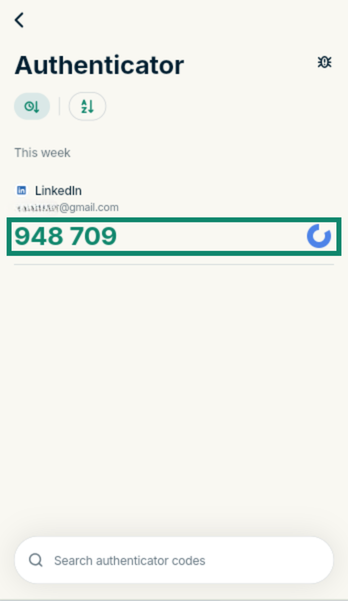
ExpressKeys has a built-in authenticator for accounts that support two-factor authentication (2FA). After you turn on 2FA in an account’s security settings, you add the setup key to the matching login in ExpressKeys or scan the QR code on mobile. ExpressKeys then generates time-based one-time passwords (TOTPs) that change every 30 seconds. With autofill on, it offers to fill in the code along with your username and password, and you can also copy the code from the app or extension.
When an account offers both options, codes from an authenticator are safer than codes sent by text message. NIST lists text-message and voice-call codes as a "restricted" authenticator, a less secure category, and advises services to watch for warning signs such as a recent SIM change or a transferred phone number. Neither type of code is fully phishing-resistant, though: a fake site can still ask for the code and pass it on to the real one.
ExpressKeys can also create, store, and use passkeys for apps and websites that support them. A passkey lets you sign in without a password; instead, you confirm it’s you with your device’s authentication, such as a fingerprint, face scan, or PIN.
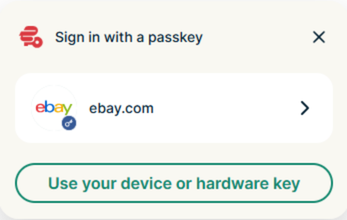
Passkeys can also help protect against phishing, since they only work on the website they were created for.
Creating a passkey requires autofill to be turned on. In the macOS app, you can store and view saved passkeys, but you can’t create passkeys or sign in with them directly in the app yet.
Syncing across devices
ExpressKeys syncs your vault across an unlimited number of devices, so a login, card, or file you add or update on one device is available on the others. To use your vault on another device, install the ExpressKeys app or browser extension there and sign in with the same ExpressVPN account.
Sharing logins with other people
If someone else needs access to one of your accounts, you can share the item through a secure link instead of pasting the details into an email or chat. It’s possible to share logins, payment cards, secure notes, and file attachments and choose which attached files to include.
Before sharing, you choose how long the link stays active (from 1 hour to 30 days) and whether it’s available to anyone with the link or only to people you invite by email. By default, a shared item can be viewed only once.
The recipient doesn’t need ExpressKeys or an ExpressVPN subscription, but they must verify their email address with a code before the item opens. Once the link expires or the view limit is reached, it stops working. You can also revoke access before then.
Are password managers safe?
Password managers are generally safe when the vault password is strong, because the information in the vault is encrypted on the user’s device.
The most common concern about password managers is that they keep every login in one place. If someone managed to unlock the vault, for example, by stealing the vault password and getting past 2FA, or by guessing a weak vault password from stolen vault data, they could reach every account stored in it. That makes the vault a single point of failure.
That’s why the protection around the vault matters more than anything else in a password manager: how the vault is encrypted, how strong the vault password is, and what it takes to sign in from a new device.
How ExpressKeys protects your vault
ExpressKeys uses zero-knowledge encryption. Your vault is encrypted and decrypted on your device, the encryption keys are created there, and your vault password never leaves it. As a result, ExpressVPN can’t see the passwords, cards, notes, or files in your vault, because it never has the password needed to unlock them.
The vault is encrypted with Advanced Encryption Standard (AES)-256. It’s the encryption standard published by NIST, and the "256" means it uses the longest key length the standard defines: 256 bits. The keys that encrypt your vault are in turn protected by a key derived from your vault password.
This setup limits the damage if the servers that store vault data were ever breached. Attackers would get encrypted data, not readable passwords, and to decrypt it, they would have to guess your vault password offline. That’s why the length of your vault password matters so much. Getting into your vault from another device also takes more than the vault password. Signing into ExpressKeys on a new device requires 2FA.
ExpressKeys’s core password-management code is written in Rust, a memory-safe programming language. That matters because memory-safety bugs, such as buffer overflows, are among the most common causes of software vulnerabilities, and memory-safe languages are built to prevent them.
What a password manager can’t protect against
A password manager doesn’t remove every risk. If malware is already on a device, it may be able to record the user’s keystrokes, including the vault password as it’s typed. Rooting or jailbreaking a device can also make data stored in a password manager easier to reach.
ExpressKeys supports biometric unlock, so you can use your fingerprint or face instead of typing your vault password every time you open the vault. That gives a keylogger, or someone watching over your shoulder, fewer chances to capture it.
Signing into ExpressKeys on a new device requires a one-time code sent to the email address on the ExpressVPN account, so anyone who controls that inbox and knows the vault password could get in. Protecting that email account with a strong, unique password and its own 2FA closes that gap.
A password manager also can’t protect a vault that’s left open: anyone using the device while the vault is unlocked can see what’s in it.
How ExpressKeys finds weak, reused, and exposed passwords
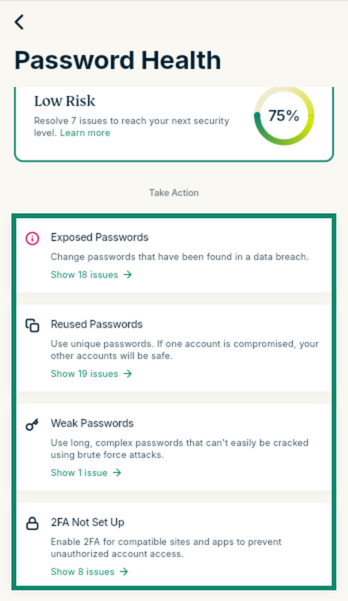
ExpressKeys’s Password Health checks your saved logins and gives you a security score based on several factors, including weak, reused, or exposed passwords, insecure http:// URLs, and accounts that support 2FA but don’t have it turned on. The checks run on your device, and your passwords don’t leave it.
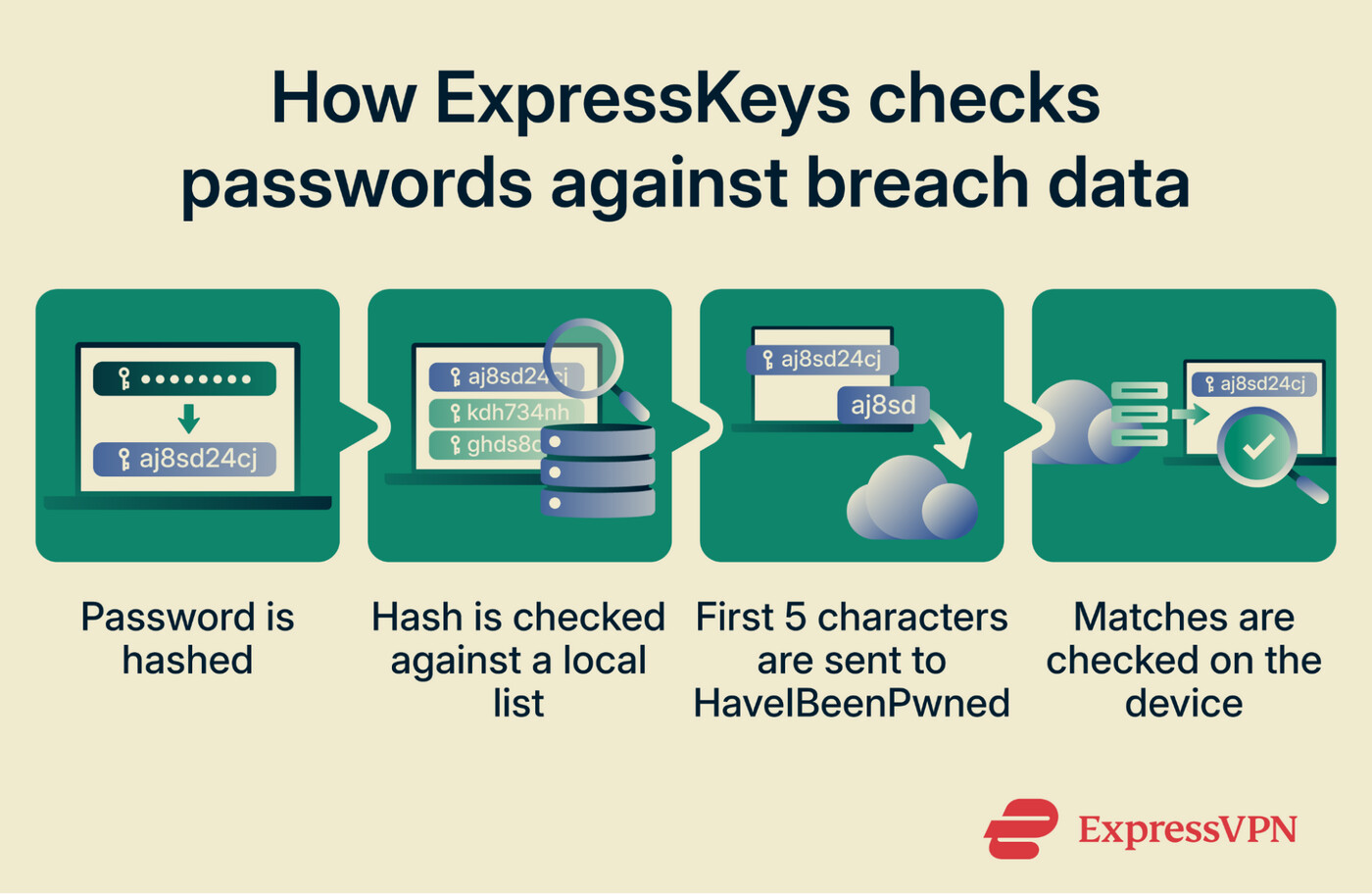
How ExpressKeys checks for exposed passwords
ExpressKeys checks your passwords against breach data collected by HaveIBeenPwned. Here’s how it works:
-
ExpressKeys turns each password into a hash: a 40-character string that represents the password without revealing it.
-
It compares each hash with a list of the most commonly leaked passwords, stored in the ExpressKeys app on your device.
-
For any hash that isn’t on that list, ExpressKeys sends only the first five characters to its servers, which pass the request on to HaveIBeenPwned.
-
HaveIBeenPwned sends back the hashes of exposed passwords that start with those same five characters, and ExpressKeys compares them with your full hash on your device.
Because the request goes through ExpressKeys’s servers, HaveIBeenPwned never sees your IP address. You can read more in our Support guide.
How ExpressKeys finds reused and weak passwords
ExpressKeys also checks for reused passwords without decrypting them unless it has to. When you save or update a password, it stores the first five characters of its hash. If two logins share the same five characters, ExpressKeys decrypts those passwords to confirm whether they’re actually the same.
To measure strength, ExpressKeys uses zxcvbn, an open-source library that estimates how well a password would hold up against guessing and brute-force attacks. It scores each password when you save or update it, and the result feeds into your security score, so you can see which passwords are worth replacing.
How to set up ExpressKeys
Before you start, you’ll need either an ExpressVPN Advanced or Express Pro plan, which includes ExpressKeys, or a standalone ExpressKeys subscription. You can buy a standalone subscription in the ExpressKeys app for Android, iOS, or macOS, with monthly and yearly plans, and new users get a free trial.
ExpressKeys runs on iOS 18 or later, Android 13 or later, and macOS 14 or later, and in Chrome, Edge, Brave, and Firefox through the browser extension.
To set up ExpressKeys:
-
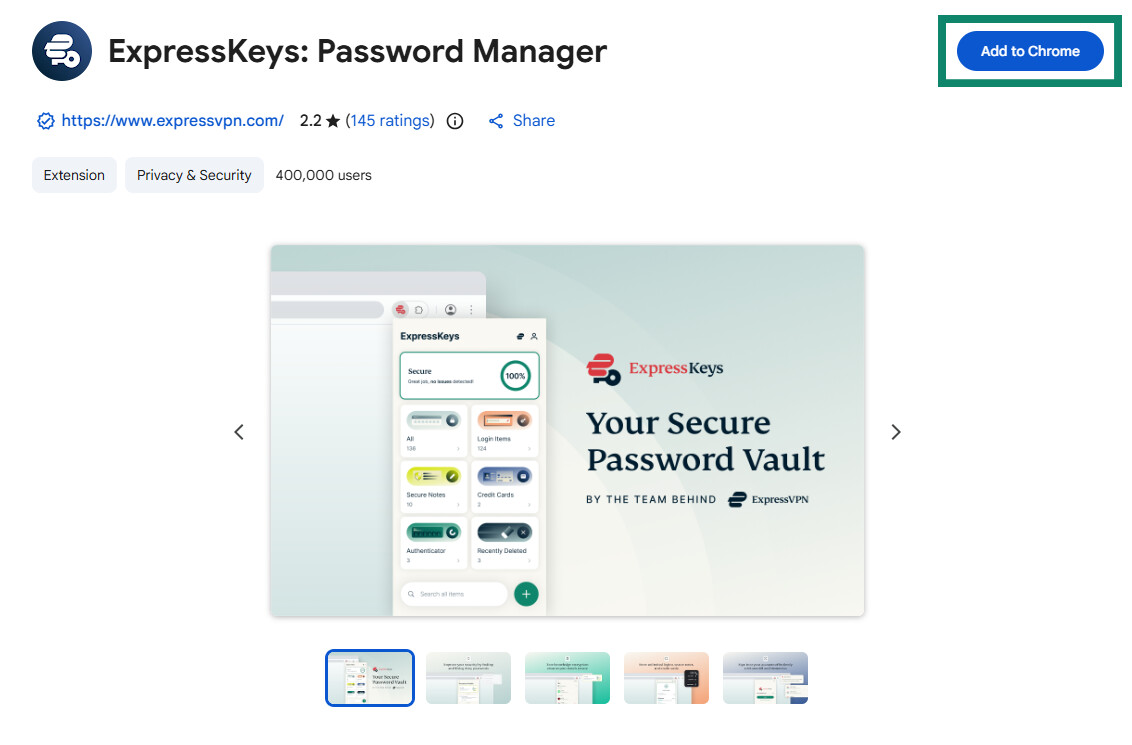
Install the ExpressKeys app for Android, iOS, and/or macOS, or add the ExpressKeys extension to your browser. The instructions below are based on the ExpressKeys browser extension for Chrome.
![The ExpressKeys page on Chrome Store showing the "Add to Chrome" button]()
-
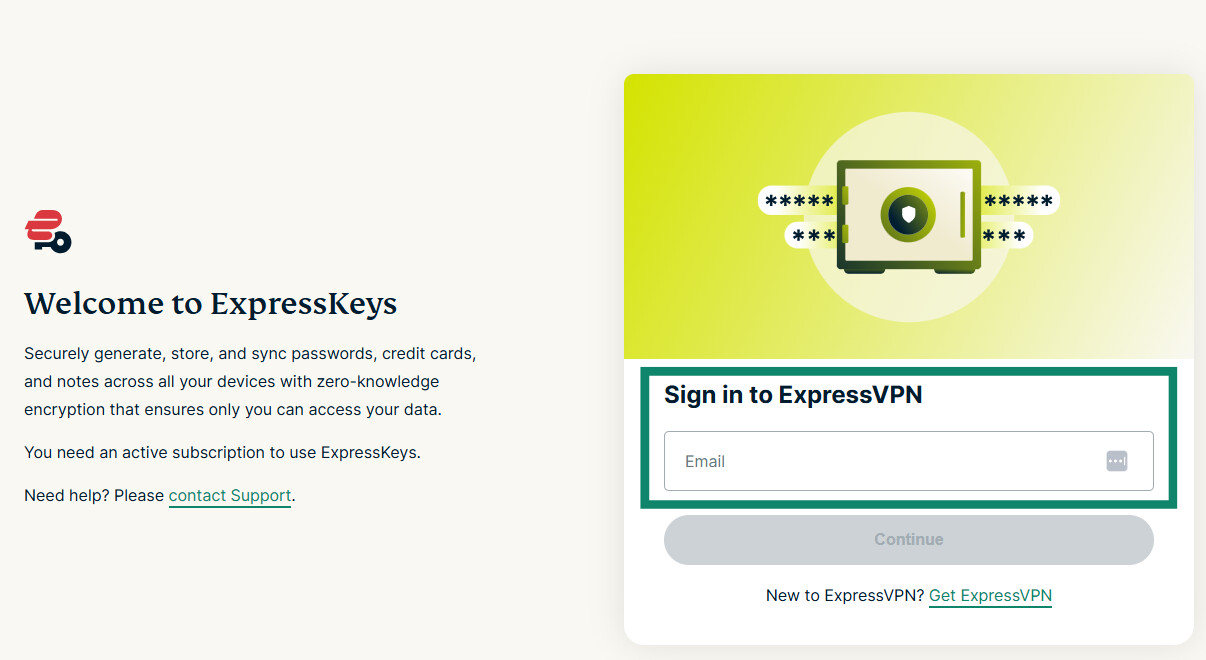
Open ExpressKeys and sign in. Enter the email address linked to your ExpressVPN account, then enter the verification code sent to it.
![The ExpressKeys sign-in page after installing the Chrome extension]()
-
Create your vault password and confirm it.
![The ExpressKeys Chrome extension showing the vault password setup screen]()
-
Save your recovery code. ExpressKeys shows it right after you set your vault password. Store it somewhere safe outside your vault, since you’ll need it to reset your vault password if you forget it.
![The ExpressKeys Chrome extension showing the recovery code screen]()
-
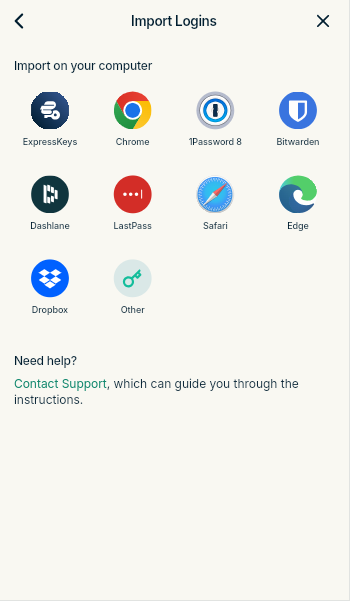
Import your existing logins from your browser or another password manager.
![The ExpressKeys Chrome extension showing the "Import Logins" screen]()
Once your logins are imported, open Password Health from the widget at the top of the home screen. Your security score shows which saved logins to fix first.
One password to remember. Every account protected.
ExpressKeys creates strong, unique passwords and stores them in an encrypted vault, so you can securely manage all your logins in one place.
Keep your passwords safe with ExpressKeys
Try ExpressVPN with a 30-day money-back guarantee for new users.