Does a VPN make you anonymous to Google?


You connect to a VPN, search Google, and still see ads for something you looked up last week. A VPN like ExpressVPN protects your privacy, but it doesn't make you anonymous to Google. Privacy means limiting who can see what you do online. Anonymity means keeping your identity completely unknown.
A VPN can hide your browsing from your internet service provider (ISP) and mask the location your IP address reveals during searches. However, Google can still identify your account when you’re signed in and recognize your browser through cookies when you’re signed out.
What does ExpressVPN hide from Google?
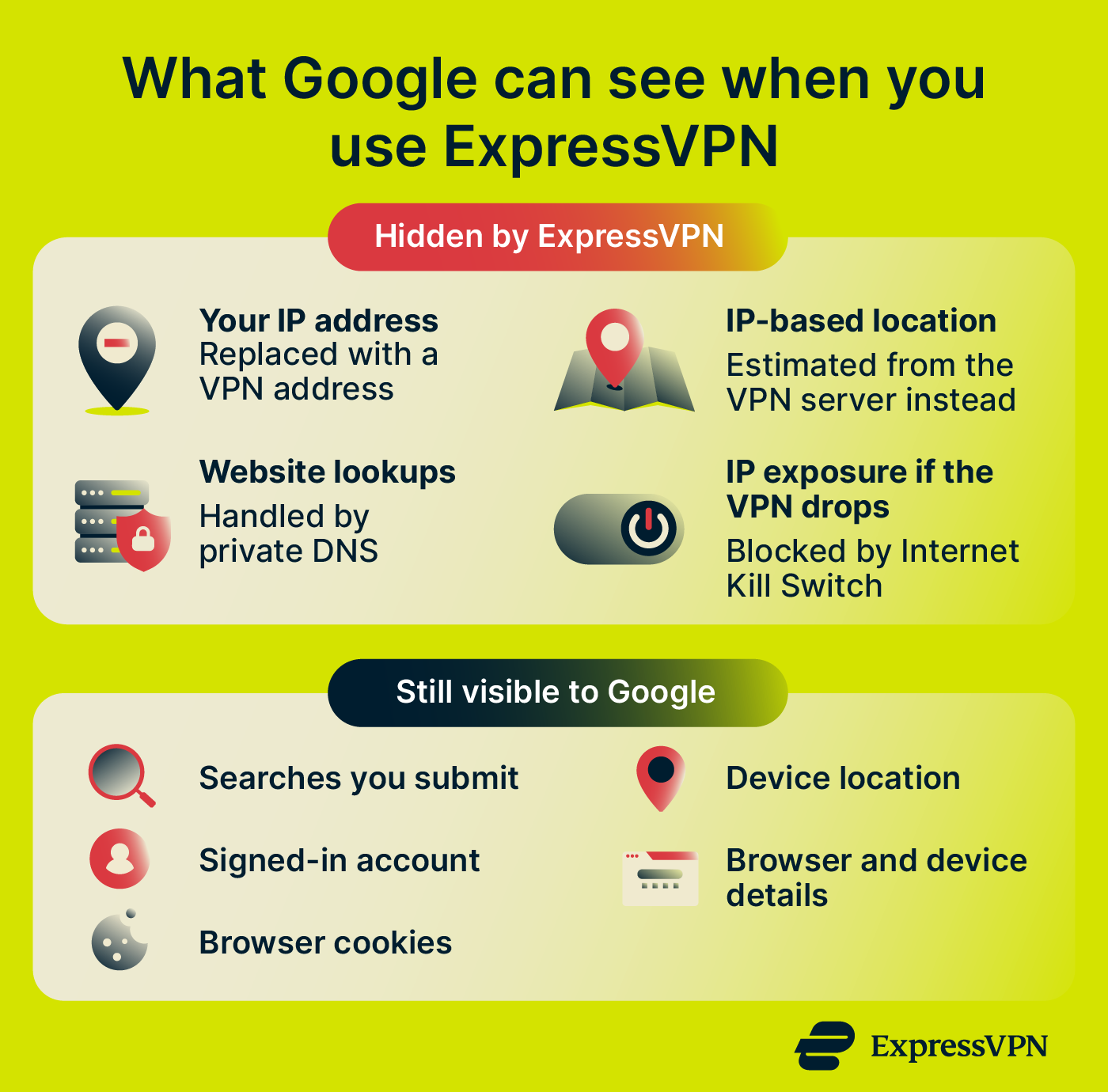
ExpressVPN hides three things from Google: your IP address, the location it reveals, and website lookups that would otherwise go to Google Public DNS.
Hides your IP address and its associated location
Google can see your IP address whenever you connect to its services. ExpressVPN replaces your IP address with a VPN server’s address, keeping your original IP private.
Google can use an IP address to estimate your location. With ExpressVPN connected, that estimate generally reflects the VPN server’s location rather than yours. It also means your original IP address isn't available as one of the identifiers Google can use to link your activity.
Prevents accidental IP exposure if the VPN drops
If a VPN disconnects unexpectedly, your browser could continue sending requests to Google through your regular internet connection. That would reveal your original IP address.
ExpressVPN’s Internet Kill Switch blocks internet traffic during an unexpected VPN interruption, preventing that exposure while the VPN reconnects. This keeps a connection drop from undoing the IP protection you were using. The Internet Kill Switch is turned on by default.
Keeps website lookups away from Google Public DNS
Google Search isn't the only Google service that can see where you go online. Google Public DNS is a Domain Name System (DNS) service, which works like the internet's address book: when you visit a site such as example.com, it finds the IP address your browser needs to load it. Your router, ISP, or device may be set to use it without you knowing. These lookups don't include your Google searches, but they can reveal which websites you visit.
ExpressVPN routes DNS requests through our private DNS instead. If Google Public DNS would otherwise handle them, this prevents it from receiving website lookups.
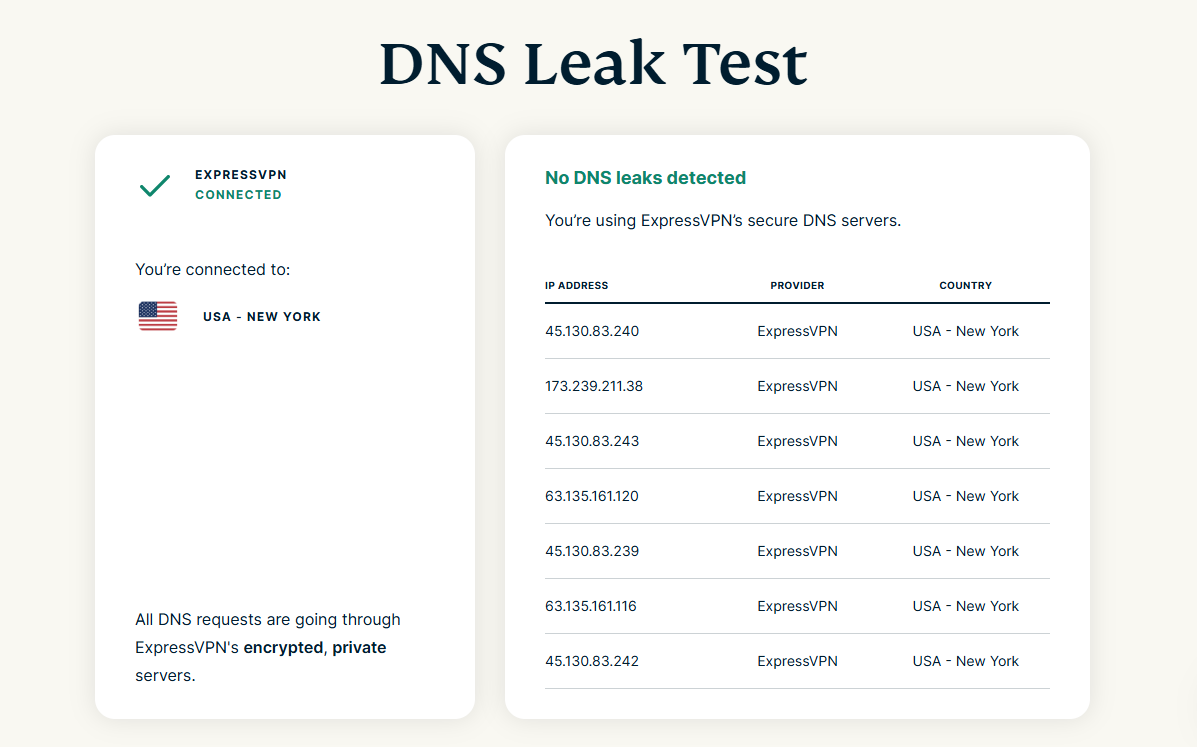
Your browser or device settings can override the VPN’s DNS choice. If your browser’s secure DNS setting still uses Google, it may continue sending lookups there. Use our DNS leak test to check. When we ran it with ExpressVPN connected, it showed only ExpressVPN's DNS servers, with no requests going to Google Public DNS. Our browser DNS instructions explain how to let ExpressVPN handle those requests.
Can Google still track you with ExpressVPN on?
Google receives the searches you submit, even with ExpressVPN connected. ExpressVPN encrypts traffic between your device and our VPN server, but from there your search travels to Google over an HTTPS connection that Google decrypts, like any other request it receives. Whether Google recognizes your account or your browser depends on whether you’re signed in and which cookies or other identifiers are available.
Google's privacy policy lists what it collects when you use its services, including your searches, IP address, cookie identifiers, and browser and device details.
| Information | Without a VPN | With ExpressVPN |
|---|---|---|
| IP address | Your real IP address | The VPN server's IP address |
| IP-based location | Your approximate location | The VPN server's location |
| Website lookups | Visible, if you use Google Public DNS | Handled by ExpressVPN's private DNS |
| Searches you submit | Visible | Visible |
| Signed-in account | Visible | Visible |
| Browser cookies | Visible | Visible |
| Device location | Visible | Visible |
| Browser and device details | Visible | Visible |
When you’re signed in
Google doesn’t need your original IP address to recognize an account. When you sign in, your browser stores cookies that identify your account, regardless of where you’re signing in from. That account already contains the email address and the name you provided. It may also contain a phone number, saved addresses, and previous activity.
Your browser sends Google’s account cookies with every search, which lets Google associate your activity with your account. Connecting to a VPN doesn't sign you out or remove those cookies, so this still happens with ExpressVPN connected. For example, Google might log that you’ve searched for running shoes and, depending on your settings, use your activity to personalize results, recommendations, and ads.
Google’s Search Services History setting controls whether activity from services such as Search, Maps, and Shopping is saved as history in your account while you’re signed in. Turning it off stops Google from saving new activity to your account history. You stay signed in, so your browser still sends the cookies that identify your account each time you search.
When you’re signed out
If you sign out in a browser you already use, cookies that identify your browser may remain. Google could then connect today’s search for running shoes with yesterday’s search for fitness watches even if you’re not logged into your account. A VPN doesn’t clear those cookies.
If you connect to ExpressVPN, use a fresh browser or browser profile, and stay signed out of your Google account, your searches won’t carry the Google login or existing cookies from your usual browser. Your IP address is also hidden, masking the approximate location your IP address reveals.
Google still receives your searches and can set new cookies, depending on your browser settings and consent choices. Those cookies can let it connect subsequent searches to the same browser. That doesn’t, by itself, reveal your name or link those searches to your Google account.
Even with a fresh browser profile, Google can still collect information such as your browser type and device settings. When several details like these are combined to recognize a browser across visits, it’s called browser fingerprinting. Clearing cookies doesn’t change those details.
Sites using Google services such as Google Analytics and Google Ads may also share which pages you visit or ads you click. Hiding your IP address doesn’t stop that sharing, though whether Google can link it to your account depends on the identifiers available and your privacy settings.
How Google can still know your location when you’re using a VPN
Google can still estimate your location using your device’s location settings, past searches, and addresses saved in your Google Account, even when a VPN hides your IP address. When Google relies on IP-based location, its results generally reflect your VPN server’s location.
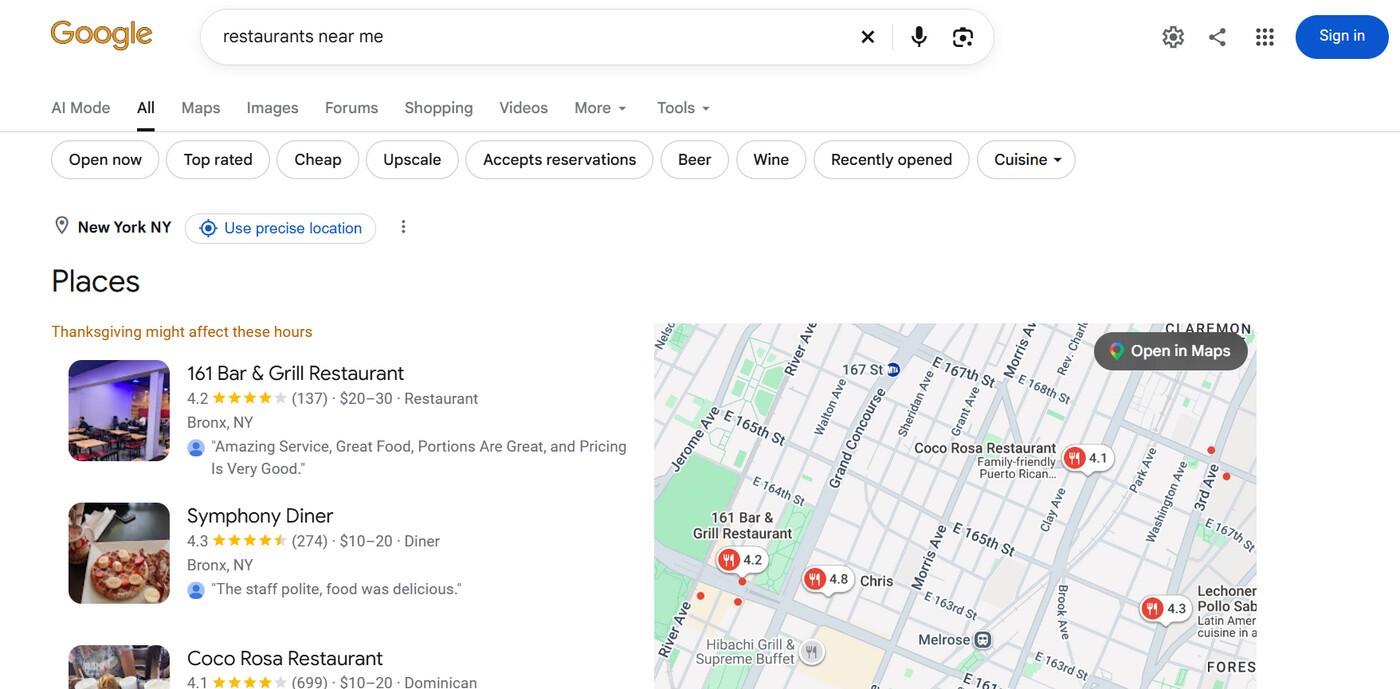
In our test, we searched "restaurants near me" in a signed-out Incognito window from Belgrade, Serbia, first without a VPN and then with ExpressVPN connected to a server in New York. Without a VPN, Google showed restaurants in Belgrade. With the VPN on, it showed restaurants in New York.
However, Google also uses other signals to estimate where you are, including:
- Device location: If you give a Google app or website location permission, your device can share information based on GPS, Wi-Fi, and mobile network signals.
- Previous searches: Locations associated with earlier searches can influence local results. Google can retain some of this location information via cookies even when you’re signed out.
- Saved addresses: Home and work addresses in your Google account can help Google choose relevant results, although they don’t necessarily confirm where you are right now.
A VPN doesn’t change your phone’s GPS location or remove information you’ve given Google. Google may show restaurants near your actual location rather than the VPN server’s location. Those results don’t mean ExpressVPN has exposed your original IP address.

If you want to see search results for a particular country, follow our guide to changing Google’s results region.
How to limit Google tracking while using a VPN
Pair ExpressVPN with these steps to reduce the information Google receives and limit how it connects your activity across visits:
- Connect to ExpressVPN before you open Google: Keep Internet Kill Switch on so your original IP address stays hidden even if the connection drops.
- Search with private browsing: Open a private window, such as Chrome’s Incognito mode, and don’t sign into Google there. This keeps your searches separate from your regular browser’s signed-in session. Close all private windows afterward to clear that session’s cookies.
- Use tracking protection: ExpressVPN’s Advanced Protection feature blocks known trackers on websites you visit.
- Clear old cookies: Remove Google’s cookies through your browser’s privacy settings to delete the stored labels it can use to recognize your browser on later visits. This only removes cookies; it doesn’t erase past activity, and new cookies can be created when you return.
- Use a separate account with less personal information: If you need to sign in, create an account using a nickname rather than your real name, and avoid adding optional personal details.
- Review and delete saved activity: Visit Google’s My Google Activity page to delete saved history, stop saving new activity, or use "Auto-delete" to choose how long activity is kept. (Stopping new activity from being saved doesn’t erase existing history.)
- Limit location sharing: Review location permissions for Google apps, your browser, and google.com. Turn off access where you don’t need it to limit location sharing from your device. You can also remove saved home and work addresses so Google no longer uses them to personalize results.
- Use a different search engine for sensitive searches: If you don't want Google to receive a search at all, a VPN can't prevent that. Use a search engine that doesn't build user profiles.
Improve your privacy while using Google
ExpressVPN hides your IP address and IP-based location from Google and blocks traffic if the VPN drops.
Try it with our 30-day money-back guarantee for new users.