VPN speed test: How to test your VPN speed accurately



To test your VPN speed accurately, first measure your normal internet connection with ExpressVPN disconnected to establish a baseline. Then test your connection with ExpressVPN activated to see how it performs through the VPN.
Keep in mind that the ExpressVPN server location, the VPN protocol you’re using, your device, Wi-Fi conditions, and baseline internet connection can all affect the speeds you see.
How to test your ExpressVPN connection speed
First, pause anything that could use a lot of bandwidth, such as large downloads, cloud backups, software updates, or streaming. If possible, connect your device using an Ethernet cable for a more stable connection.

Note: Keep the test conditions as similar as possible when comparing your regular connection with when you’re using ExpressVPN.
Find your baseline internet speed
Use an external speed test to measure your connection with ExpressVPN disconnected. For this test, we used speedtest.net. Other popular options include fast.com (by Netflix) and Cloudflare’s Speed Test.
- Go to an internet speed test site: Make sure ExpressVPN is disconnected, then navigate to speedtest.net or your chosen speed test tool.
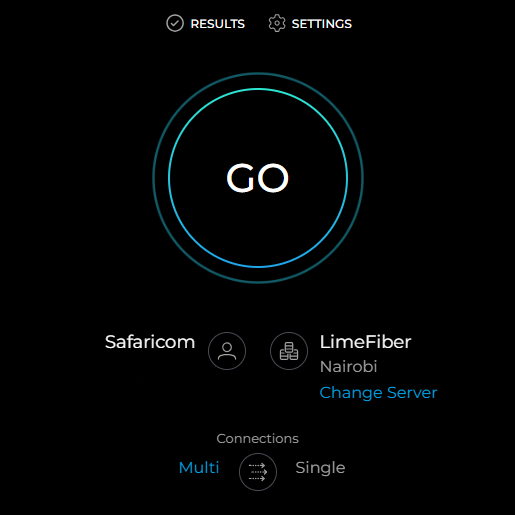
- Test your regular internet speed: Click the Go or Start button on the testing site. Wait for the test to complete.
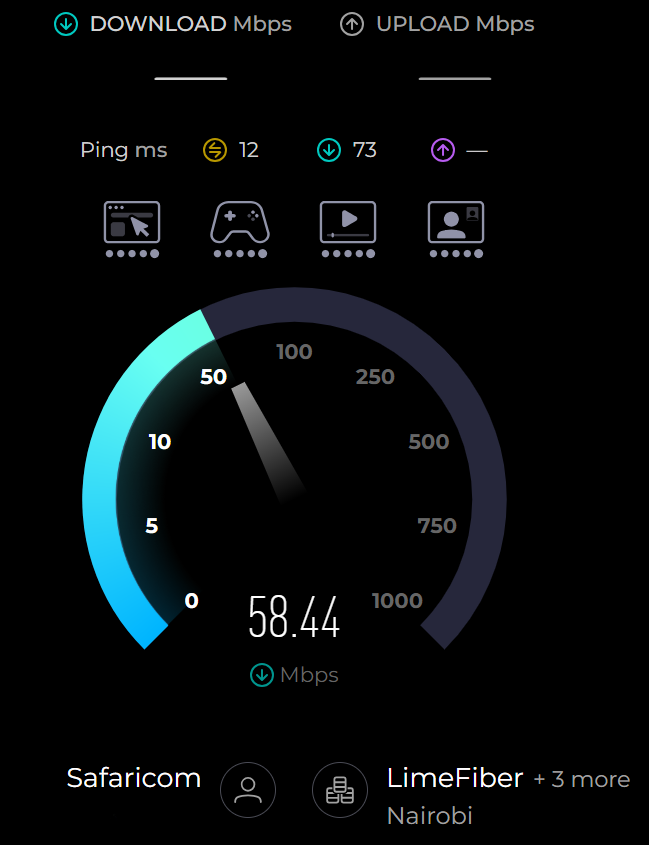
- Record your results: Note the three key metrics: download (Mbps), upload (Mbps), and ping (ms).
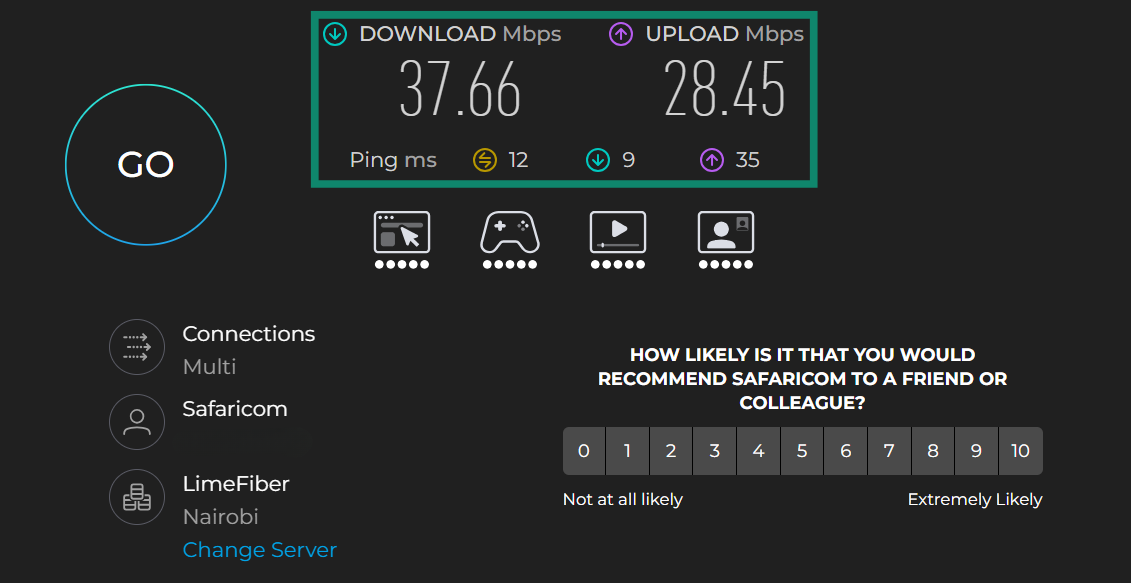
- Connect to ExpressVPN: Choose the VPN server location you want to test, then continue with the in-app speed test instructions below.
Use ExpressVPN’s built-in speed test
ExpressVPN’s in-app speed test measures and reports download speed, upload speed, latency, jitter, and packet loss while connected to a VPN server. It’s available on Android, iOS, Windows, macOS, Linux, and Apple TV.
We recommend using the in-app test for your VPN measurement because it reduces browser-related variables, such as extensions or background tabs, that might affect the results.
Open the ExpressVPN app, select Speed Test, then tap the Play button. The test takes a few minutes and displays your results when it’s finished.
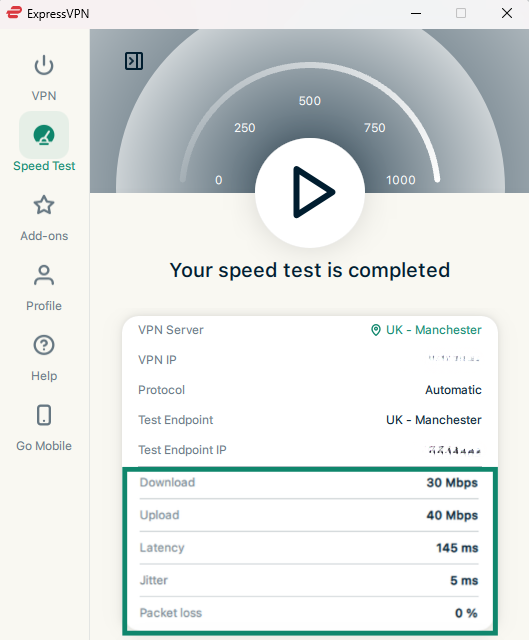
Compare the overall results with your baseline, keeping in mind that different speed tests may use different testing methods and servers, which may affect the outcome.
For the most accurate comparison, you can run several tests under similar conditions and look for consistent patterns. For example, you might see similar download speeds across several tests or a repeated change in latency or upload speed.
For more detailed instructions and explanations of each metric, see our guide to the in-app speed test.
Why your VPN speed test results can vary
Your ExpressVPN speed test results can vary due to several reasons:
- Baseline internet performance: Your VPN connection depends on your underlying internet connection. Internet service provider (ISP) network congestion, network maintenance, ISP throttling, and other temporary issues with your internet service can cause your baseline connection speeds to fluctuate, which can also affect your VPN speed test results.
- VPN server distance: Data generally takes longer to travel to and from a VPN server if it’s located further away from you, which can increase latency and affect speeds. For better speeds, connect to a VPN server close to your location. ExpressVPN has servers across 113 countries, giving you plenty of options nearby.
- VPN protocol: VPN protocols can vary in how they establish connections, encrypt and transmit data, and respond to changing network conditions. These differences can affect speed and latency, so switching protocols may produce different speed test results. We recommend using Lightway, our proprietary protocol that’s designed for high-speed performance.
- Server load and congestion: A VPN server can slow down if too many people are using it at once. While ExpressVPN’s servers are built to handle demanding traffic, if you suspect server congestion is affecting your speed, try another nearby location and compare the results.
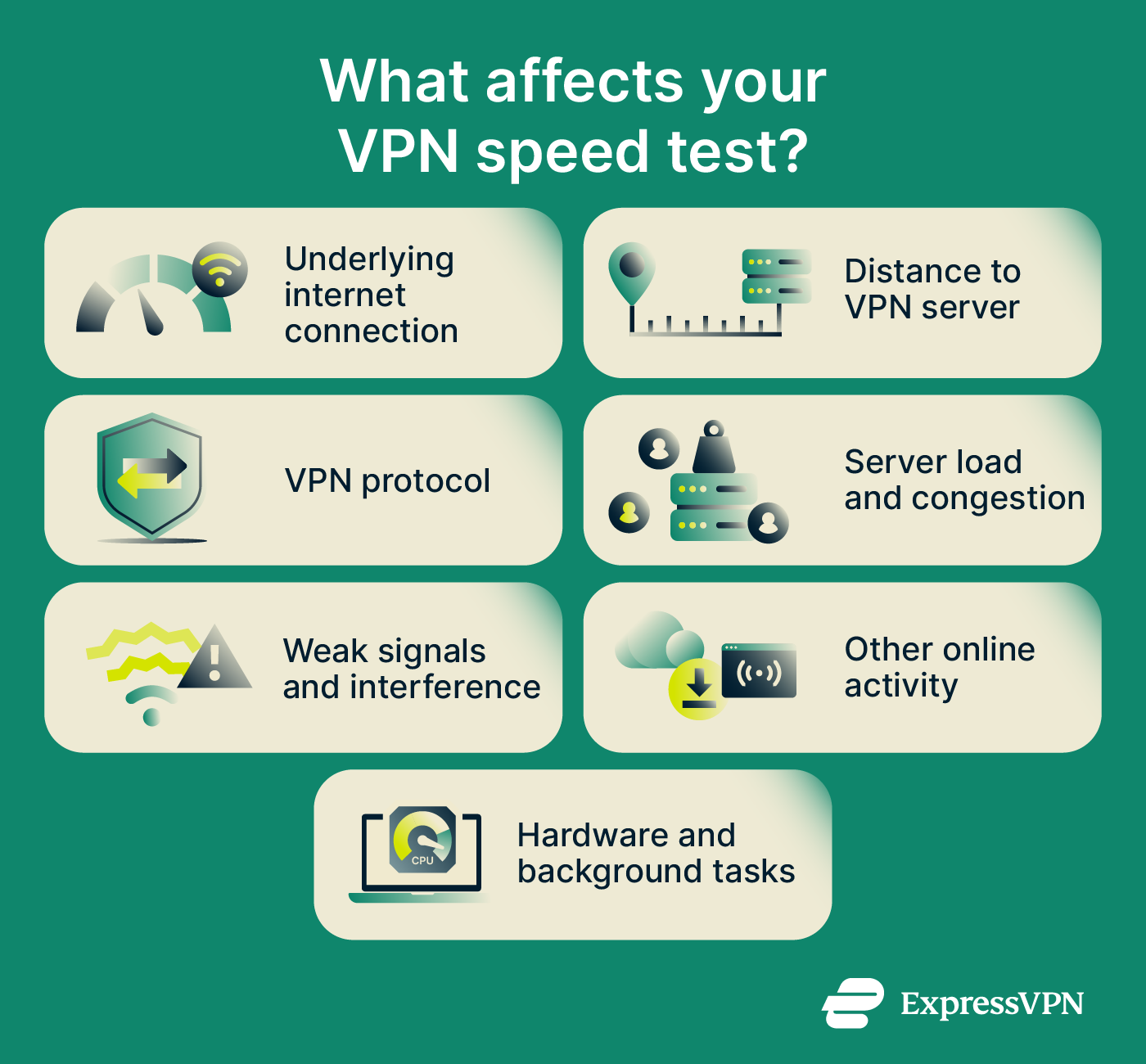
- Wi-Fi and local network conditions: A weak Wi-Fi signal, interference from nearby networks or devices, and physical obstacles such as walls can reduce connection speeds or make them fluctuate.
- Competing traffic: Downloads, streaming, cloud backups, and other bandwidth-heavy activity can compete for your available internet bandwidth, which may affect your speed results during a test.
- Device limitations: Your device’s hardware and other resource-intensive tasks can affect VPN performance. For example, antivirus scans, large file transfers between drives, games running in the background, or other CPU- and memory-intensive processes can leave fewer system resources available for the VPN connection and speed test.
These variables are why repeated tests under similar conditions are more useful than a single result. If your ExpressVPN connection is consistently slower than expected, it’s time to start troubleshooting.
Advanced ways to test your ExpressVPN connection
If the basic speed tests show a consistent performance difference, more advanced tests can help you gather additional information about where that difference occurs. For example, you can measure performance over a longer period, examine latency and routing, or compare how your connection performs with different ExpressVPN protocols.
Use Speedtest CLI
Command-line tests can be useful when you want to run repeated tests, monitor performance over time, or incorporate testing into scripts and automated workflows. They can also make it easier to record and share consistent test results with ExpressVPN Support.
Note: The steps below use Windows as an example. Speedtest CLI is also available for macOS and Linux, but installation and commands vary by platform. Windows doesn’t include a built-in command-line tool for internet speed tests, so these steps use Ookla’s official Speedtest CLI.
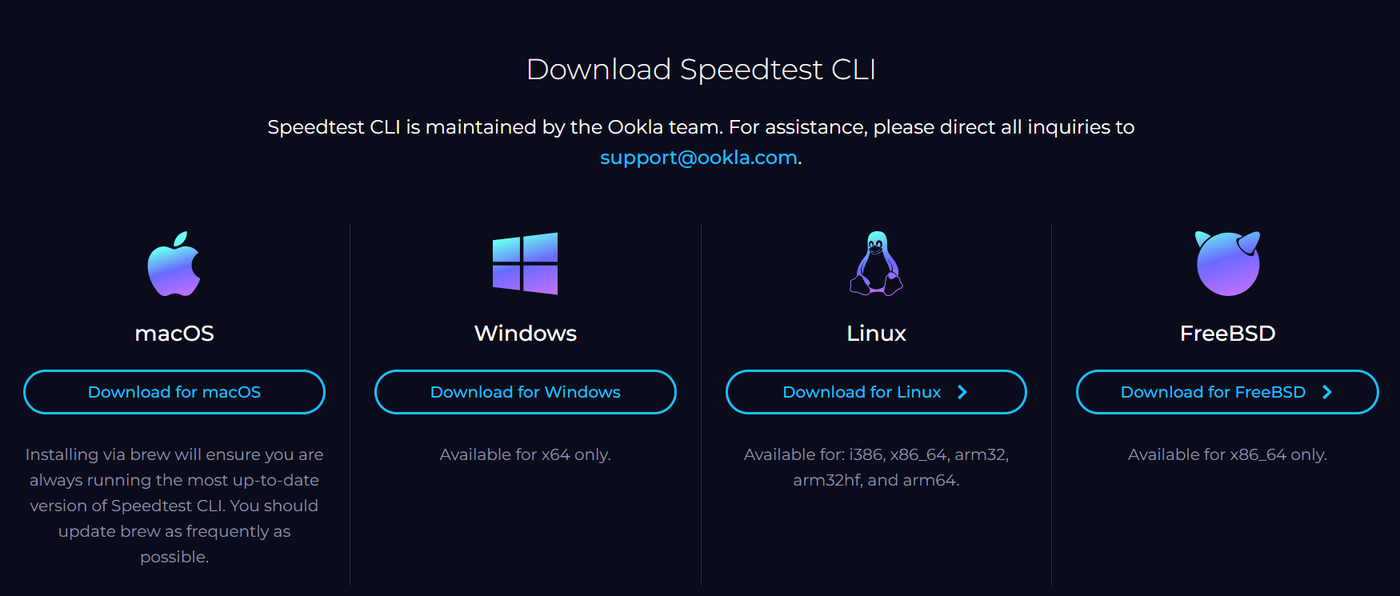
- Download Speedtest CLI: Download Speedtest CLI from Ookla, then extract the ZIP file to a folder you can easily find.
- Open a command window in that folder: Open the extracted folder in File Explorer, click the address bar, type powershell or cmd, and press Enter. This opens PowerShell or Command Prompt in the correct folder.
- Choose a test server: Run .\speedtest.exe -L in PowerShell or speedtest.exe -L in Command Prompt to view nearby Speedtest servers and note the ID of the server you want to use.
- Run your baseline test: Make sure ExpressVPN is disconnected, then run:
PowerShell: .\speedtest.exe -s [server ID]
Command Prompt: speedtest.exe -s [server ID]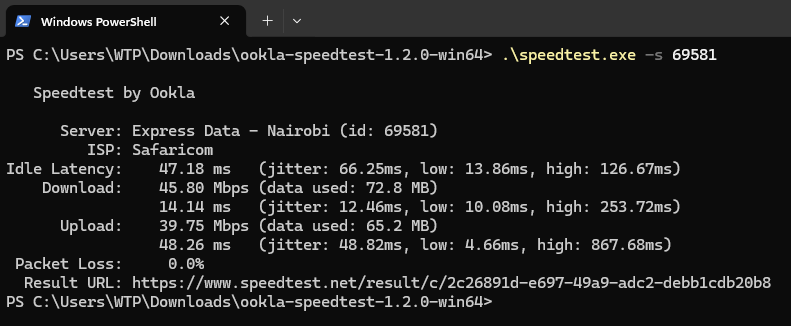
- Run your VPN test: Connect to ExpressVPN, then run the same command again using the same server ID.
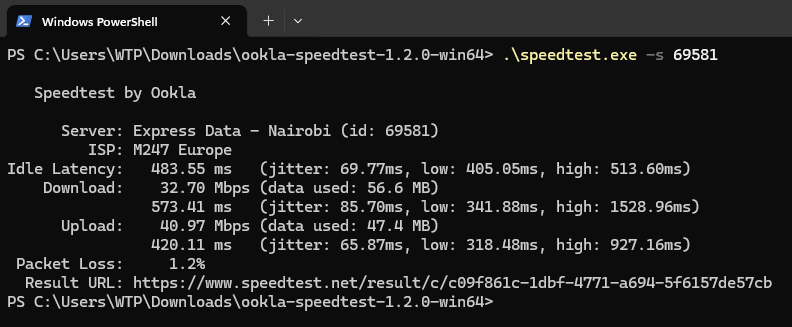
- Compare results: Compare the download speed, upload speed, and latency with ExpressVPN disconnected and connected. You can repeat the tests under similar conditions using another server ID, and look for consistent changes across the results.
Test sustained download performance
A conventional speed test provides a short snapshot of your connection. To see how download performance holds up over a longer period, you can download a larger test file and compare the results with ExpressVPN disconnected and connected. For example, Testfile.org provides files in different sizes, so you can choose one that’s practical for your device and available storage.
You can use a tool such as cURL to download the same file under both conditions. Keep everything else as consistent as possible. Compare the download speed and total transfer time to see whether performance changes during a sustained download.
Test latency with ping or traceroute
If your ExpressVPN speed tests show higher latency than your baseline, you can test your ping to get a better idea of your data’s (round-trip) travel time. Pinging a server from a major host like Google, which is more likely to have servers nearby, can help you check whether that increase is consistent when ExpressVPN is connected. Traceroute can provide additional routing information.
On Windows, open the Command Prompt. Then, type ping [hostname or IP address] and press Enter. For example: ping google.com.
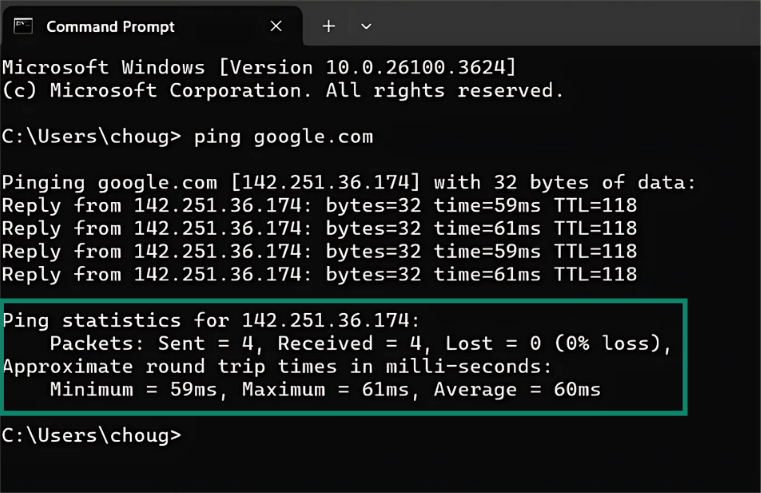
Run the same test with ExpressVPN disconnected and connected, using the same destination each time. Compare the average response time and any packet loss shown in the results. If latency is consistently higher with ExpressVPN connected, you can use traceroute to look more closely at the route your traffic is taking.
On Windows, open the Command Prompt and type tracert followed by the destination (e.g., tracert google.com).
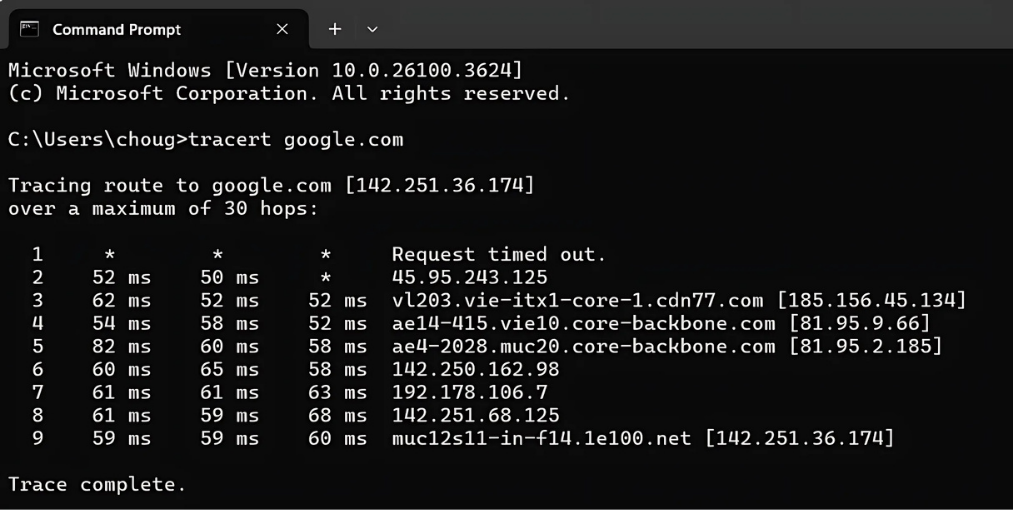
Compare the results with ExpressVPN disconnected and connected under similar conditions. Look for changes in the route or latency increases that continue across subsequent hops. An isolated spike or timeout at one hop doesn’t necessarily indicate a problem, as some networks deprioritize or limit traceroute traffic.
Timeouts or missing hops can also appear, although they don’t necessarily indicate a problem because some networks ignore or deprioritize traceroute traffic.
Keep in mind that traceroute/tracert doesn’t always provide a complete picture of VPN routing, so use it alongside your other test results rather than as a definitive map of the VPN route.
Compare ExpressVPN protocols
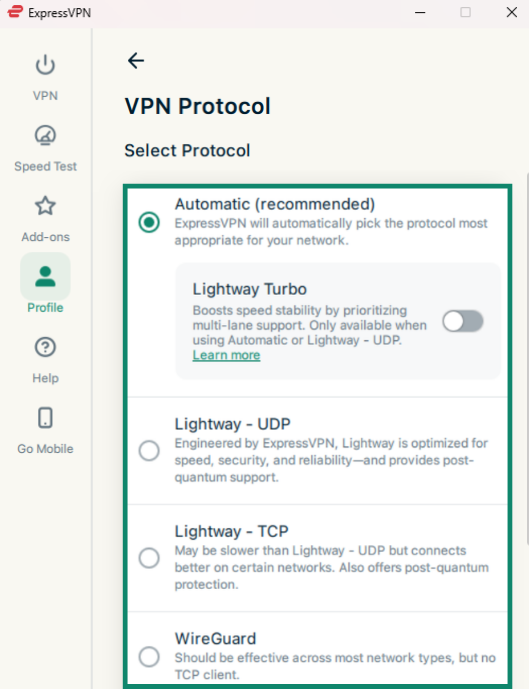
You can test whether your connection performs differently with another ExpressVPN protocol on your device. Connect to the same ExpressVPN server location, select a protocol, and run several speed tests. Then switch to another available protocol and repeat the tests under similar conditions.
If one protocol consistently performs better, you can use it instead. If you don’t notice a meaningful improvement, switch back to Automatic, which is the default and recommended setting for most users. If you’re on Windows, you can also switch on Lightway Turbo, which is built to maximize your VPN’s performance.
ExpressVPN combines high-speed servers with its lightweight Lightway protocol to help you enjoy a fast, reliable connection while keeping your internet traffic encrypted.
Get a high-speed VPN with ExpressVPN
Try ExpressVPN with a 30-day money-back guarantee for new users.
What to do if ExpressVPN is slower than expected
If repeated tests show that your ExpressVPN connection is consistently slower than expected, see the ExpressVPN Support guide on troubleshooting slow connection speeds. It walks you through the recommended troubleshooting steps for diagnosing and addressing slow VPN performance.
If you’re still experiencing issues, feel free to contact Customer Support. Our friendly team of experts are available 24/7 to help you get the most out of your ExpressVPN subscription.
FAQ
Can a VPN improve your internet speed?
If a speed test is faster with ExpressVPN connected, that alone doesn’t prove your ISP is throttling your connection. Network conditions and other variables can also cause test results to change.
Does a VPN slow down your internet?
Why do ExpressVPN’s speed test and an external speed test give different results?
Which ExpressVPN server should I use for the best speed?
You can use Smart Location on desktops and routers or Fastest Location on Android and iOS, rather than trying to identify the best available VPN server yourself.