How to port forward with ExpressVPN



Port forwarding lets devices on the internet connect to a service on your home network, such as a game or media server.
While ExpressVPN doesn't support port forwarding through its VPN servers or apps, you can configure it on a compatible ExpressVPN router.
Does ExpressVPN support port forwarding?
You can forward ports on Fortify, the GL.iNet router that comes with ExpressVPN built in. However, forwarded connections use your home’s public IP address rather than passing through the VPN.
Also, the entire device hosting the service must be excluded from all active VPN tunnels, which means its other internet traffic won’t be protected by ExpressVPN either.
VPN port forwarding vs. router port forwarding
The main difference between VPN port forwarding and router port forwarding is where you configure the forwarding rule. With VPN port forwarding, incoming connections go through the VPN provider's server and an encrypted tunnel. With router port forwarding, connections go directly through your home router, using your home’s public IP address rather than the VPN's.
Your home router typically uses Network Address Translation (NAT) to let multiple devices share one public IP address. When you request a website, the router tracks the outgoing connection and directs the reply to the right device. Without an existing connection or forwarding rule, incoming traffic generally won’t reach devices on your local network.
A port forwarding rule tells the router where to send incoming traffic addressed to a particular port. For example, a rule can send connections arriving on port 25565 to a Minecraft server running on your PC.
| VPN port forwarding | Router port forwarding | |
|---|---|---|
| Where the forwarding rule is configured | The VPN provider's server | Your home router |
| IP address others connect to | The VPN server's | Your home connection's |
| Does forwarded traffic travel through the VPN tunnel? | Yes | No |
| Works if your ISP uses carrier-grade NAT (CGNAT)? | Depends on the ISP | No |
| Available with ExpressVPN? | No | Yes, on Fortify |
How to set up port forwarding on Fortify
Setting up port forwarding on Fortify takes four steps:
-
Reserve a local IP address for the hosting device.
Before you start, check the setup instructions for the service you’re hosting. You’ll need its port numbers and whether it uses Transmission Control Protocol (TCP), User Datagram Protocol (UDP), or both.
If Fortify connects to the internet through another router, such as a modem router from your ISP, that router may also need a forwarding rule directing incoming traffic to Fortify. GL.iNet’s guide to port forwarding on a primary router explains the setup.
Reserve a local IP address for the hosting device
A forwarding rule points to the device’s local IP address, so that address needs to stay the same:
-
Connect the hosting device to Fortify’s main Wi-Fi network or an Ethernet port.
-
Open 192.168.8.1 in your browser and sign into the admin panel.
-
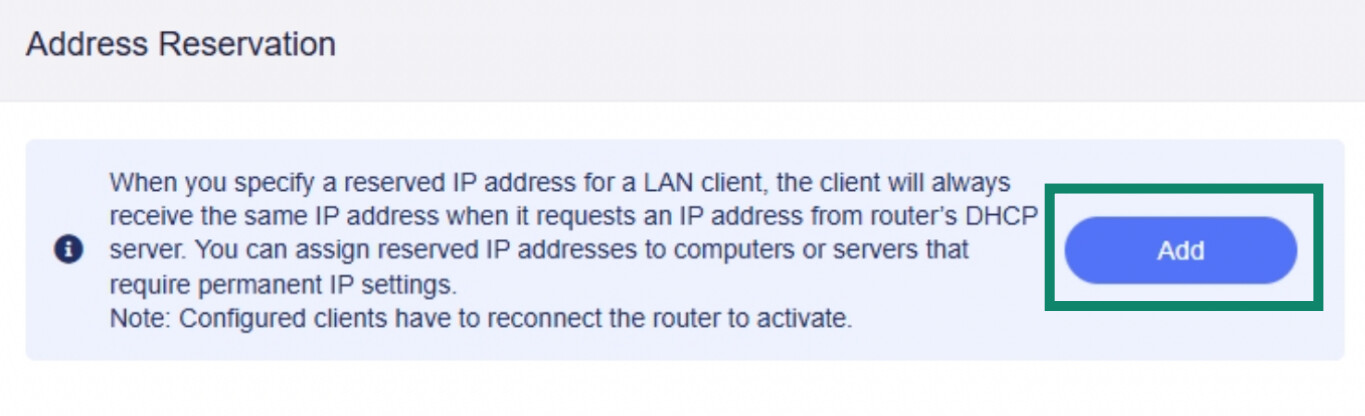
Go to Network > LAN, and under Address Reservation, select Add.
![Fortify's web admin panel showing the Address Reservation settings with the Add button highlighted.]()
-
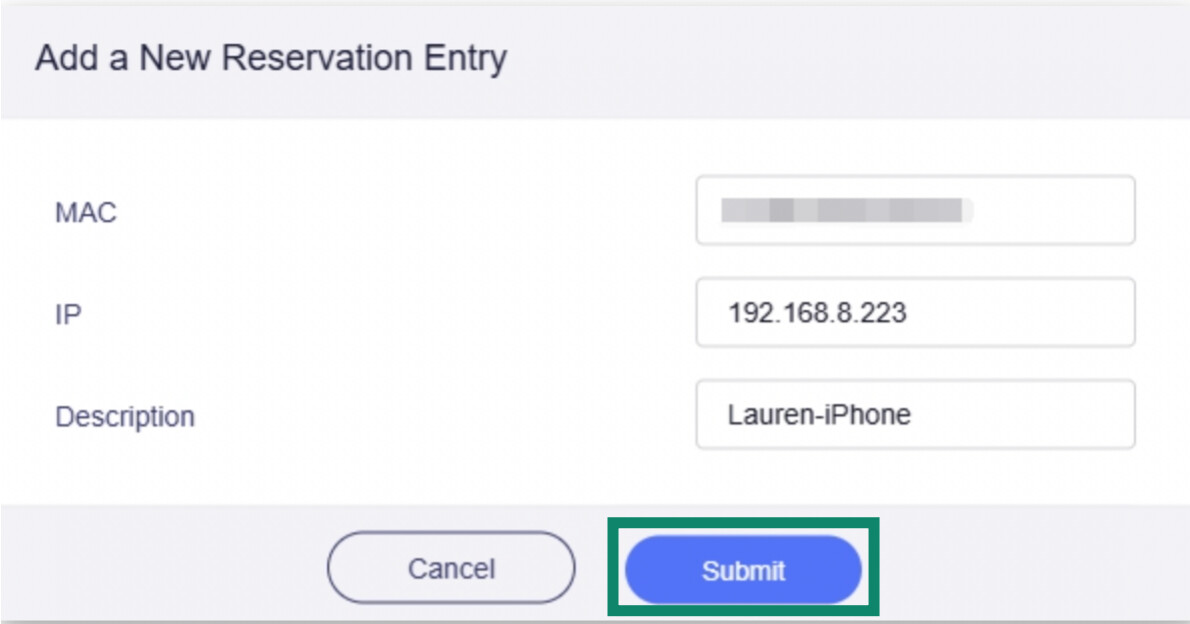
Choose the hosting device’s media access control (MAC) address, which identifies its Wi-Fi or Ethernet connection, and note the IP address that appears. Name the reservation in Description, then select Submit.
![New address reservation form in the Fortify admin panel with MAC address, IP address, and Description fields and a Submit button.]()
-
Disconnect and reconnect the hosting device so it picks up the reserved IP address. Once done, you need to make sure its traffic doesn't pass through the VPN.
Exclude the hosting device from all active VPN tunnels
Incoming connections use your home’s public IP address, but if the hosting device sends its replies through ExpressVPN, they’ll come from a different IP address. This can cause the connection to fail, even if the forwarding rule is configured correctly.
Once excluded, all internet traffic from the hosting device bypasses ExpressVPN, but other devices on your network can stay on the VPN.
-
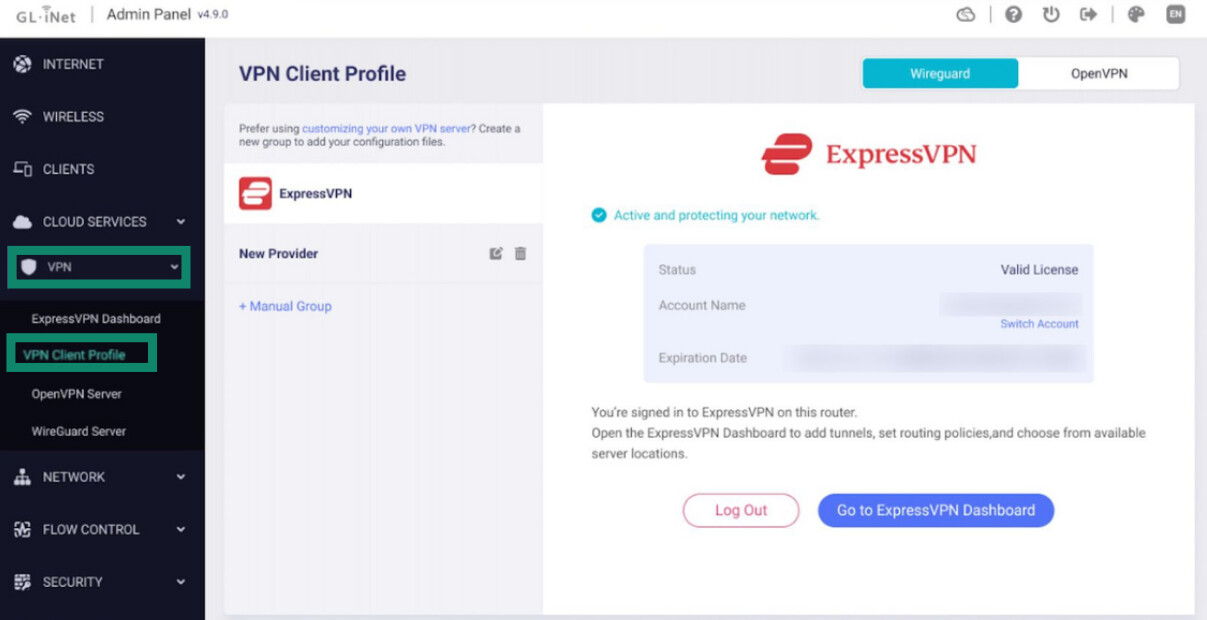
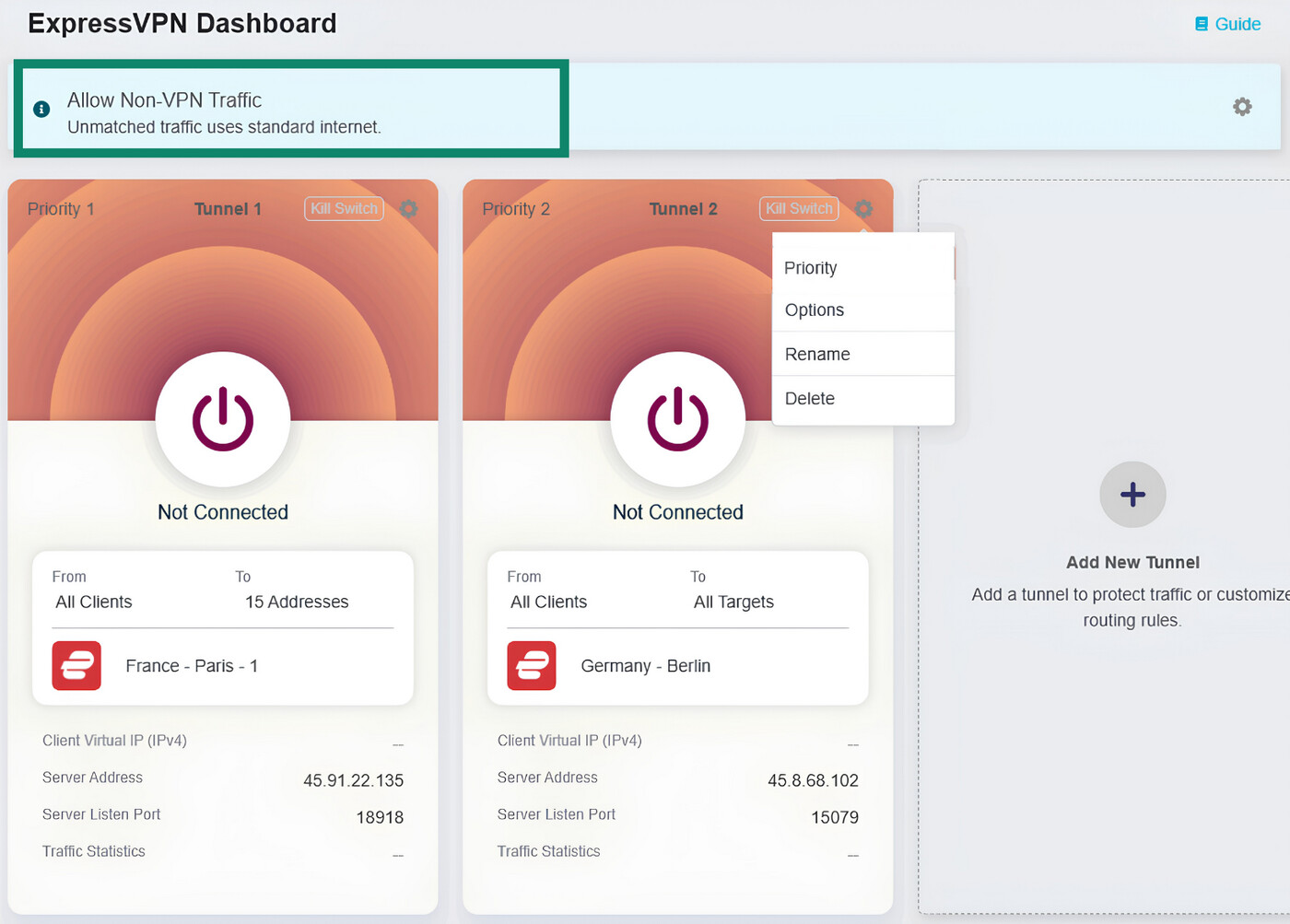
On the ExpressVPN dashboard (VPN > VPN Client Profile > Go to ExpressVPN Dashboard), check each tunnel’s client sources. A tunnel set to All Clients covers the hosting device, so replace it with one set to Exclude Specified Devices and select the hosting device. Our Fortify VPN tunnel guide shows how to add and delete tunnels.
![Fortify admin panel with VPN and VPN Client Profile highlighted and the Go to ExpressVPN Dashboard button visible.]()
-
Select the gear icon above the tunnels and make sure All Other Traffic Policy is set to Allow Non-VPN Traffic.
![ExpressVPN dashboard with Allow Non-VPN Traffic highlighted, indicating unmatched traffic uses the regular internet connection.]()
-
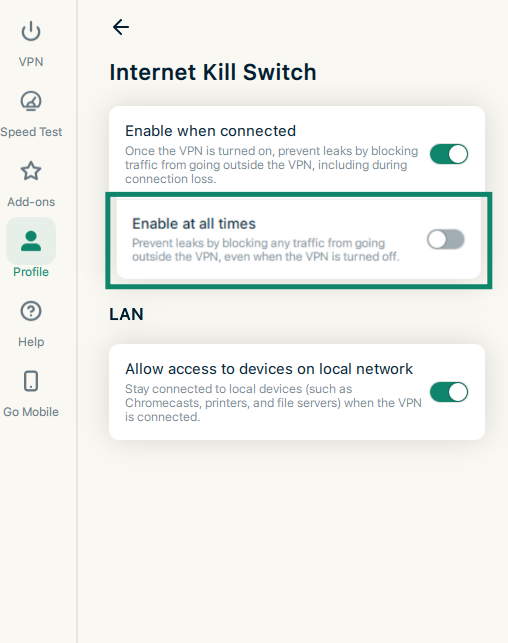
If the hosting device runs the ExpressVPN app, disconnect it. On Windows, Mac, and Linux, also turn off Enable at all times in the app’s Internet Kill Switch settings, because it blocks internet access while the app is disconnected. This applies to any router, not just Fortify.
![Enable at all times kill switch setting set to off]()
Add the port forwarding rule
-
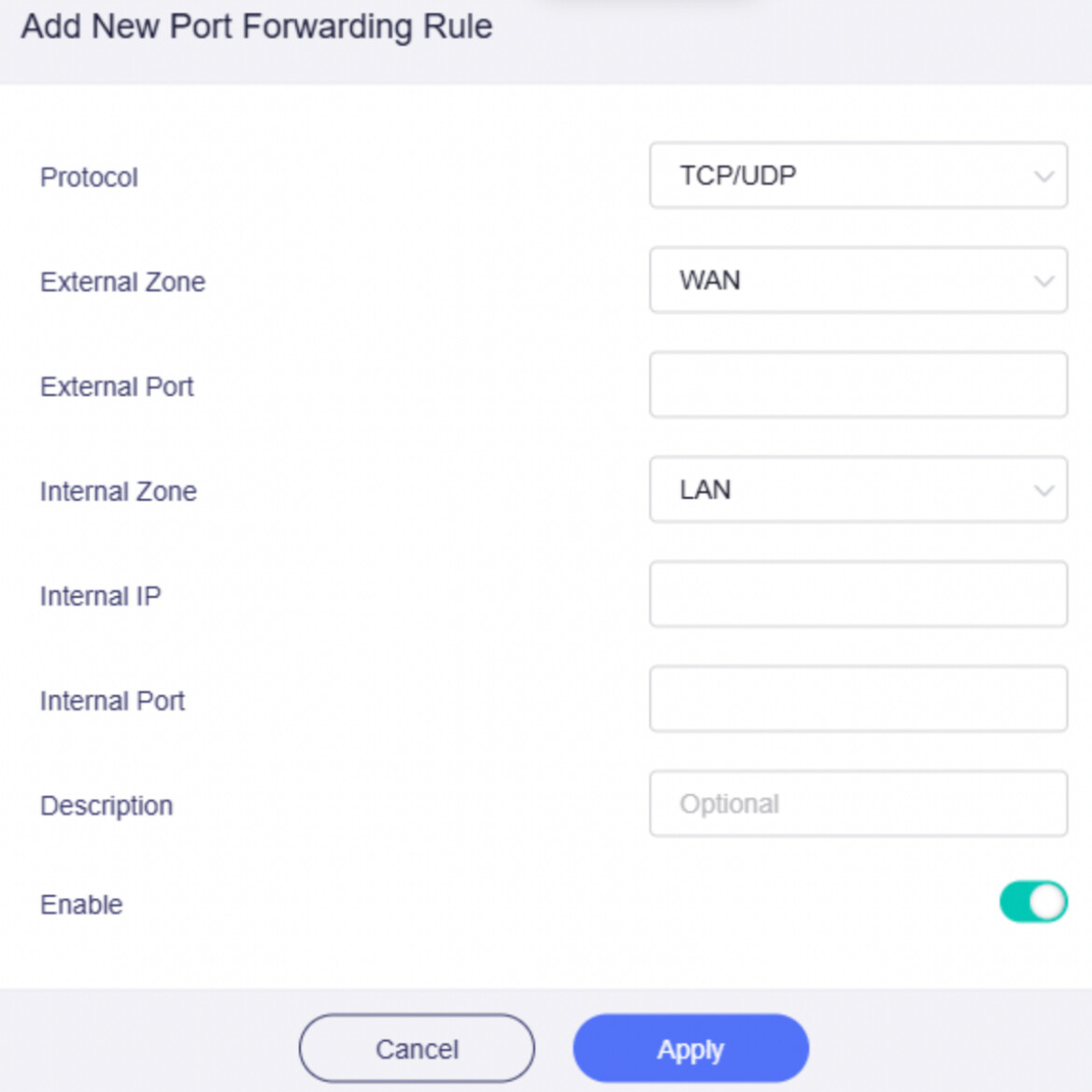
In Fortify’s admin panel, go to Security > Port Forwarding (Network > Port Forwarding on firmware older than v4.9), select Add, and fill in the rule:
- Protocol: TCP, UDP, or TCP and UDP, as the service requires.
- External Zone: WAN, Fortify’s internet-facing connection.
- External Port: The port other devices will connect to.
- Internal Zone: LAN, Fortify’s main local network.
- Internal IP: The address you reserved.
- Internal Port: The port the service listens on. Leave it blank if it matches the external port.
![Port forwarding rule form showing TCP/UDP, WAN and LAN zones, and fields for ports and the internal IP address.]()
-
Make sure Enable is on, then select Apply. GL.iNet’s port forwarding guide explains each field. The External Zone list includes VPN client zones, but choosing one doesn’t open a port on ExpressVPN’s servers.
Check that the port is reachable
To test the connection:
- Start the service on the hosting device.
- On that device, open our IP Address Checker and note your public IP address.
- On a second device connected to a different network, such as a phone using mobile data, connect to that IP address and the external port using the service’s app or instructions.
Test from a different network because some routers can’t loop a connection from inside the network back through their own public IP address.
A failed connection doesn't necessarily mean the forwarding rule is wrong. Check that the service is running, the local IP address and port are correct, the protocol matches the service's requirements, and the device's firewall allows incoming connections.
If your ISP changes your public IP, Dynamic DNS (DDNS) gives you a hostname that follows the changing address. You can turn it on under Applications > Dynamic DNS, following GL.iNet’s DDNS guide. DDNS needs your home IP address, so keep Services from GL.iNet use VPN turned off, which is the default. You can find this setting under each tunnel’s options on the ExpressVPN dashboard.
When you finish hosting, restore your VPN tunnel, Kill Switch settings, and app settings.
What are the security risks of port forwarding?
Port forwarding makes the selected service reachable from anywhere on the internet, which means automated scans looking for weak passwords or software vulnerabilities can find it. While only the selected service is directly exposed, an attacker who breaks into it may be able to access its data or take control of the device.
With router port forwarding, the incoming connection travels outside the ExpressVPN tunnel, so it doesn't encrypt that traffic or hide your home public IP address from the remote device connecting to the service. Any encryption must come from the service itself. For example, a website using HTTPS encrypts the data exchanged between the browser and the website. A service without its own encryption sends that traffic in readable form.
To reduce the risks associated with port forwarding:
- Forward only the ports your service needs.
- Keep the service, hosting device, and router software up to date.
- Use strong, unique passwords for the service, and enable two-factor authentication (2FA) where possible.
- Delete forwarding rules you no longer need.
- Avoid using your router’s demilitarized zone (DMZ) setting as a shortcut, because it can expose more services than intended.

Note: ExpressVPN's servers don't offer port forwarding, so they aren’t affected by " port fail," a specific VPN vulnerability where attackers can sometimes unmask the real IP of users on some VPNs with port forwarding.
Want to open a port without taking your whole home off the VPN?
Fortify lets you host a server through a forwarded port on your regular internet connection while keeping your other devices, including phones, laptops, and TVs, on ExpressVPN.
Get Fortify for your home network
Fortify includes 12 months of the ExpressVPN Advanced plan for new and returning users.
FAQ
Can I port forward if my ISP uses CGNAT?
You can ask your ISP for a dedicated public IPv4 address, although this may involve an additional fee. Alternatively, you can use IPv6 if your ISP and devices support it, as long as you configure your firewall to allow the necessary incoming connections.