How to set up a secure guest Wi-Fi network with ExpressVPN Fortify


A guest Wi-Fi gives your visitors internet access without connecting them to your primary network. That separation keeps potentially vulnerable or less secure devices from reaching your personal devices or smart home tech.
For example, a visitor’s phone might carry malware without its owner knowing. Some malware can search networks for other devices to break into, such as a laptop with shared folders or a camera with a weak password. On guest Wi-Fi, an infected phone can still get online, but it can’t communicate with devices on your home network. That means it’s kept separate from sensitive resources like personal files or cameras.
With an ExpressVPN Fortify router, you can also send guest traffic through an encrypted VPN connection. That way, even your guests’ online activities aren’t associated with your home network or public IP address.
How to set up guest Wi-Fi on Fortify
- On a device connected to Fortify, type 192.168.8.1 (the address of Fortify’s admin panel) into your browser’s address bar and press Enter. Then, type your admin password to log in.
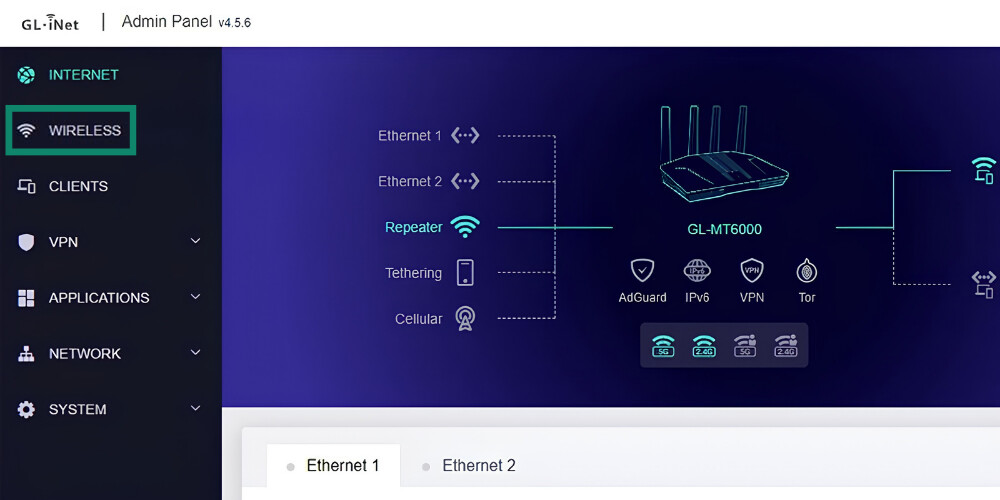
- Select WIRELESS.
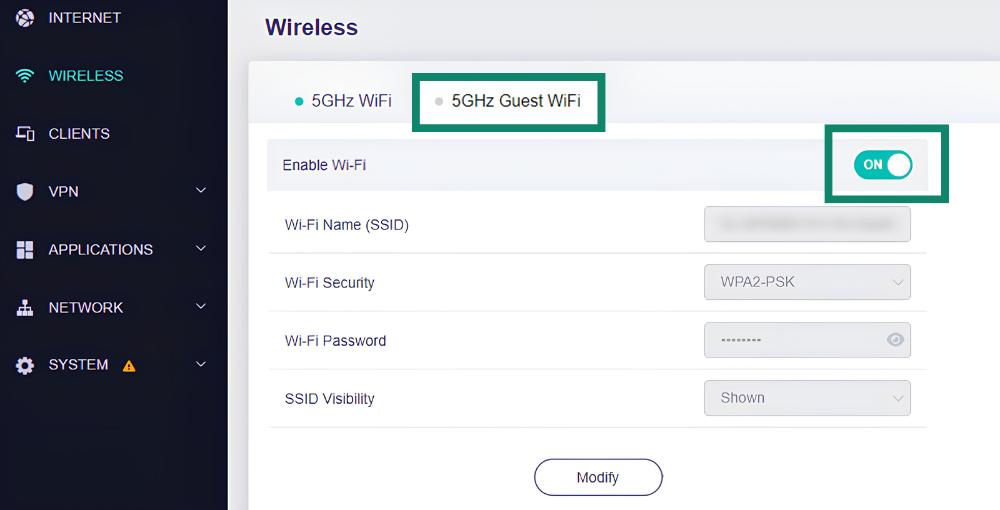
- Fortify broadcasts Wi-Fi on two bands, 2.4GHz and 5GHz, and the WIRELESS page has a section for each. In the section of the band you want guests to use, open the Guest WiFi tab and turn on Enable Wi-Fi.
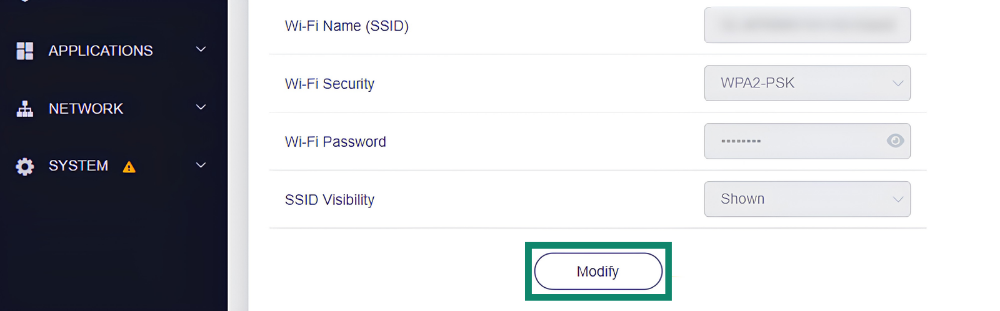
- Click Modify, enter a network name and password, then click Apply. Use a different password from your main Wi-Fi to keep your primary network protected.

Fortify comes with 12 months of ExpressVPN’s Advanced plan, which includes ExpressKeys, our password manager. You can save the guest Wi-Fi password in ExpressKeys and share it with visitors via a link from the ExpressVPN app for iOS and Android. The link stops working after the time you set, from one hour to 30 days.
How to set up AP isolation and WAN access control
Fortify gives you additional security options to protect your guest network even further:
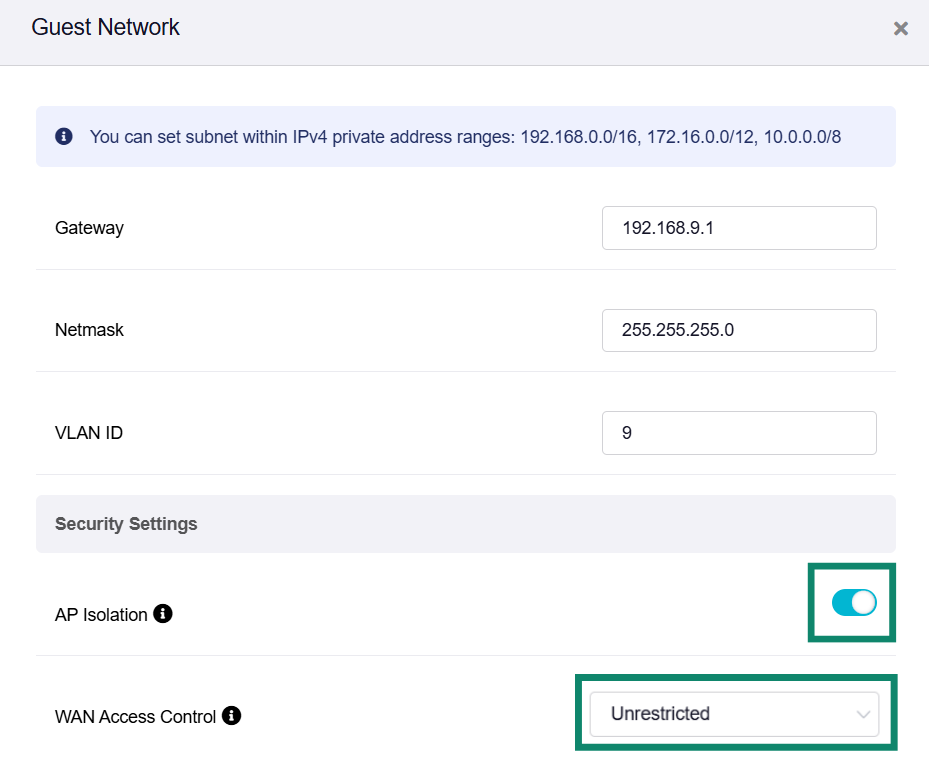
- AP Isolation: Keeps guest devices from connecting to each other. For example, say two friends are staying with you, and both join your guest Wi-Fi. If one friend’s phone has malware on it, AP Isolation stops that phone from reaching the other friend’s laptop.
- Block WAN Subnet: A guest network only keeps guests' devices separated from your primary Wi-Fi on Fortify. If you have devices connected to your main internet service provider (ISP) router (that don’t also connect to Fortify), they can still be reachable from a guest network. The Block WAN subnet setting prevents these connections.
Here’s how to enable both features.
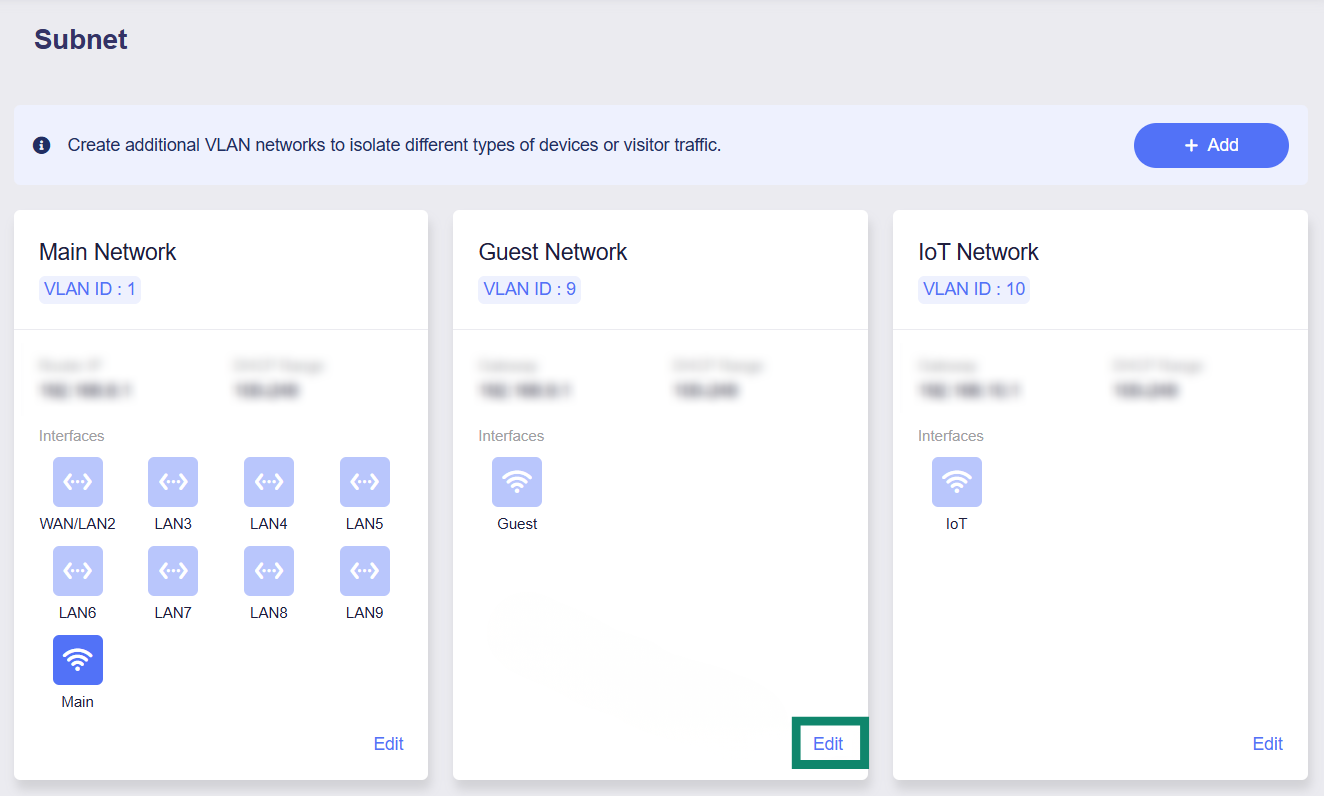
- Go to NETWORK > Subnet, find your guest Wi-Fi network, and select Edit.
- Enable AP Isolation and pick Block WAN Subnet next to WAN Access Control.
How to protect guest Wi-Fi traffic with ExpressVPN
Guest Wi-Fi provides a buffer between your primary network and guest devices, but it doesn’t change how guest traffic reaches the internet. Everything your guests do online still goes through your home connection, and that has two side effects.
First, your ISP sees the sites your guests visit as traffic from your home internet connection. Second, every site a guest visits sees your home IP address, so whatever their device does online looks like it came from your home.
A guest-only VPN tunnel keeps visitors’ online activity separate from your home connection and your IP address. Plus, your guests get to enjoy the online privacy and security that comes with using ExpressVPN.
Fortify can be set up to route guest traffic through an encrypted connection to an ExpressVPN server, so your ISP sees a connection to that server instead of the sites your guests visit. Websites also see the VPN server’s IP address, so your guests’ browsing isn’t tied to your home.
Once you’ve logged into ExpressVPN on Fortify, here’s how to route your guests’ traffic through a VPN connection:
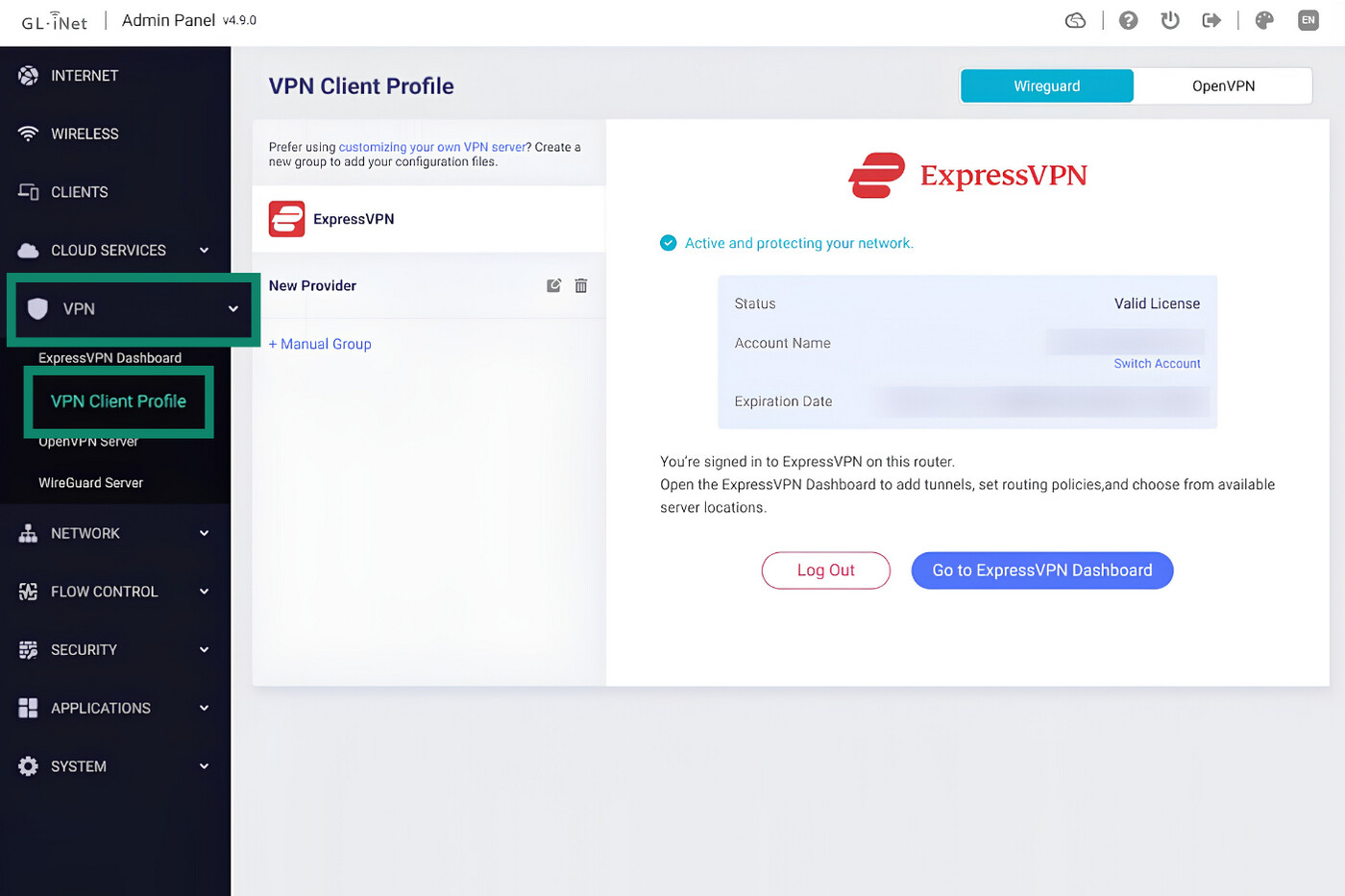
- In the admin panel, go to VPN > VPN Client Profile.
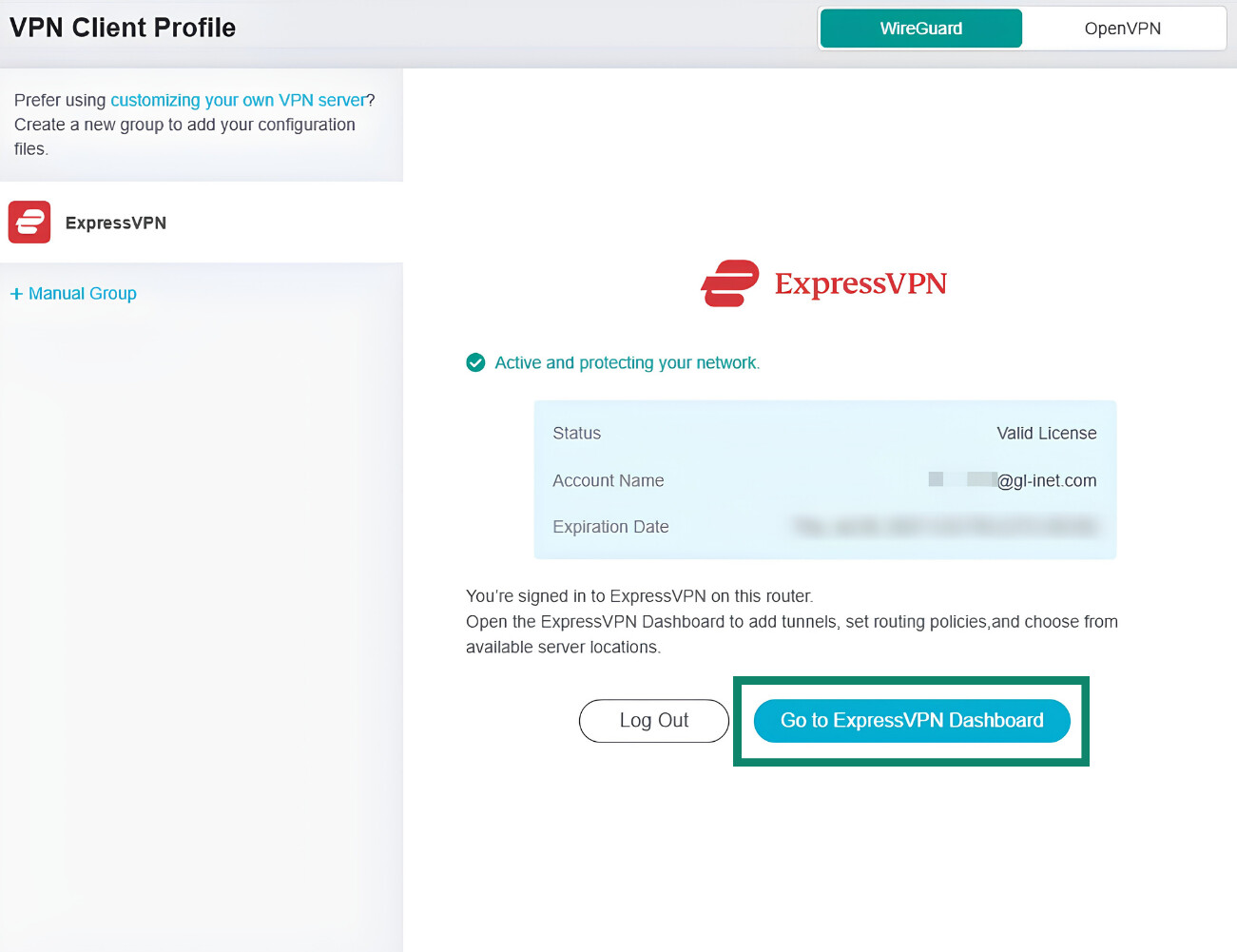
- Click the Go to ExpressVPN Dashboard button.
- Click Add VPN Tunnel, select the VPN server location you want guests to use, and click Next (a location nearby usually provides the fastest speeds). You can also select several locations. Fortify tries them in the order shown under Selected Profile, so the others act as backups if the first one can’t connect.
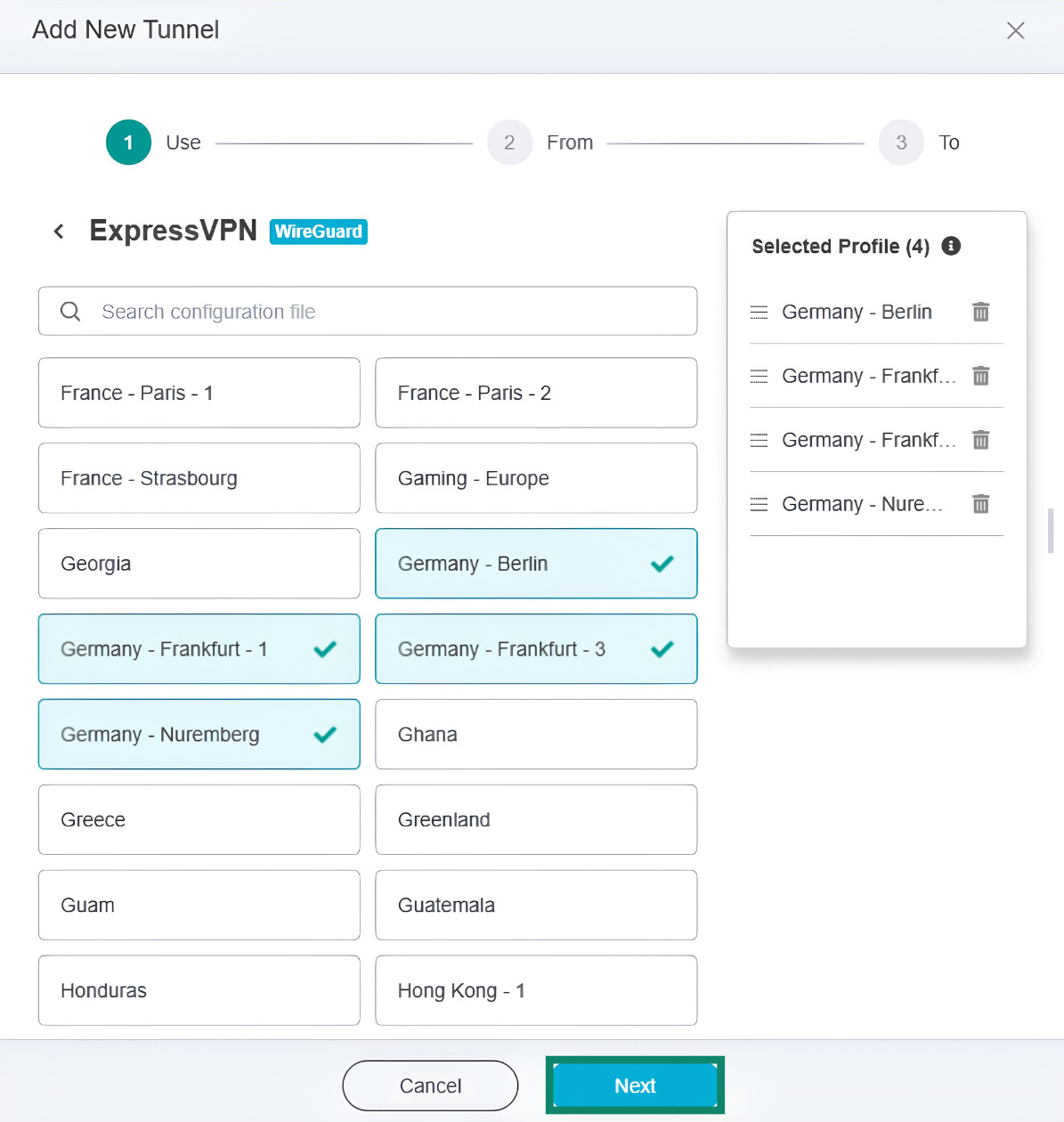
- Select Specified Connection Types, choose the guest network, and click Next.
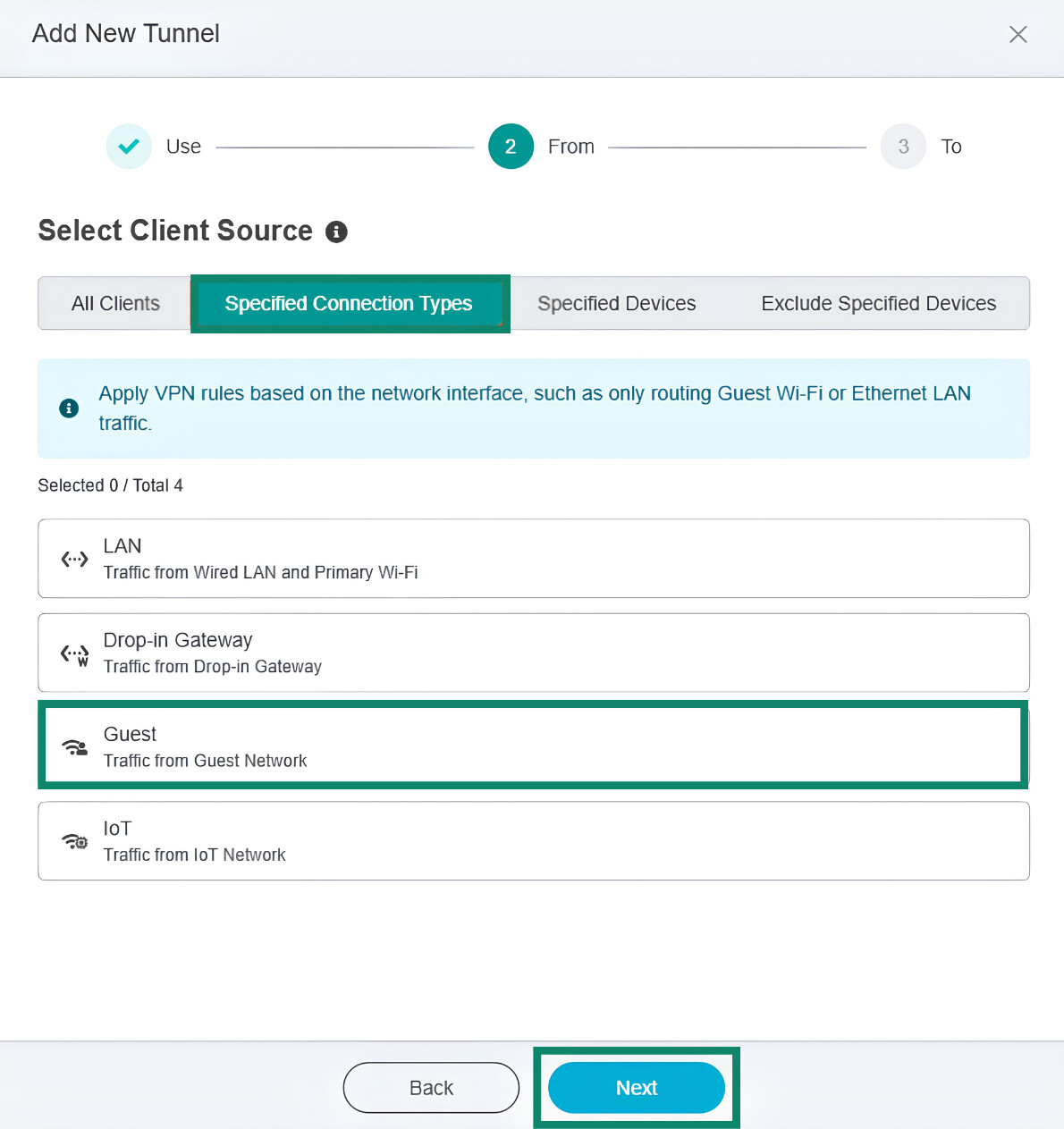
- Pick All Targets and click Apply.
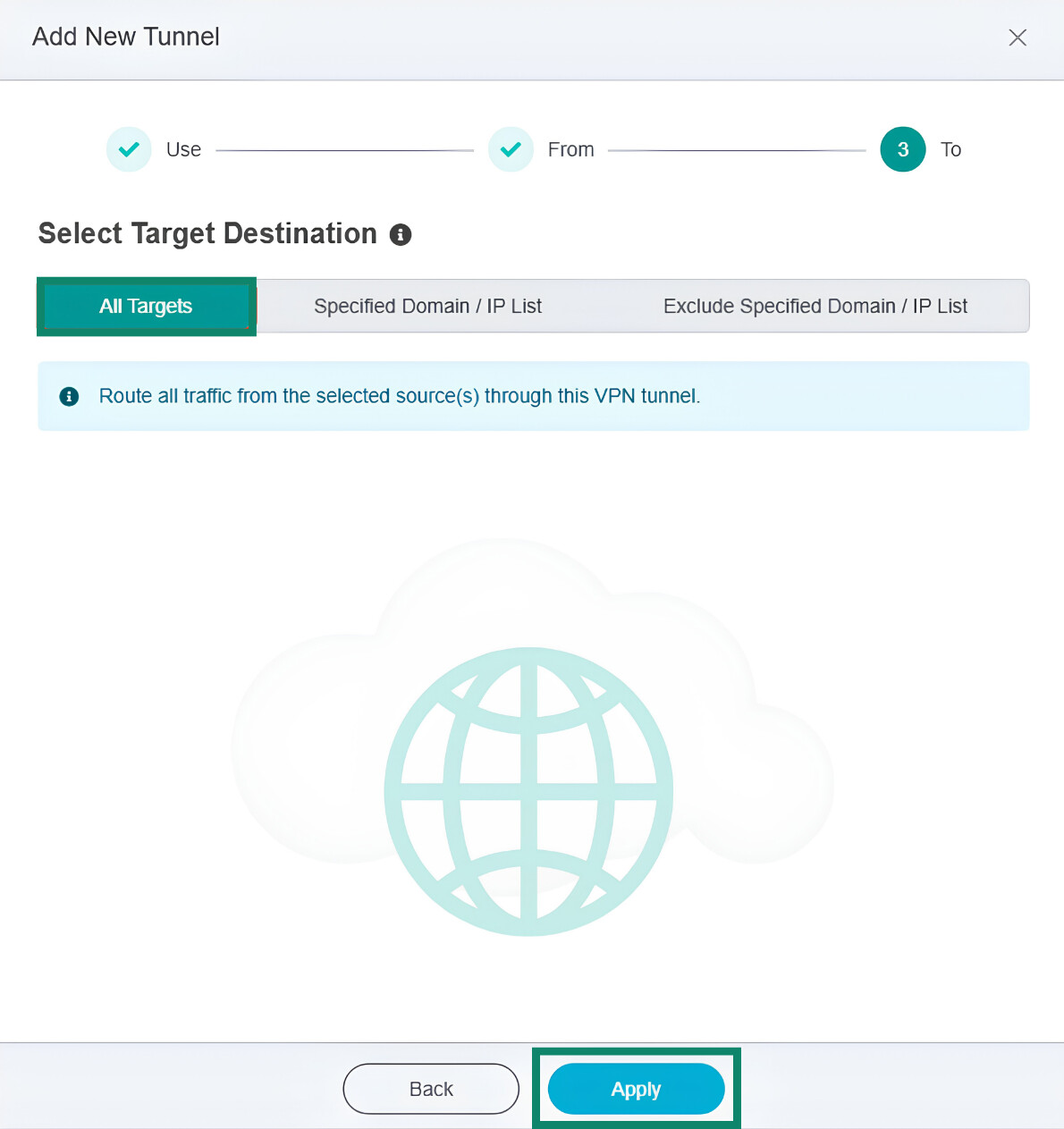
- Click the tunnel's power button. The tunnel is working when it shows as Connected.
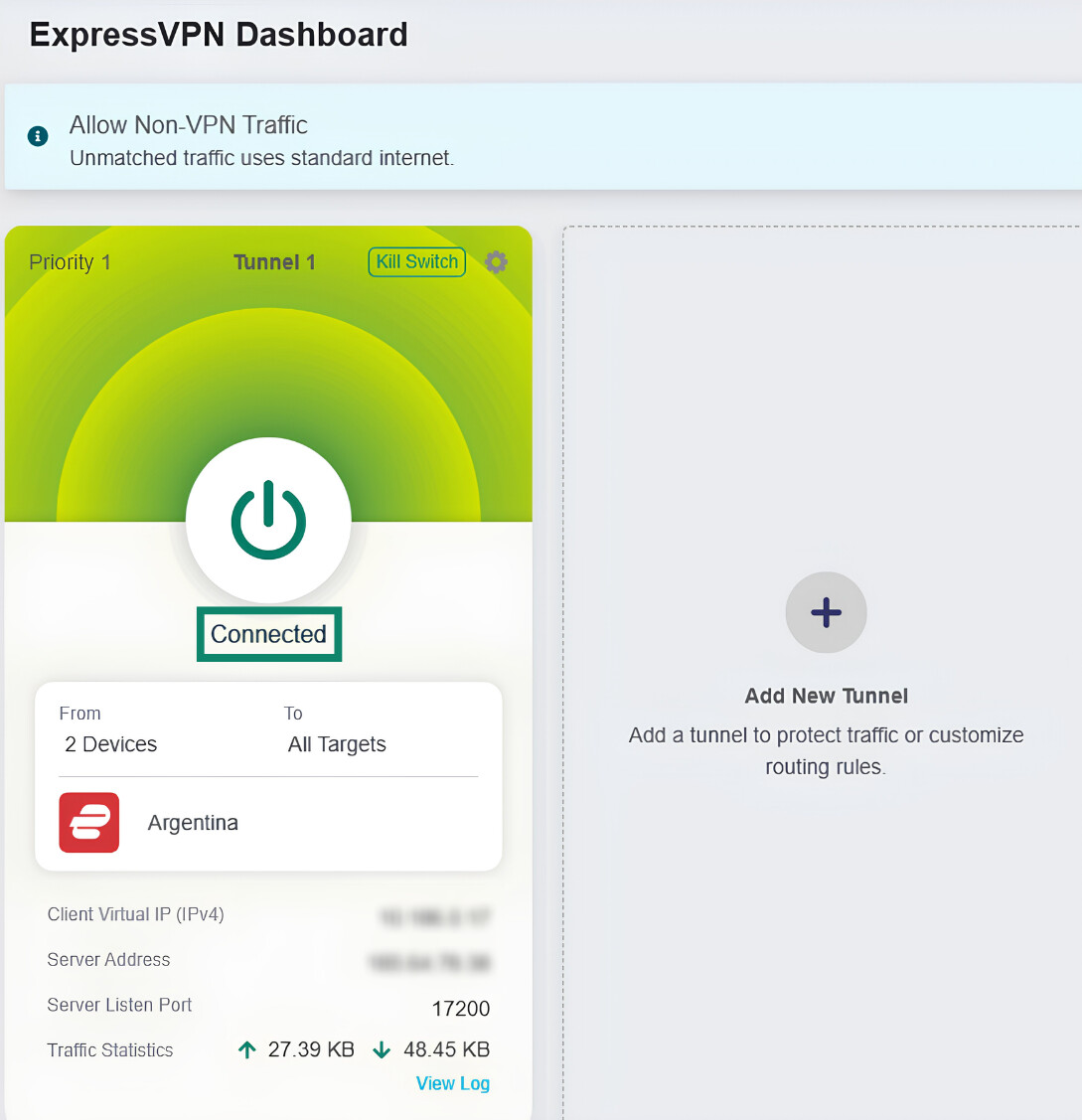
To check that everything works properly, connect a phone to the guest Wi-Fi and open ExpressVPN's IP Address Checker. It should show the location you chose for the guest tunnel.
How to adjust tunnel priority
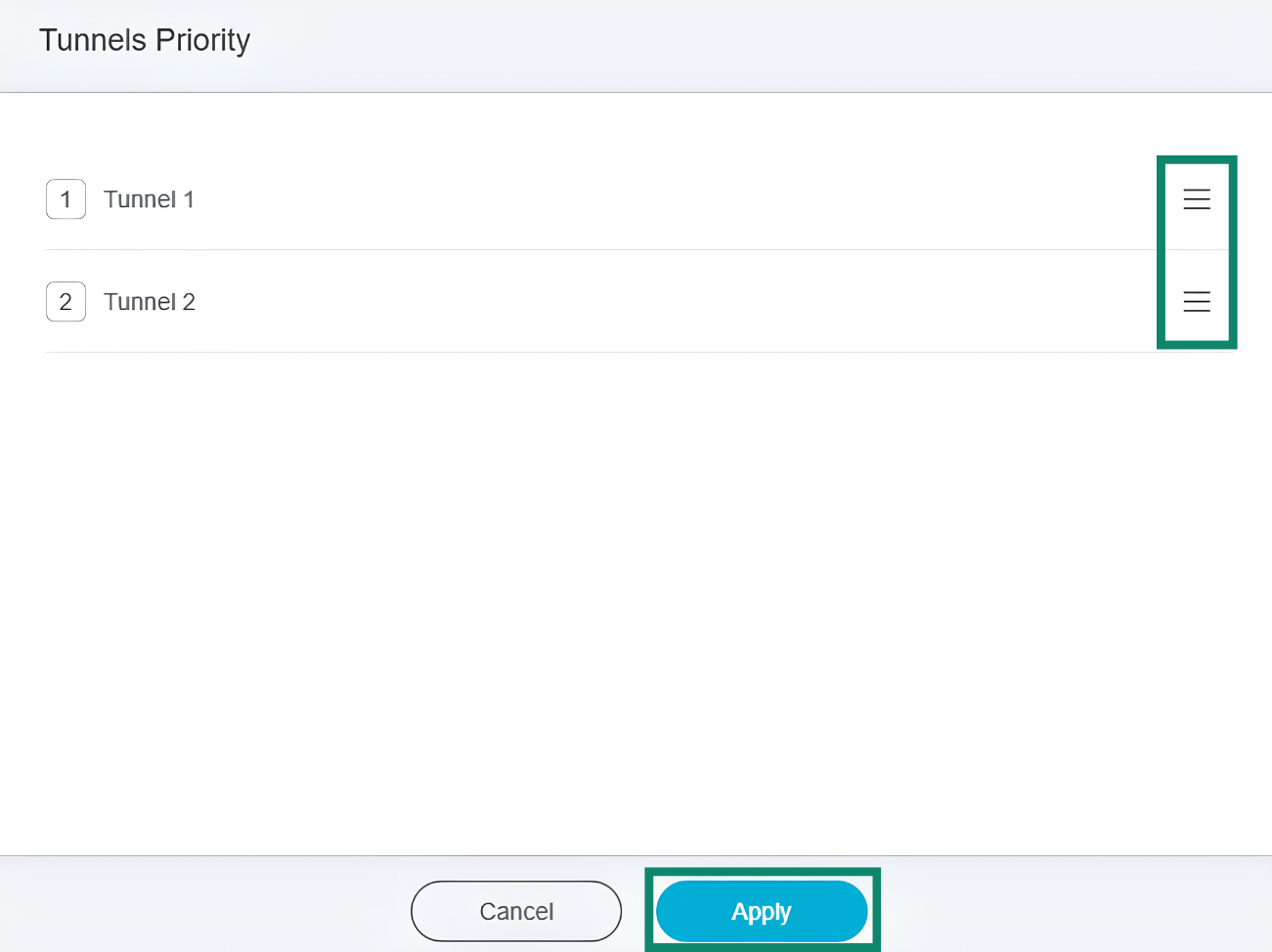
If you have multiple VPN tunnels set up, you should double-check the order. That’s because Fortify implements tunnels in sequence, starting at the top. Each device uses the first tunnel that covers it. So, a tunnel set to All Clients applies to every device, including your guests’ devices.
For example, say you have two tunnels switched on. The first one is set to All Clients and connects to the UK. The second one is your guest tunnel, which connects to Germany. Fortify checks the first tunnel, sees that it applies to the guests’ devices as well, and sends their traffic through the UK server. To have guests use the German connection, move the guest tunnel to the top.
To change the order, click the gear icon, select Priority, drag the guest tunnel to the top of the list, and click Apply.
How to protect your guest network with a kill switch
VPN connections can sometimes drop (for example, if a device goes into sleep or power-saving mode). When this happens, guests’ internet traffic can accidentally revert to using your home IP address as normal.
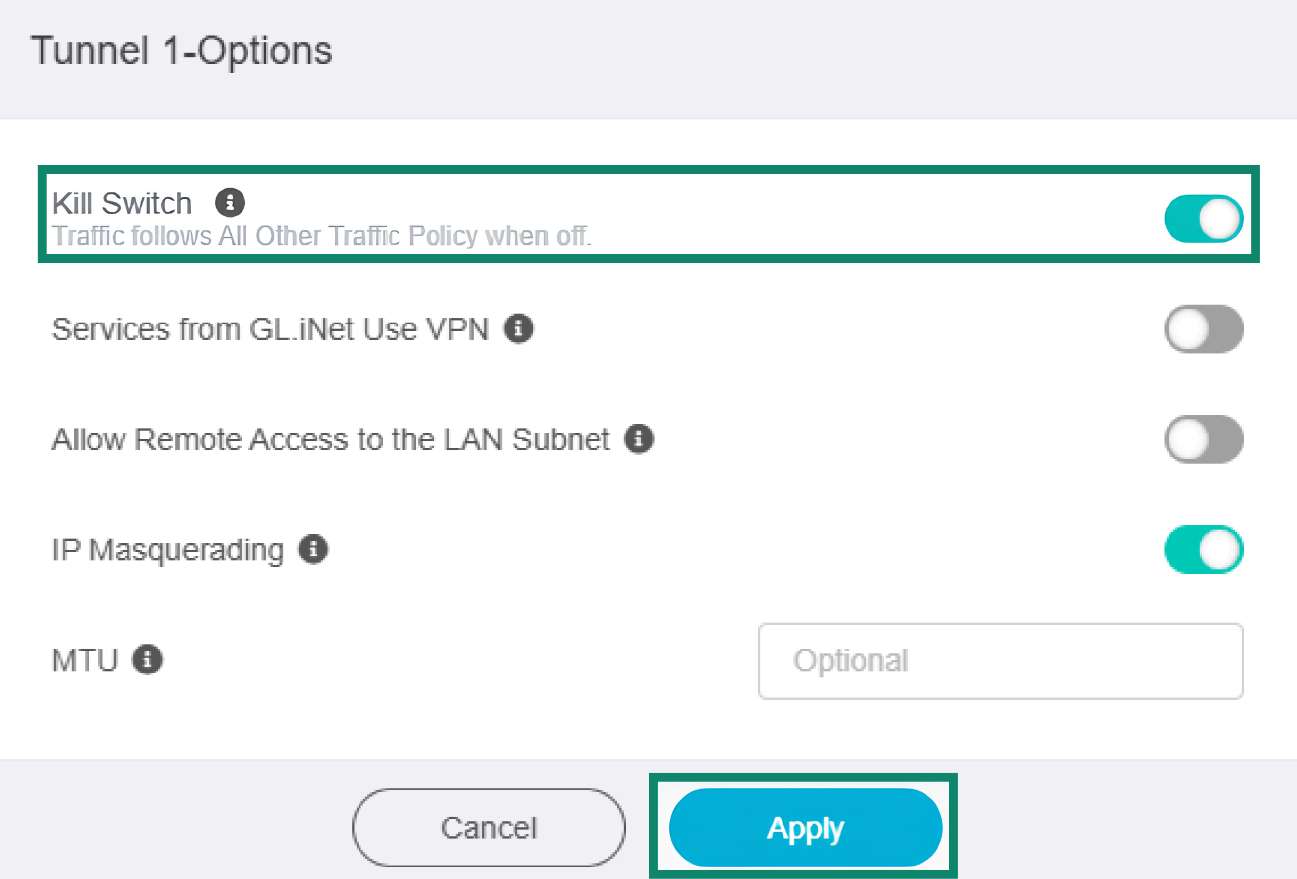
ExpressVPN’s Fortify kill switch fixes this issue by cutting off a device’s internet access whenever the VPN tunnel isn’t connected. Your guests will be offline until it’s back, but their browsing history won’t get tied to your home IP address by mistake.
Turning the kill switch on takes a few clicks. On your ExpressVPN Dashboard, click the guest tunnel’s gear icon, select Options, toggle on Kill Switch, and click Apply.
Check out our complete Fortify VPN tunnel guide for more information and tips, such as how to exclude specific websites from a tunnel.
Want to keep your home network separate from your guests?
ExpressVPN Fortify lets you create a separate guest Wi-Fi network, control access to your connected devices, and route guests' internet traffic through an encrypted VPN connection.
Secure your guest Wi-Fi with Fortify
Get Fortify with 12 months of ExpressVPN Advanced included for eligible customers.
What guest networks and VPNs don’t protect against
Guest Wi-Fi and a VPN tunnel can help protect both your primary network and your visitors’ online privacy. That said, it’s a good idea to let visitors know what they’re not protected from while connected.
-
Infected devices: A guest network keeps an infected device away from your main network, but it doesn’t stop malware from working (even when the network is covered by a VPN). Whatever the malware does online, such as sending a guest’s stolen passwords to an attacker, still happens. The VPN tunnel encrypts that traffic, but it doesn’t block it.
-
Malware downloads and phishing: Fortify’s router software includes AdGuard Home, which blocks ads and trackers. However, neither the VPN nor the router can block malware downloads from other sources or prevent someone from handing over their details to a scammer. If a guest uses your Wi-Fi frequently, encourage them to protect their device with antivirus software and to learn how to avoid phishing attacks.
-
Account logins: When guests log into a website or app, that service knows who they are and what they do there, even if their connection is covered by a VPN. The VPN hides their browsing from your ISP and hides your IP address from the site or app, but it can’t hide their activity from the service they’re logged into.