Many websites ask for your location by sending you a location request. To maintain your privacy, you can disable location sharing in your browser.

Note: Even with location sharing turned off, some websites can use information such as your IP address to estimate your location. To hide your IP address, use a VPN to browse privately.

Jump to…

Google Chrome
Mozilla Firefox
Microsoft Edge
Safari
Opera
Brave


Google Chrome

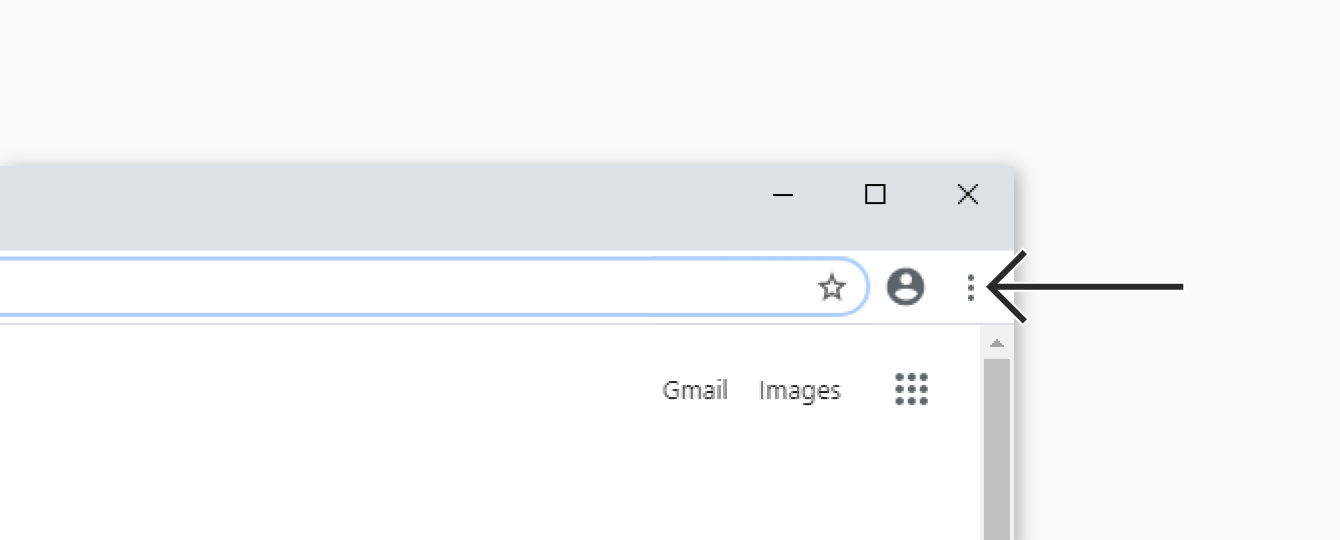
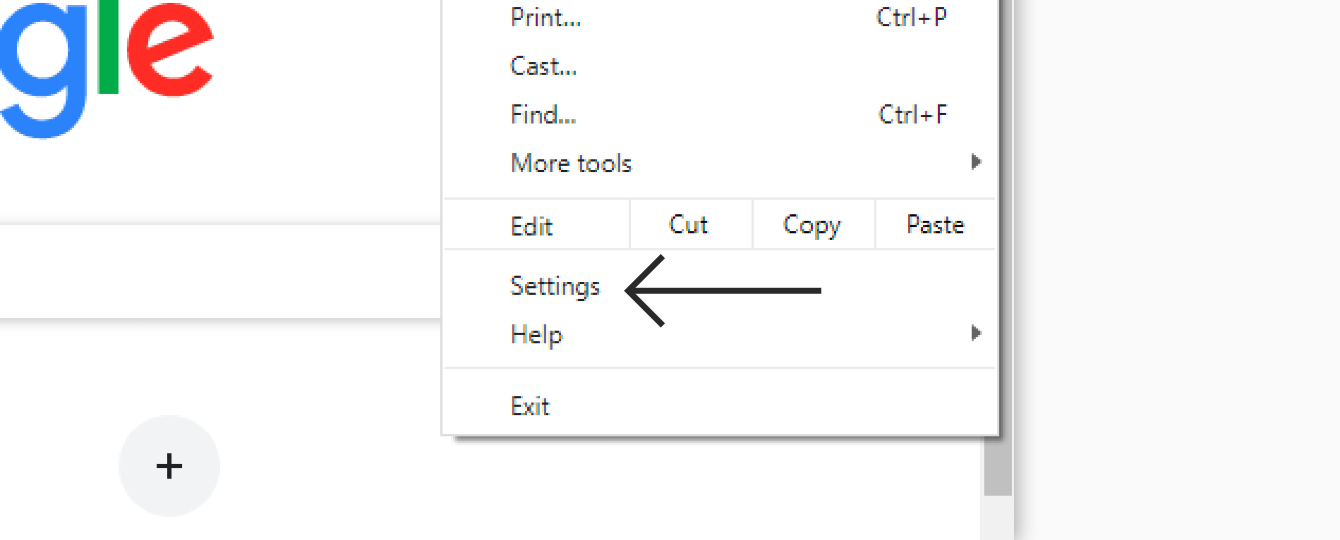
  1. In Chrome, click the three-dot menu in the top-right corner, and select Settings.Chrome menu open on Mac with Settings option highlighted
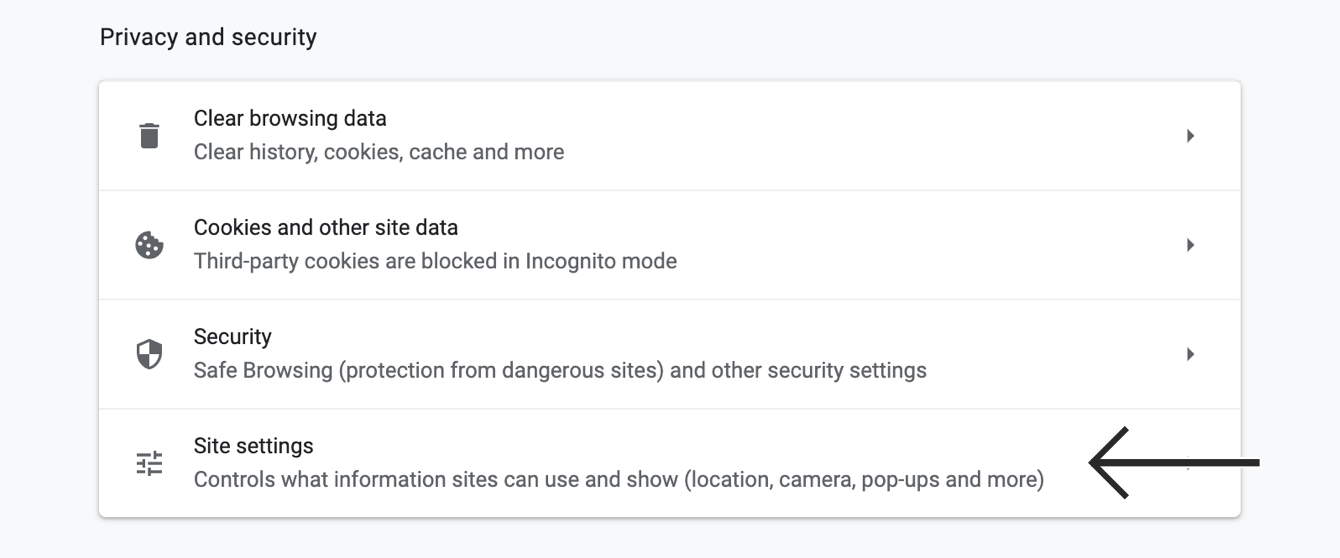
  2. In the left sidebar, click Privacy and security, then click Site settings.Chrome Privacy and security settings page with Site settings option highlighted
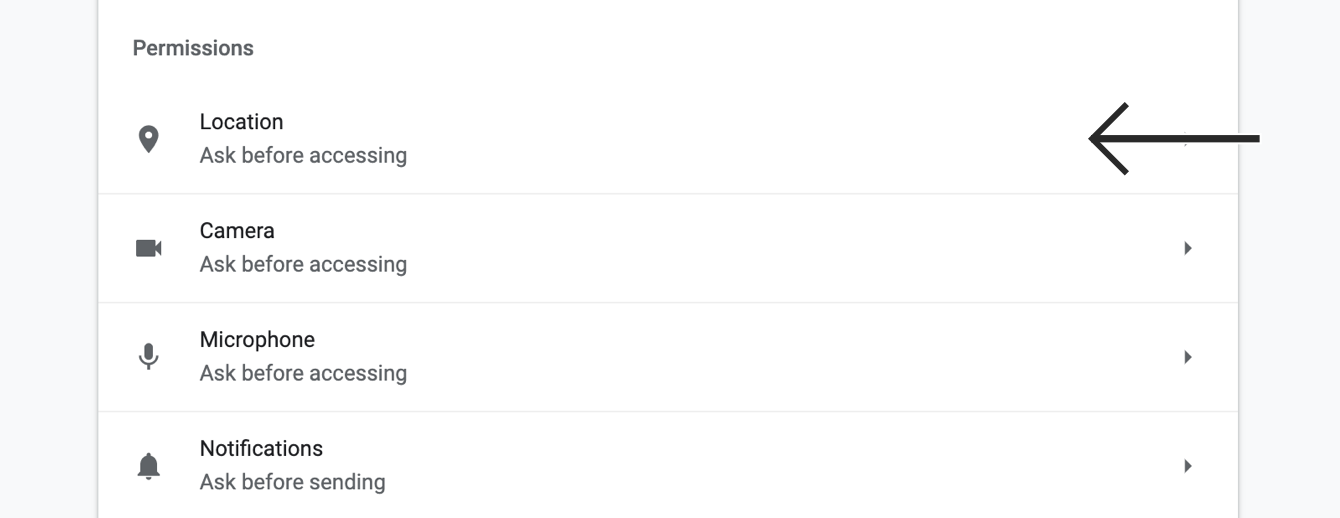
  3. Under Permissions, click Location.Chrome Site settings Permissions section with Location option highlighted
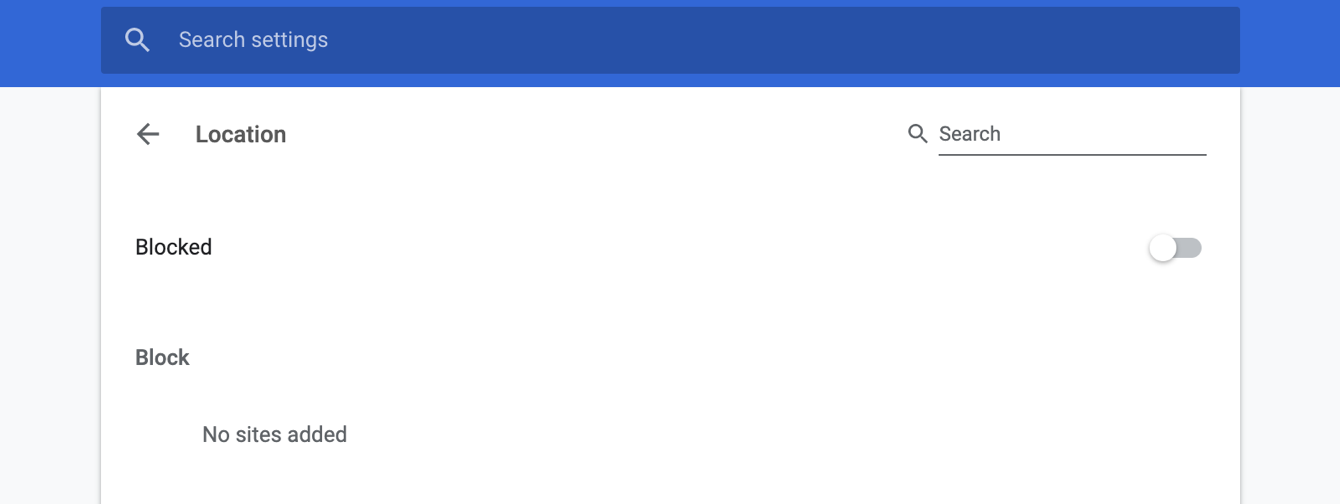
  4. Under Default behavior, select Don’t allow sites to see your location.Chrome Location settings page with Don't allow sites to see your location option selected

Location access for Chrome is managed in your device’s iOS settings.

  1. Open the Settings app.
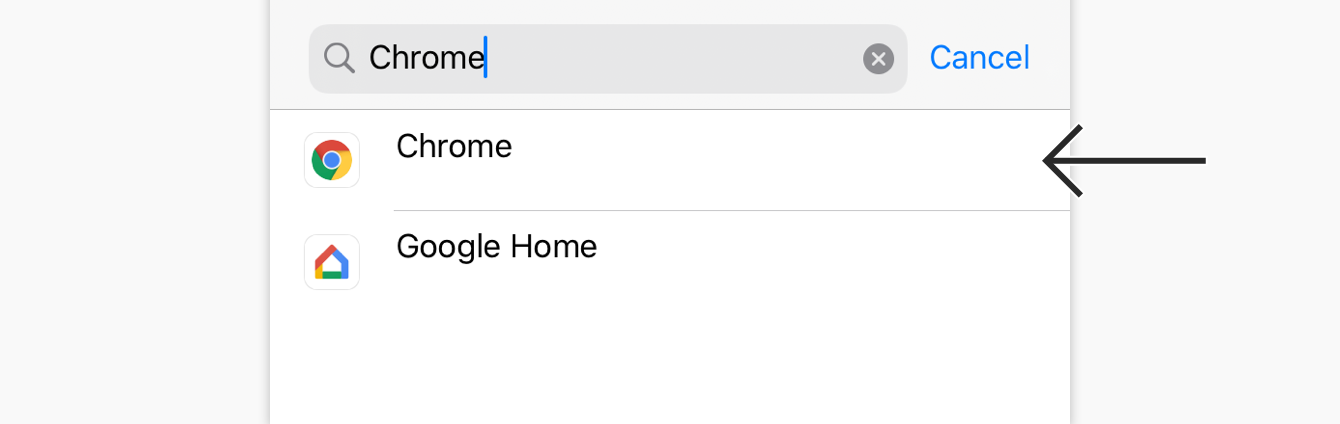
  2. Tap Apps, then tap Chrome.iPhone Settings menu with Apps highlighted, and Apps list showing Chrome highlighted
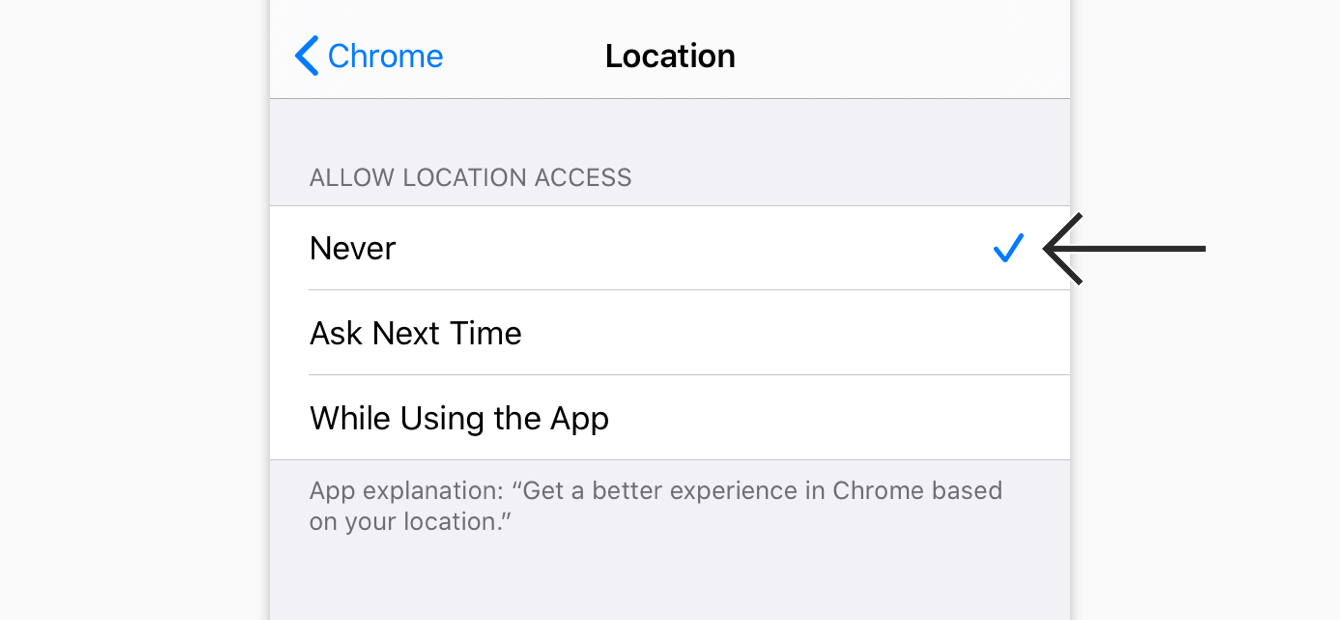
  3. Tap Location, then select Never.iPhone Chrome app settings with Location row highlighted, and Location screen showing Never selected

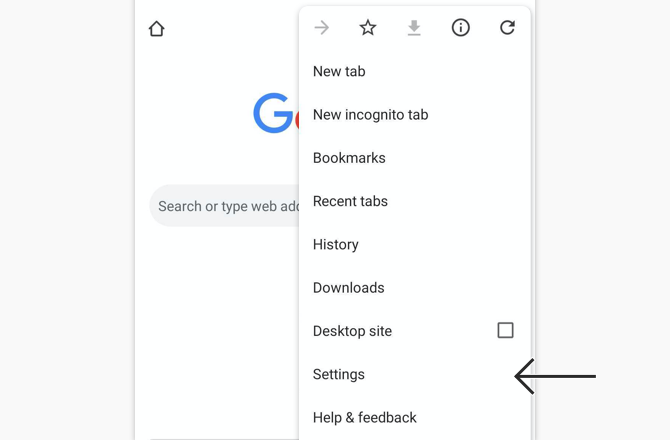
  1. In the Chrome app, tap the three-dot menu in the top-right corner.Chrome on Android dropdown menu with Settings option highlighted near the bottom
  2. Tap Settings.Chrome on Android dropdown menu with Settings option highlighted near the bottom
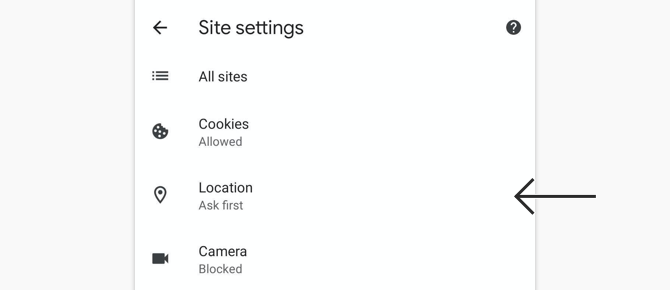
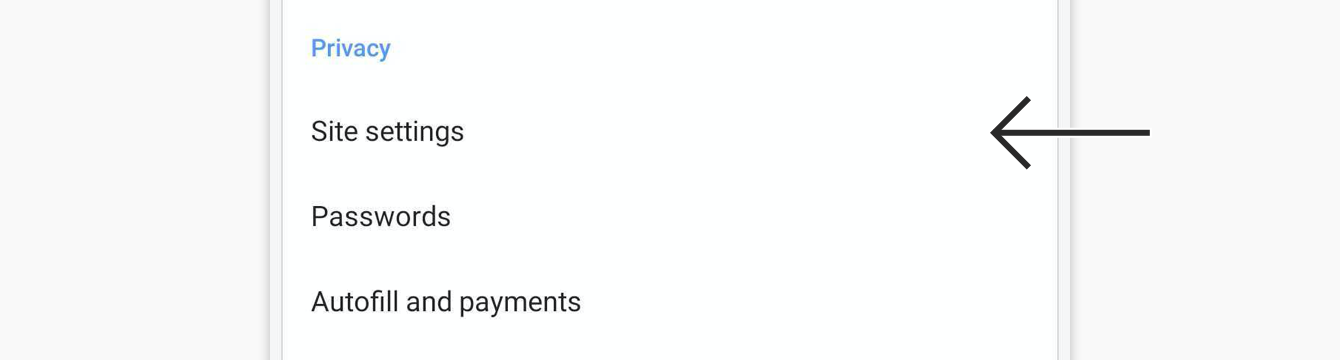
  3. Under Advanced, tap Site settings.Android Chrome Settings page with Site settings highlighted
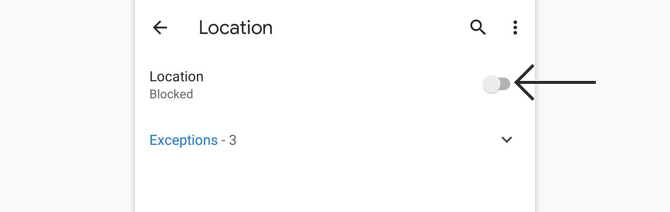
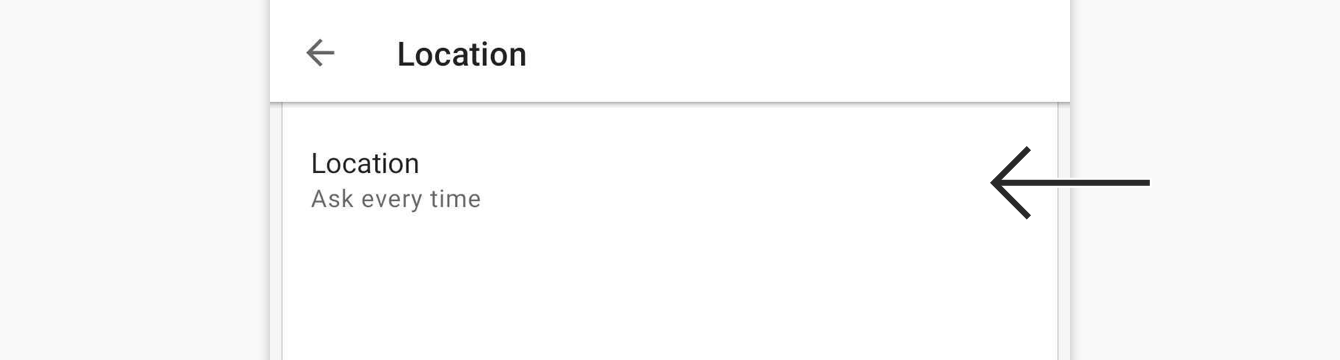
  4. Tap Location, and select Don’t allow sites to see your location.Android Chrome Location settings with Don’t allow sites to see your location selected

Need help? Contact the ExpressVPN Support Team for immediate assistance.

Back to top


Mozilla Firefox

  1. In Firefox, click the hamburger menu icon in the top-right corner.Firefox on Mac with hamburger menu icon highlighted in the top right corner
  2. Select Settings.Firefox on Mac main menu with Settings option highlighted
  3. In the left sidebar, click Privacy & Security, then scroll down to Permissions and click Location.Firefox Privacy & Security settings with Location option highlighted under Permissions
  4. Check the box for Block new requests asking to access your location, and click Save Changes.Firefox Location Permissions dialog with Block new requests asking to access your location checked
Note: Existing site permissions remain active. To remove a site that already has access, select it from the list and click Remove Website before saving.

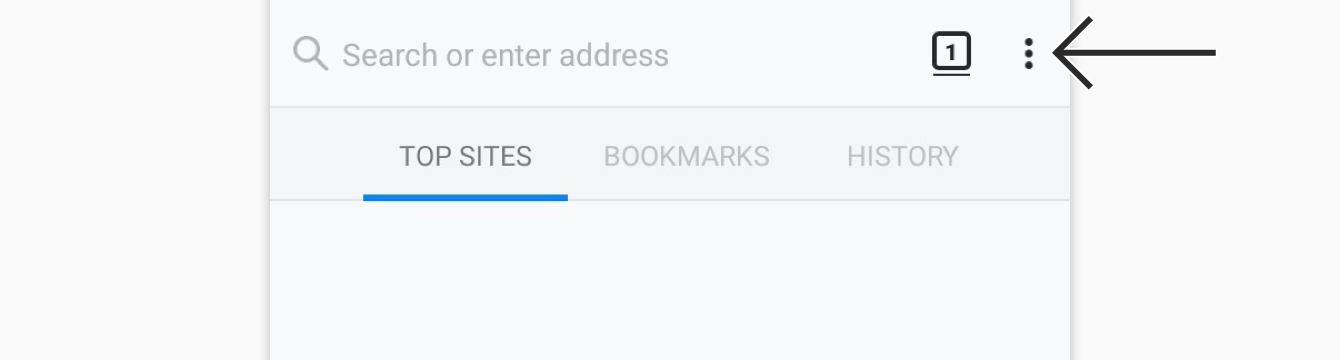
  1. In the Firefox app, tap the three-dot menu icon.Firefox on Android homepage with three-dot menu icon highlighted
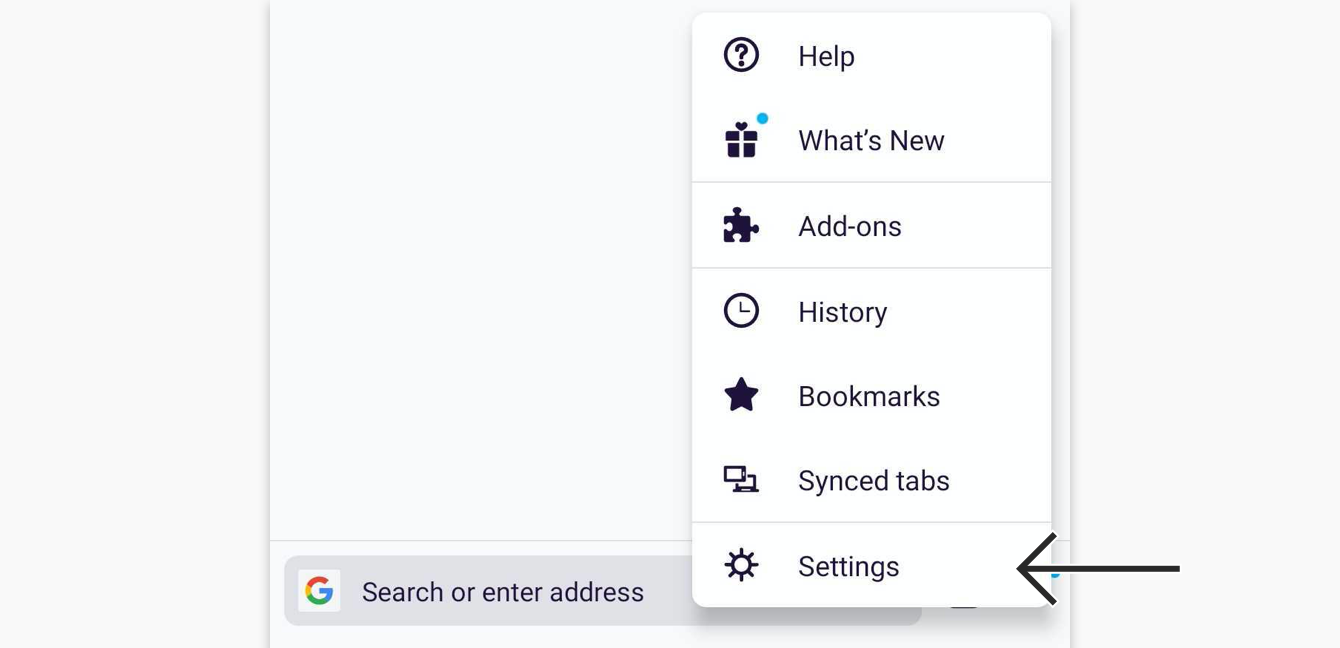
  2. Tap Settings.
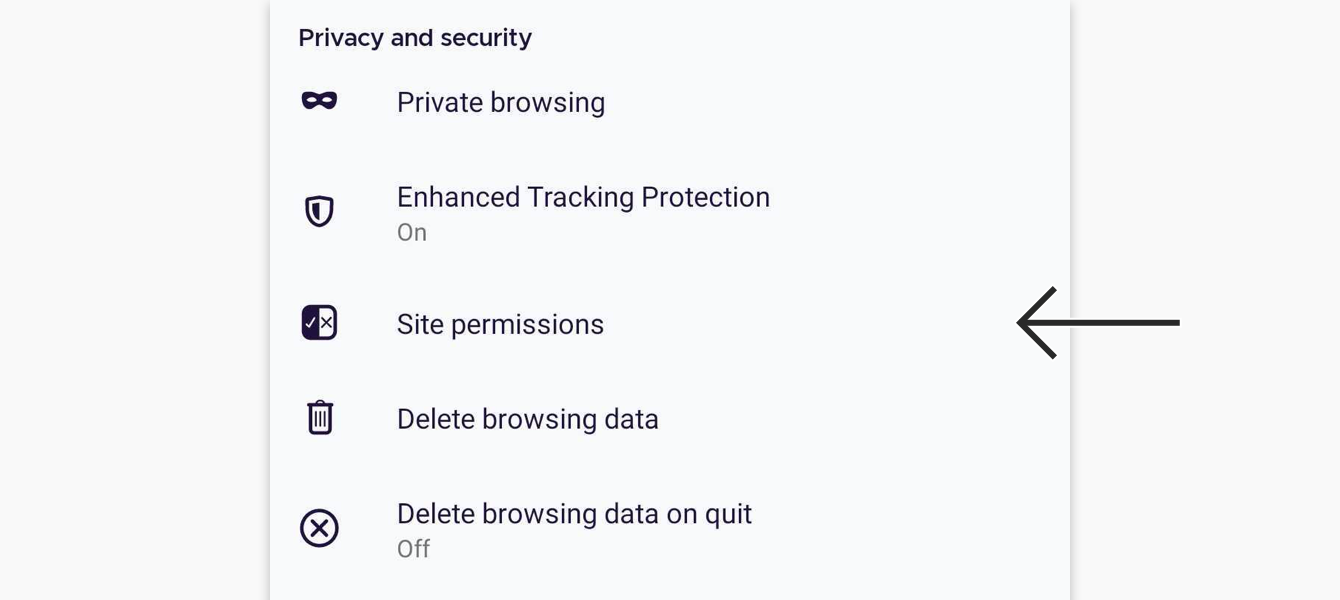
  3. Under Privacy and security, tap Site settings.Firefox on Android Settings page with Site settings highlighted
  4. Tap Location.Firefox on Android Site settings with Location highlighted under Permissions
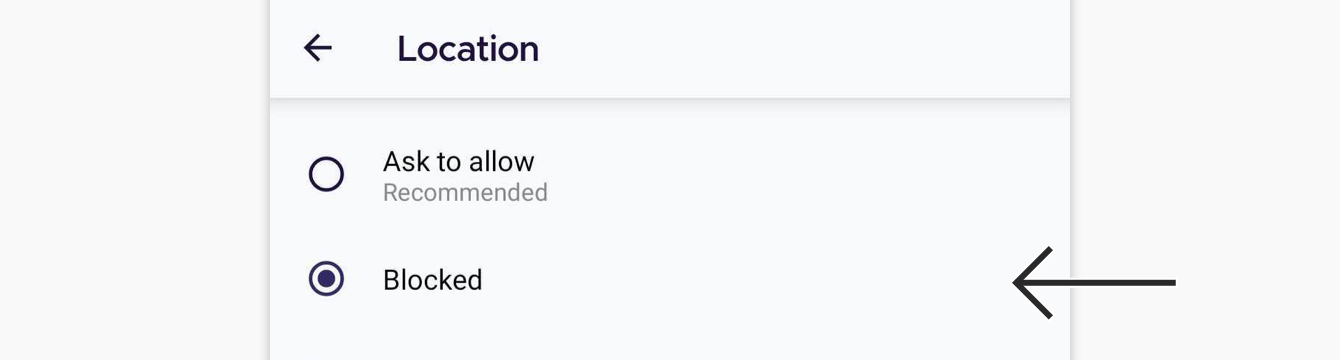
  5. Tap Blocked.Firefox on Android Location settings with Blocked option selected

Firefox on iOS does not have a setting to disable location sharing within the app. To prevent Firefox from accessing your location, manage the permission in your device settings:

  1. Open the Settings app.
  2. Tap Apps, then tap Firefox.Apps list on iPhone settings with Firefox highlighted
  3. Tap Location, then select Never.iPhone Firefox app settings with Location selected and Location screen showing Never enabled

Need help? Contact the ExpressVPN Support Team for immediate assistance.

Back to top


Microsoft Edge

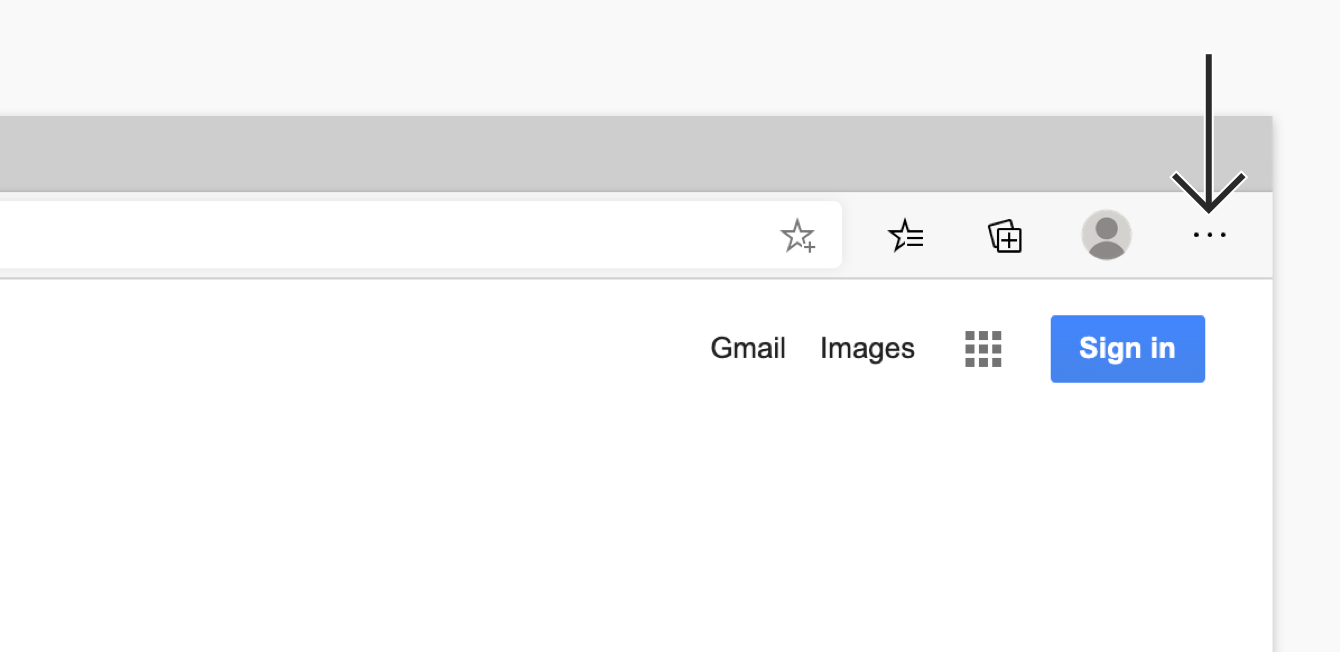
  1. In Edge, click the three-dot menu in the top-right corner.Edge on Mac with three-dot menu icon highlighted in the top right corner
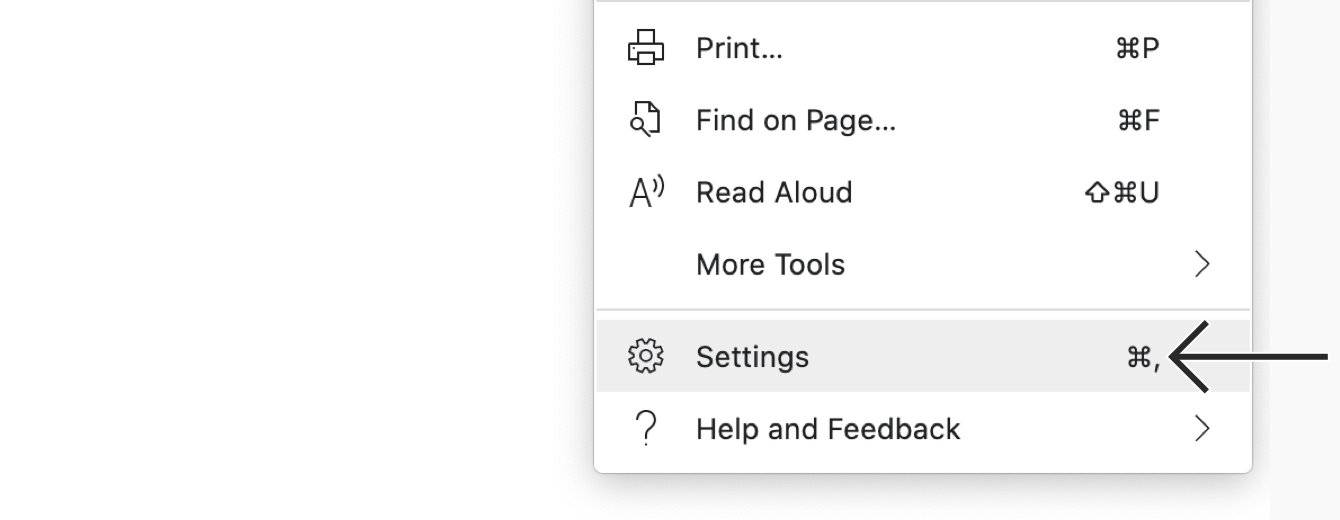
  2. Select Settings.Edge on Mac main menu with Settings highlighted
  3. In the left sidebar, click Privacy, search, and services, then click Site permissions.Edge Privacy, search, and services settings with Site permissions highlighted
  4. Click All permissions.Edge Site permissions page with All permissions highlighted
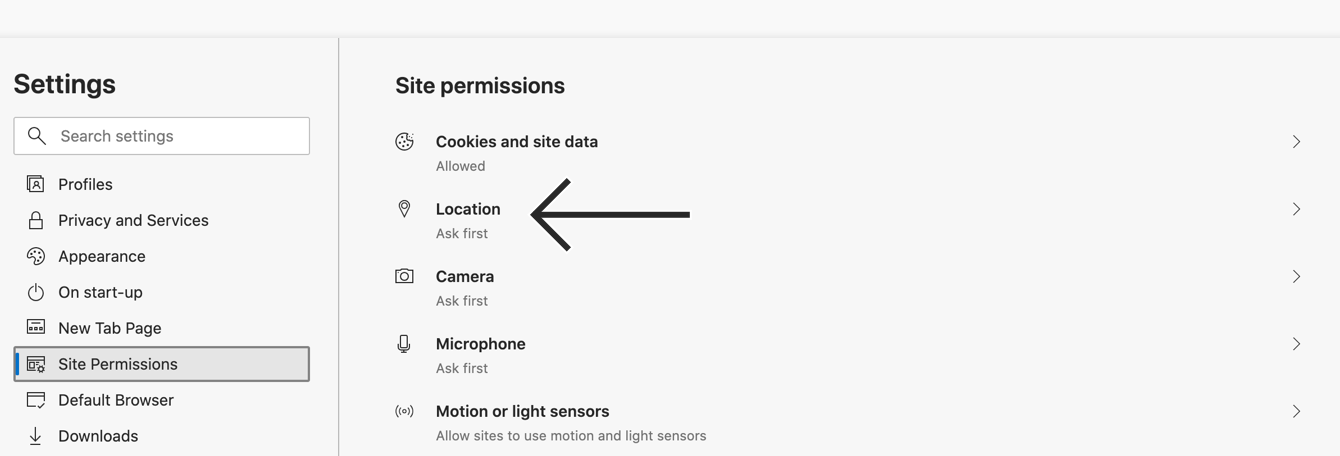
  5. Click Location.Edge All permissions page with Location highlighted
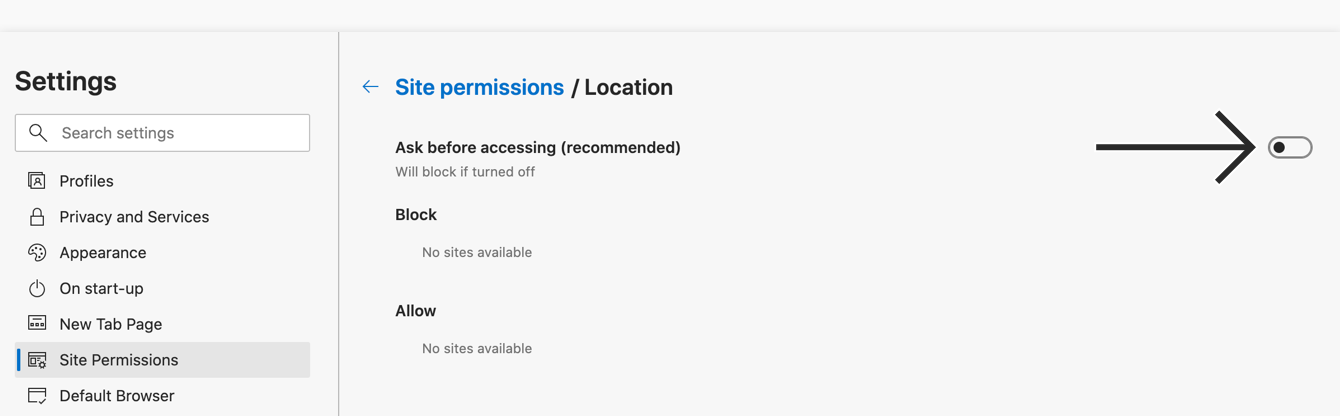
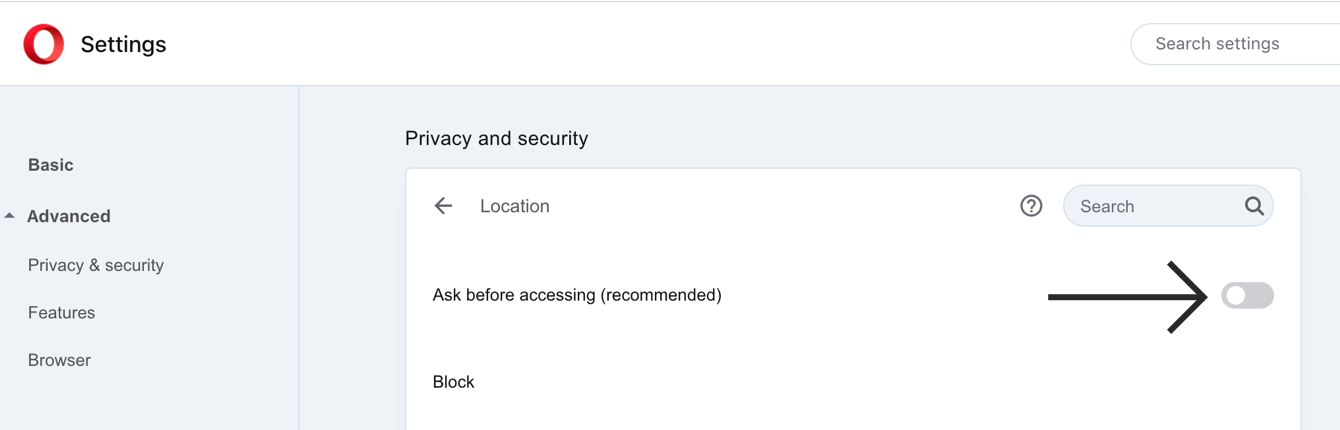
  6. Toggle Ask before accessing (recommended) off.Edge Location settings with Ask before accessing toggled off

On Android

  1. In the Edge app, tap the hamburger menu icon  in the bottom-right corner.Edge on Android homepage with three-line menu icon highlighted
  2. Tap Settings.Edge on Android menu with Settings highlighted
  3. Scroll down and tap Site settings, then tap Site permissions.Edge on Android Settings page with Site settings selected and Site permissions highlighted
  4. Tap Location.Edge on Android Site settings page with Location highlighted under Permissions
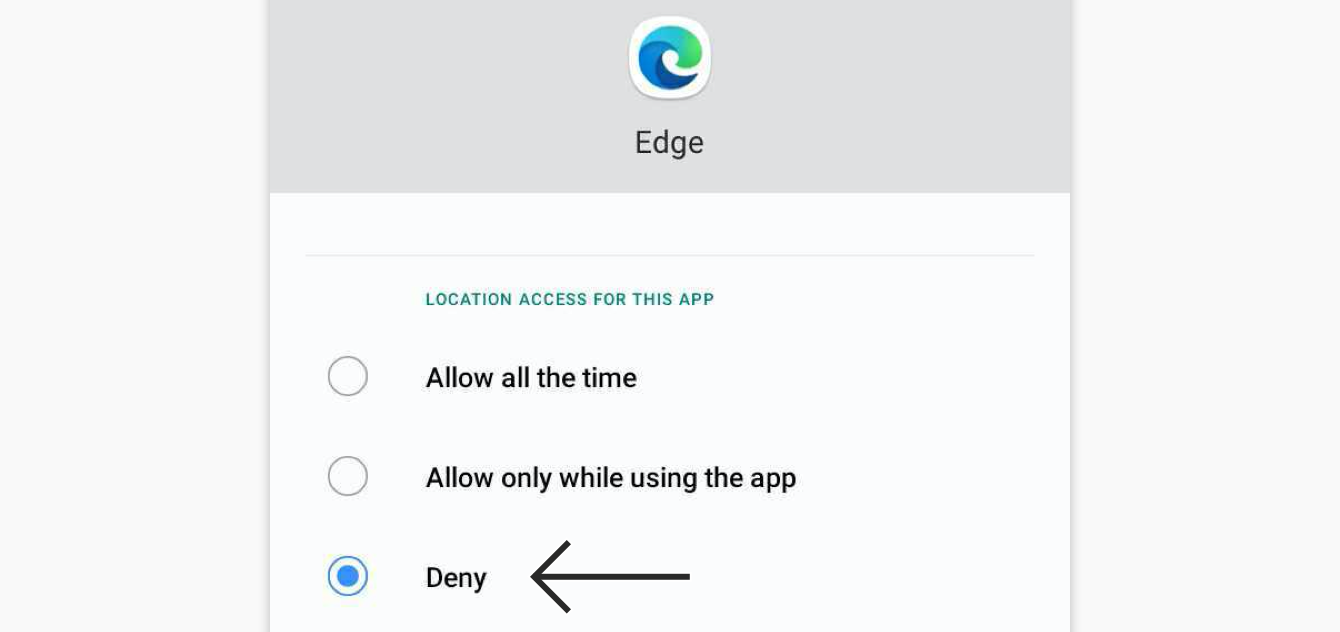
  5. Select Don’t allow sites to see your location.Edge on Android Location settings with Don't allow sites to see your location selected
Note: Edge on iOS does not have a setting to disable location sharing.

Need help? Contact the ExpressVPN Support Team for immediate assistance.

Back to top


Safari

  1. Open Safari.
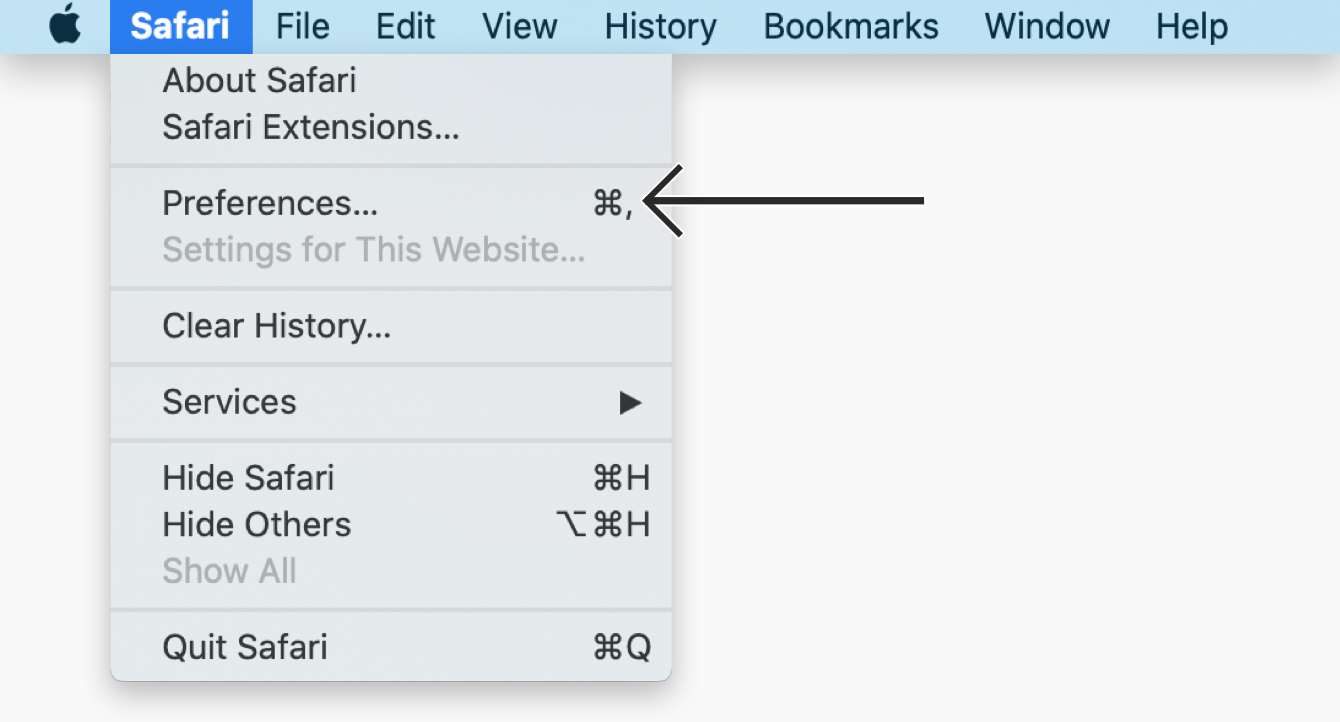
  2. From the menu bar, click Safari > Settings.Safari on Mac top menu with Settings option highlighted
  3. Click the Websites tab. In the left sidebar, click Location. Next to When visiting other websites, select Deny.Safari Websites preferences with Location selected and When visiting other websites set to Deny

To revoke location access for sites you have previously allowed, select the site in the list and choose Deny from the dropdown menu.

  1. Open the Settings app.
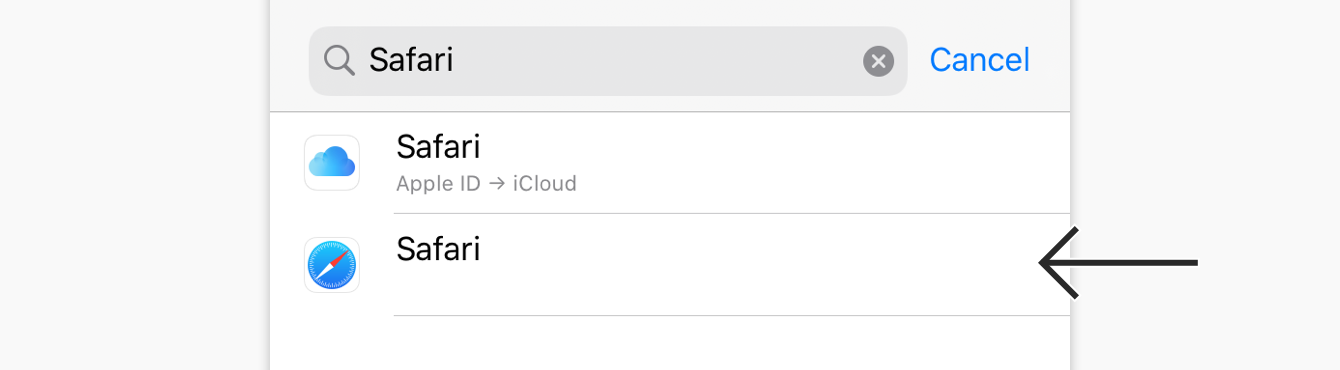
  2. Tap Apps, then tap Safari.iPhone Settings menu with Apps selected and Apps list showing Safari highlighted
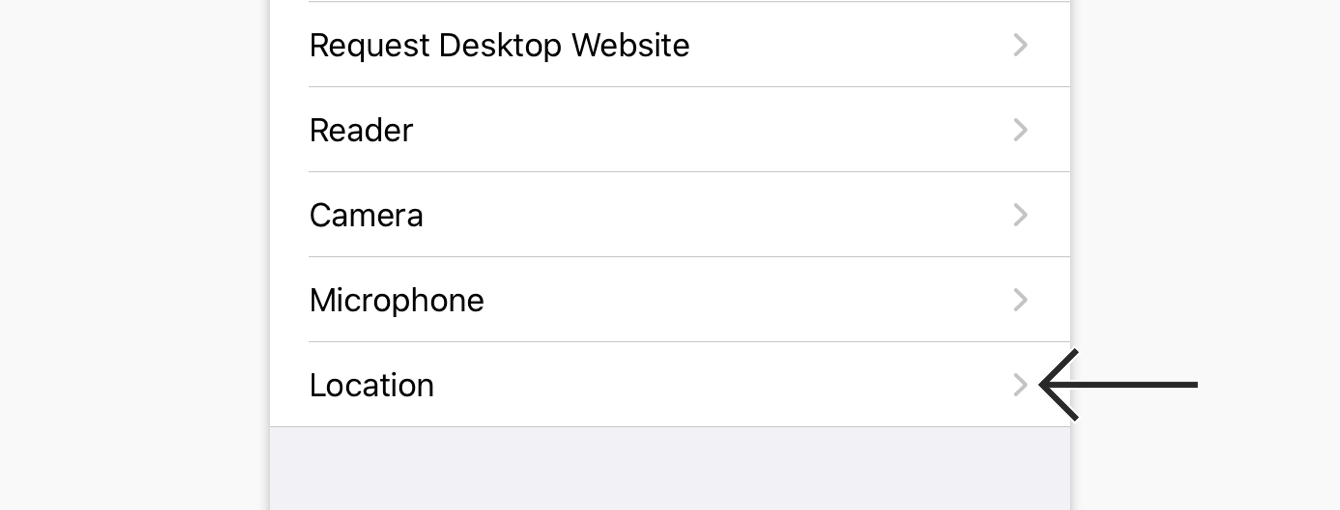
  3. Scroll down to Settings for Websites, then tap Location.iPhone Safari settings page with Location highlighted under Settings for Websites
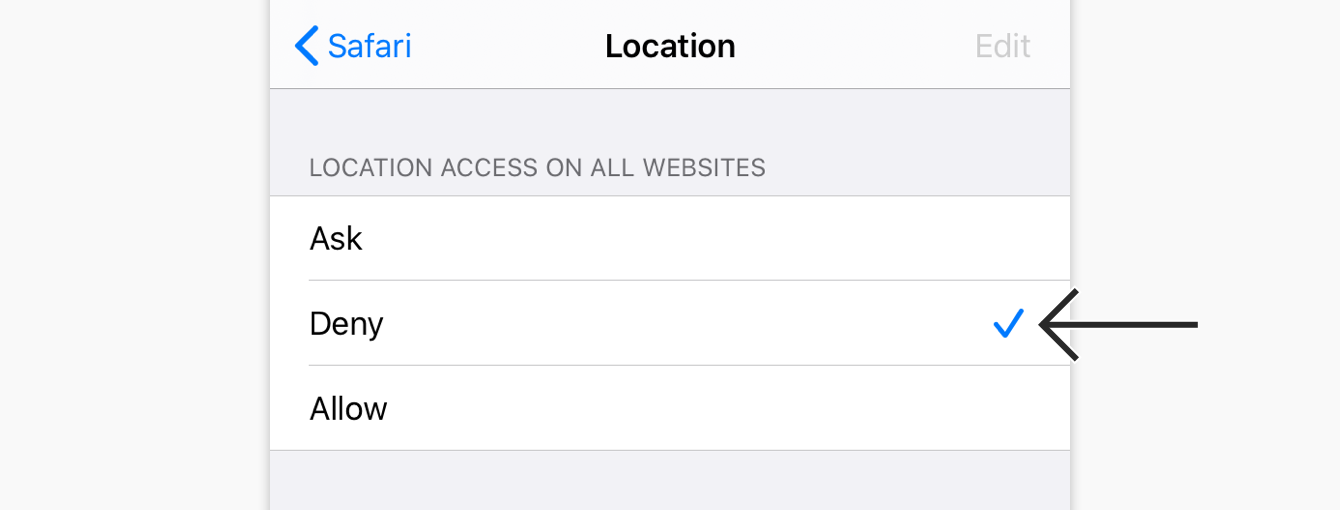
  4. Tap Deny.iPhone Safari Location settings with Deny selected under Location Access On All Websites

Need help? Contact the ExpressVPN Support Team for immediate assistance.

Back to top


Opera

  1. In Opera, click the three-dot menu in the bottom-left corner of the sidebar.Opera on Mac sidebar with three-dot icon highlighted at the bottom left
  2. Click Settings.Opera on Mac sidebar setup panel with Settings option highlighted
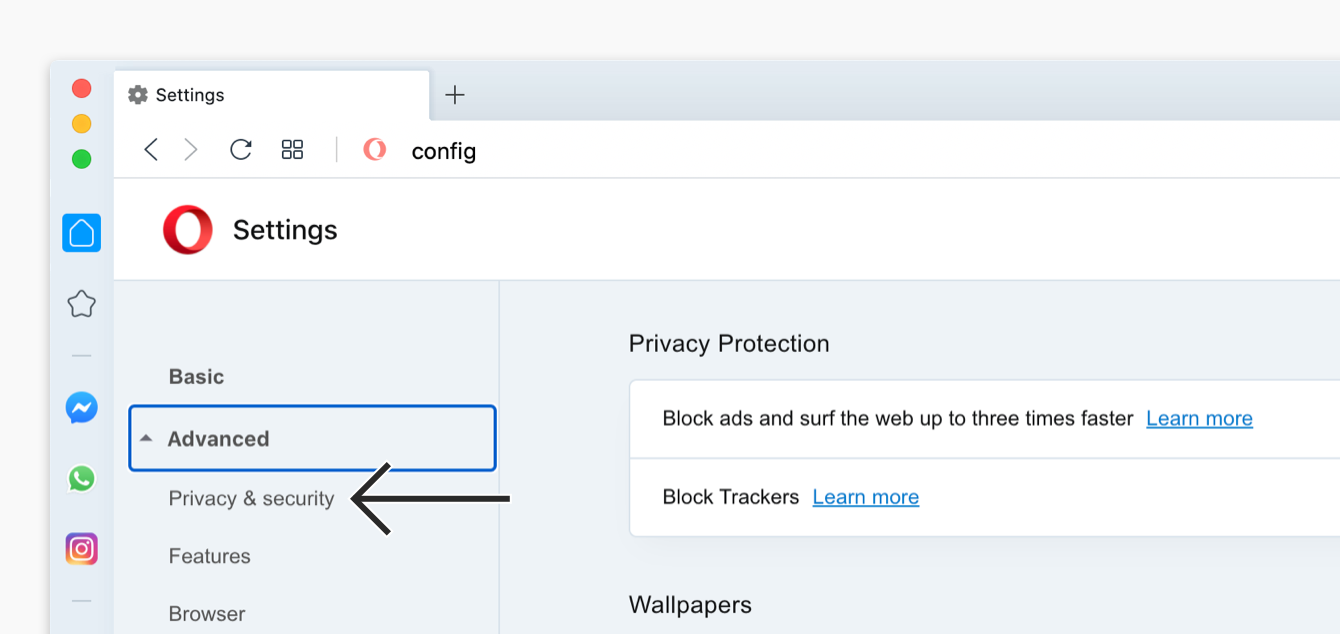
  3. In the left sidebar, click Privacy & security, then click Site Settings.Opera Privacy & security settings with Site settings highlighted
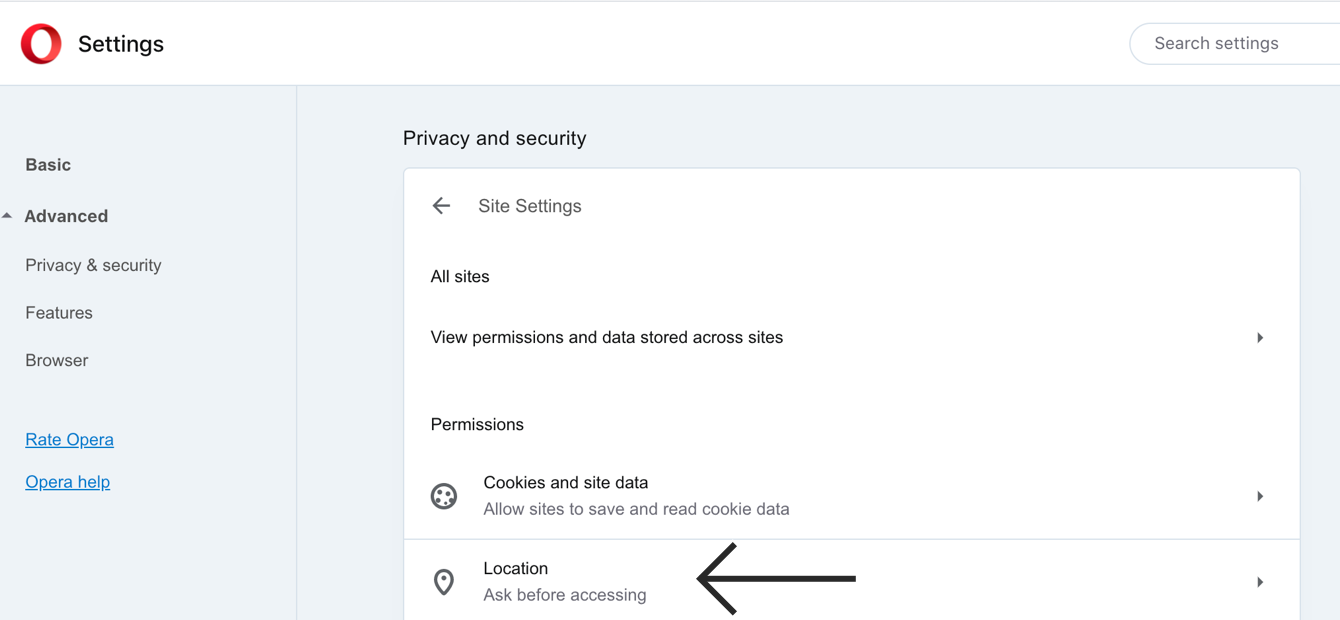
  4. Under Permissions, click Location.Opera Site settings page with Location highlighted under Permissions
  5. Under Default behavior, select Don’t allow sites to see your location.Opera Location settings with Don't allow sites to see your location selected

  1. In the Opera app, tap the profile icon in the bottom-right corner.Opera on Android homepage with profile icon highlighted in the bottom right
  2. Tap the gear icon.Opera on Android profile panel with settings gear icon highlighted
  3. Scroll down to and tap Privacy & security, then tap Site settings.Opera on Android Settings page with Privacy & security selected and Site settings highlighted
  4. Tap Location.Opera on Android Site settings page with Location highlighted under permissions list
  5. Tap Location again, and select Denied.Opera on Android Location settings with Denied selected
Note: Opera on iOS does not have a setting to disable location sharing.

Need help? Contact the ExpressVPN Support Team for immediate assistance.

Back to top


Brave

  1. In Brave, click the hamburger menu icon  in the top-right corner, and select Settings.Brave on Mac main menu with Settings option highlighted
  2. In the left sidebar, click Privacy and security, then click Site and Shields Settings.Brave Privacy and security settings with Site and Shields Settings highlighted
  3. Under Permissions, click Location.Brave Site and Shields Settings page with Location highlighted under Permissions
  4. Under Default behavior, select Don’t allow sites to see your location.Brave Location settings with Don't allow sites to see your location selected

  1. In the Brave app, tap the three-dot menu.Brave on Android homepage with three-dot menu icon highlighted
  2. Tap Settings.Brave on Android menu with Settings highlighted near the bottom
  3. Under General, tap Site settings.Brave on Android Settings page with Site settings highlighted
  4. Tap Location.Brave on Android Site settings page with Location highlighted under Permissions
  5. Select Don’t allow sites to see your location.Brave on Android Location settings with Don't allow sites to see your location selected
Note: Brave on iOS does not have a setting to disable location sharing.

Need help? Contact the ExpressVPN Support Team for immediate assistance.

Back to top

¿Le ha sido útil este artículo?

Lamentamos escuchar eso. Háganos saber cómo podemos mejorar.

Which web browser do you need help with?

Examples: Chrome, Firefox, Edge

Un miembro de nuestro equipo de soporte técnico le dará seguimiento a su problema.